
 View on Asset Store (opens in new tab)
Package details
- Latest version
- 1.1.1
- Last updated
- First released
- Unity version
- 2017.1.1 or later
- Package size
- 20 KB
- Files
- 6
- Favorites
- 207
- Views in the past week
- 25
Price tracking
- Last checked
- Tracked since
- Lowest recorded
- Free on
Flash Sprite Sheet Importer
Price Free
Get it free on Asset Store (opens in new tab)
Affiliate link · Purchases support this site
Price history
Last 6 months
USDAsset preview
1 / 3

Flash Sprite Sheet Importer screenshot 1


About this asset
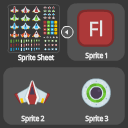
This tool allows to easily import and slice sprite sheets generated by Adobe Animate (Flash).
Adobe Animate Instructions
• Each sprite sheet can contain one or more movieclips.
• Export sprite sheets with their corresponding XML files (describing the location of all sprites).
• The Starling XML format now adds the possibility to use pivots from original movieclips.
Unity Instructions
• Get importer window by opening: Window -> Sprite Sheet Importer
• Get importer window by opening: Window -> Sprite Sheet Importer
• Then select a 2D Texture sprite sheet (alongside accompanying XML file).
• The Force Overwrite Pivot checkbox:
– Shows a pull down menu to manually select a pivot position.
– Can be used to ignore existing pivot data from the XML file.
• The Generate Animation checkbox:
– Creates an Animator for the sprite sheet.
– Also creates Animations for each animation movieclip.
– Shows a field to choose frames per second for those Animations.
– Shows a Generate GameObject checkbox which can be used to create a GameObject with the Animator.
– Warning: This function can overwrite previously generated elements without notice.
• Finally, press 'Import Sprites'.
For more details check out the video:
https://www.youtube.com/watch?v=zcgmO7sWdWk
Credits
This tool was created by James Prankard.
The Whitespace Trimming and XML Pivot implementation were added by Jonathan Tremblay (Cegep de Saint-Jerome).
Github
https://github.com/prankard/FlashSpriteSheetImporter
Adobe Animate Instructions
• Each sprite sheet can contain one or more movieclips.
• Export sprite sheets with their corresponding XML files (describing the location of all sprites).
• The Starling XML format now adds the possibility to use pivots from original movieclips.
Unity Instructions
• Get importer window by opening: Window -> Sprite Sheet Importer
• Get importer window by opening: Window -> Sprite Sheet Importer
• Then select a 2D Texture sprite sheet (alongside accompanying XML file).
• The Force Overwrite Pivot checkbox:
– Shows a pull down menu to manually select a pivot position.
– Can be used to ignore existing pivot data from the XML file.
• The Generate Animation checkbox:
– Creates an Animator for the sprite sheet.
– Also creates Animations for each animation movieclip.
– Shows a field to choose frames per second for those Animations.
– Shows a Generate GameObject checkbox which can be used to create a GameObject with the Animator.
– Warning: This function can overwrite previously generated elements without notice.
• Finally, press 'Import Sprites'.
For more details check out the video:
https://www.youtube.com/watch?v=zcgmO7sWdWk
Credits
This tool was created by James Prankard.
The Whitespace Trimming and XML Pivot implementation were added by Jonathan Tremblay (Cegep de Saint-Jerome).
Github
https://github.com/prankard/FlashSpriteSheetImporter
From the publisher's Asset Store listing.