
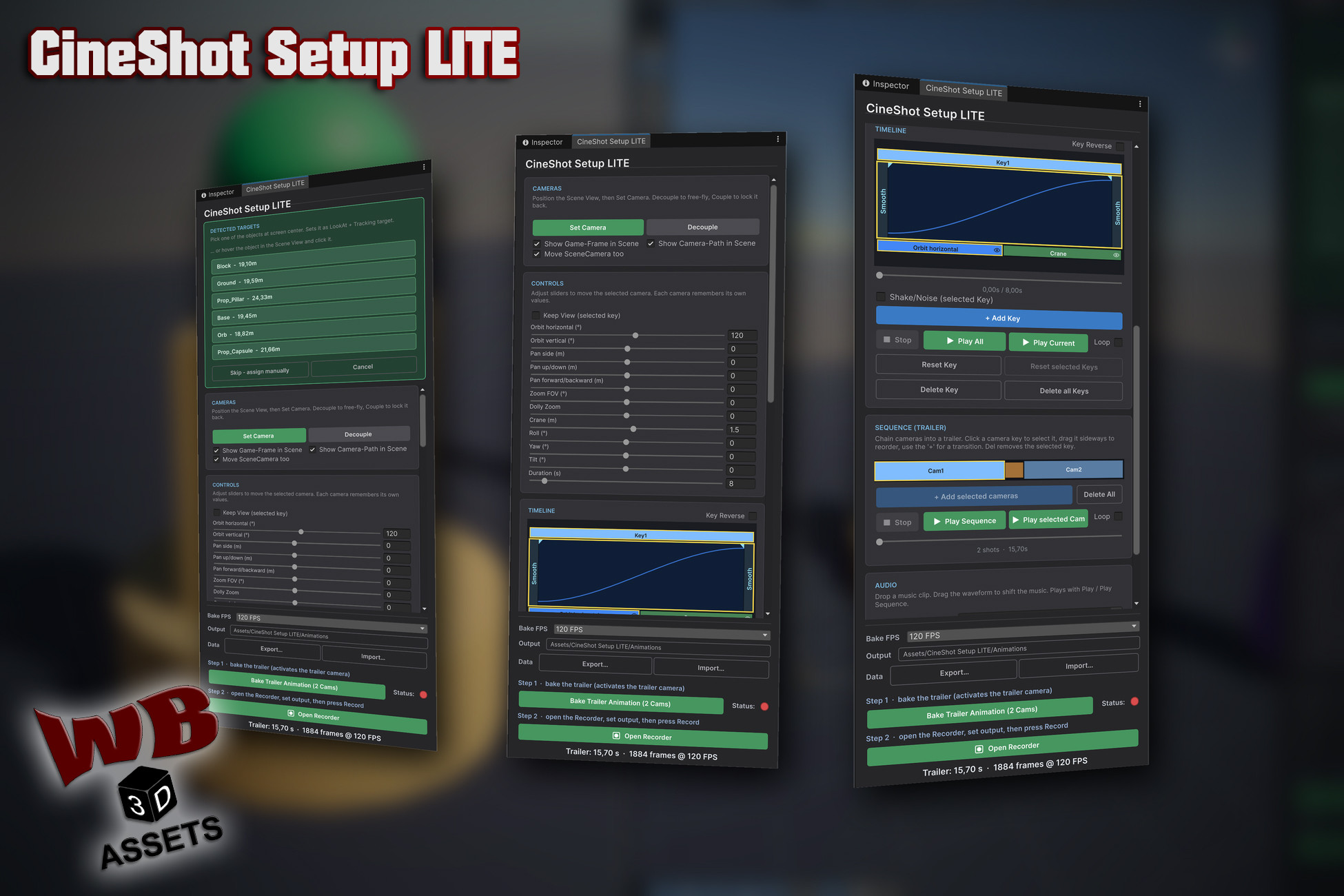
 View on Asset Store (opens in new tab)
Package details
- Latest version
- 1.0.0
- Last updated
- First released
- Unity version
- 6000.0.80 or later
- Package size
- 289 KB
- Files
- 41
- Favorites
- 1
- Views in the past week
- 24
Price tracking
- Last checked
- Tracked since
- Lowest recorded
- Free on
Keywords
CineShot Setup LITE
Free edition: build camera moves with sliders instead of keyframes, cut cameras into a trailer, bake to an AnimationClip and record to MP4. Limited to 2 cameras and 2 shots.
Affiliate link · Purchases support this site
Price history
Last 6 months
USDAsset preview
1 / 6
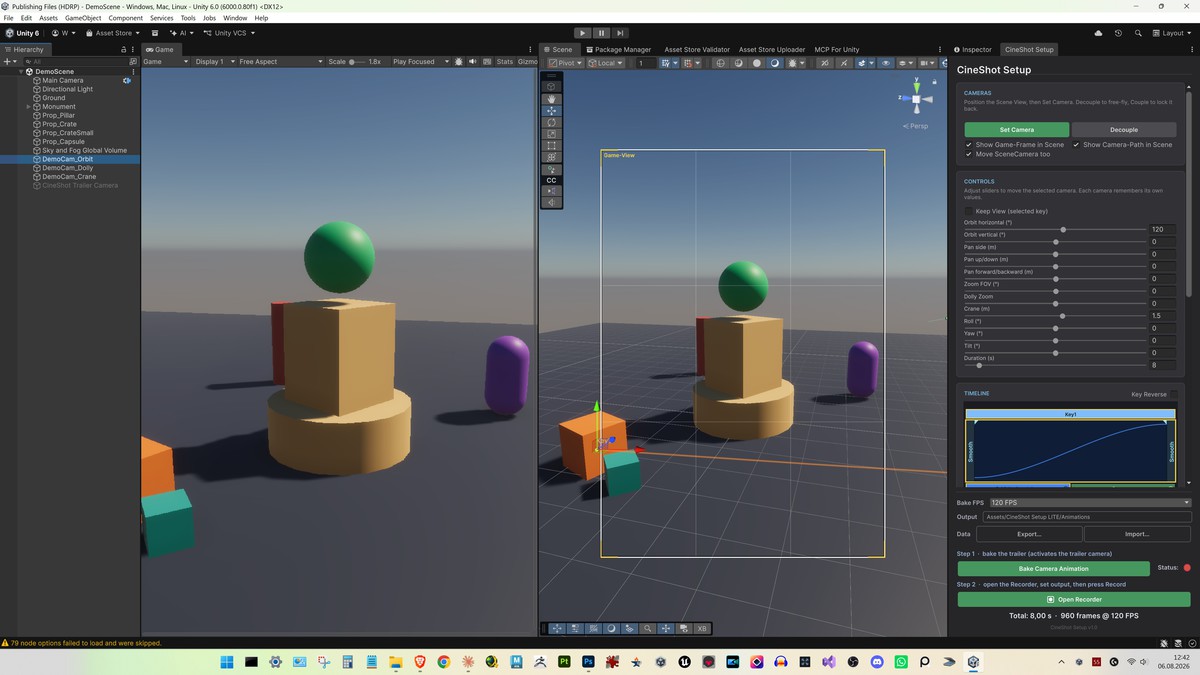
CineShot Setup LITE screenshot 1
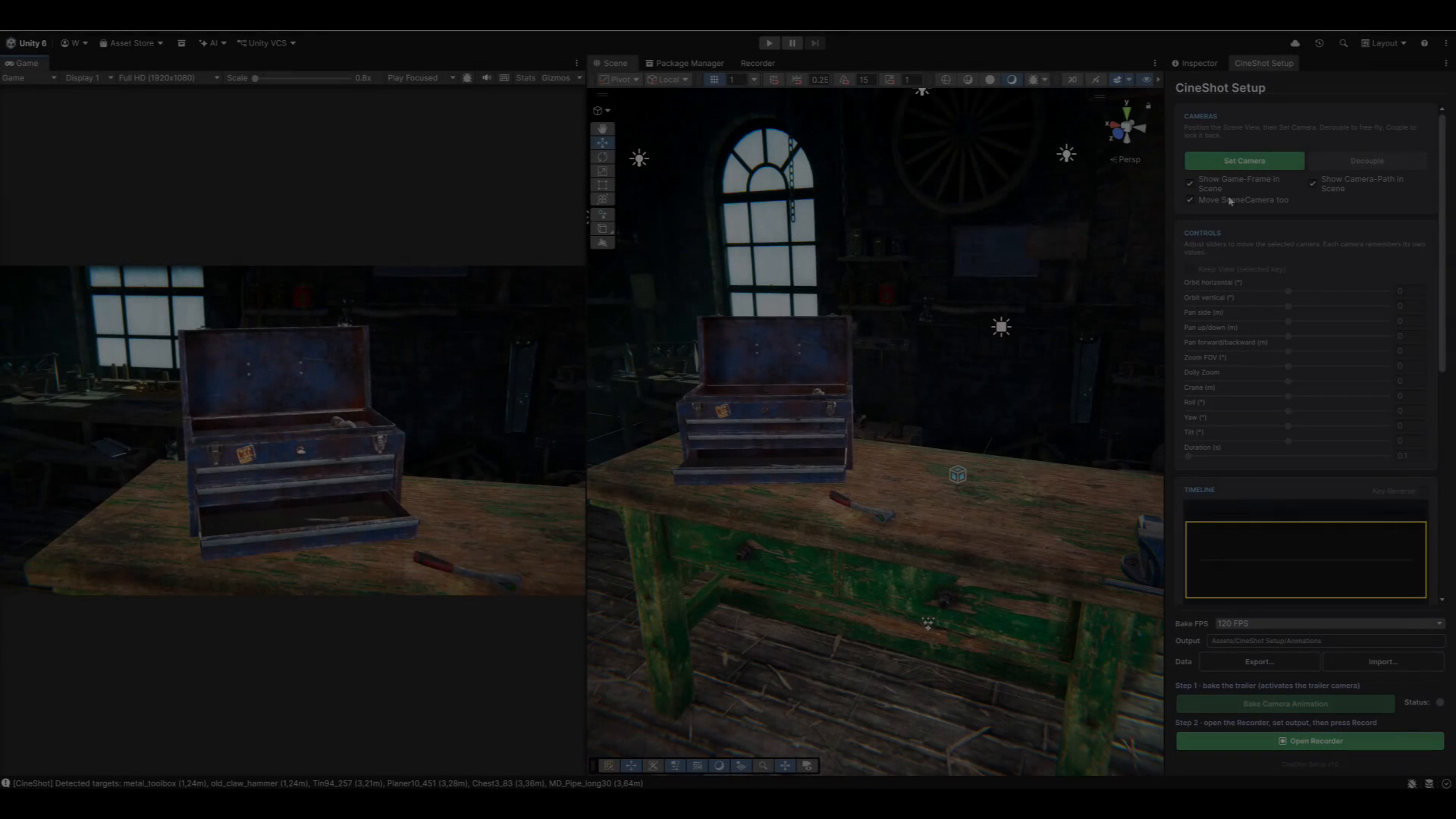
About this asset
🎬 CineShot Setup LITE
CineShot Setup LITE is the free edition of CineShot Setup, a Unity editor tool for
authoring camera moves without keyframing. Position the Scene View, press Set Camera,
and shape the shot with sliders: orbit, crane, pan, dolly zoom, roll. Every move you
like becomes a key; the sliders reset to zero and the next move continues from there.
What normally means wrestling with the Animation window, tangents and dolly tracks
becomes a handful of slider drags.
Everything happens in one dockable window (Tools > CineShot Setup LITE): author the
shot, shape its timing on a key timeline, cut several cameras into a trailer with
transitions and music, bake the result to a standard AnimationClip, and hand it to
Unity's Recorder for an MP4.
🆓 What LITE Includes
This is the complete tool with two limits: you can create 2 cameras with Set Camera,
and a sequence can hold 2 shots. Every feature below works without restriction. No
watermark, no time limit, no account.
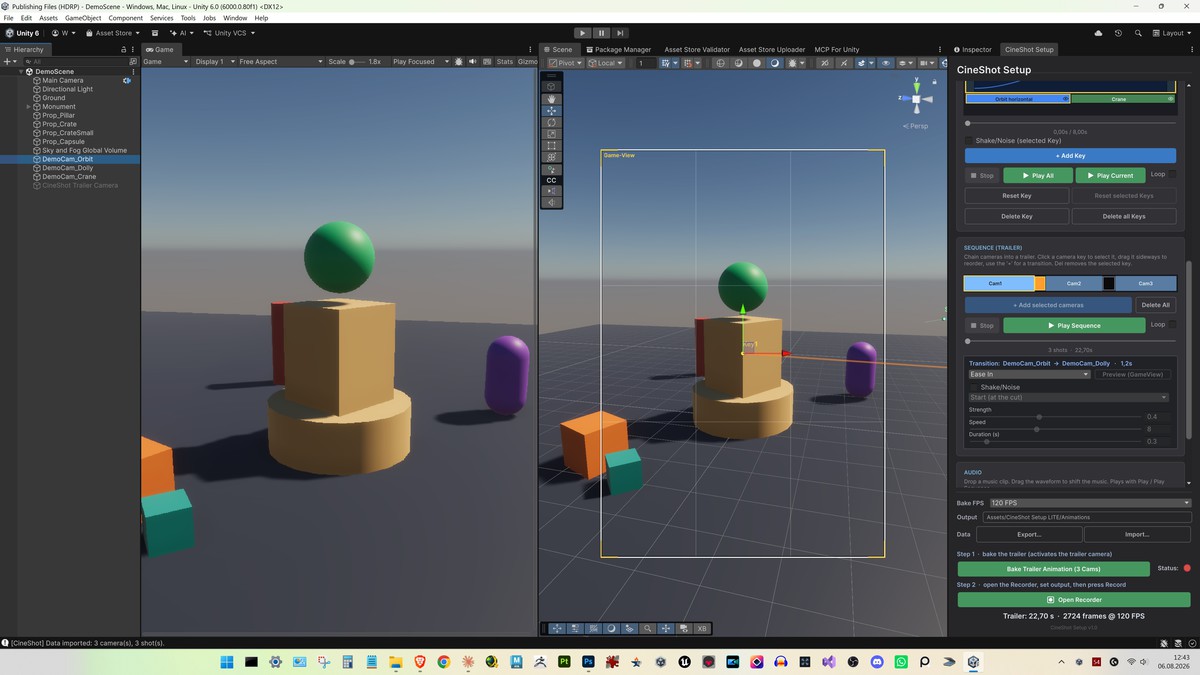
The video and screenshots show the full version, which is why you see more cameras
than the free edition allows.
✨ Key Features
🎥 Camera Setup
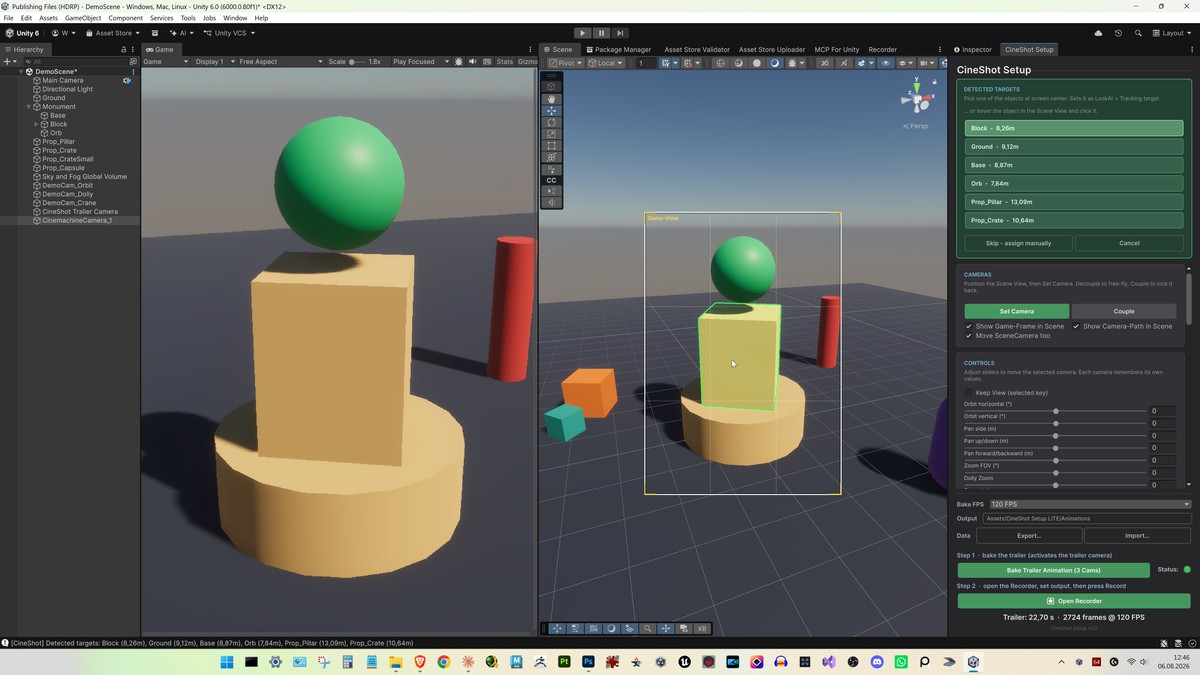
- Set Camera creates a CinemachineCamera at the current Scene-View
position
- Automatic look-at detection: pick a target from the detected list,
or hover the object directly in the Scene View and click it
- Pivot taken from the object's mesh bounds; LOD parts resolve to
their root object
- Decouple / Couple to free-fly and lock back
- Optional Scene-View overlays: game frame and camera path
- Every camera remembers its own moves
🎚️ Slider-Based Moves
- Orbit horizontal and Orbit vertical (°)
- Crane (m), Pan side, Pan up/down, Pan forward/backward (m)
- Zoom FOV (°) and Dolly Zoom (the vertigo effect)
- Roll, Yaw, Tilt (°) and Duration (s)
- Hold Shift while dragging for 10x finer steps (0.001 grid), Ctrl
for 10x faster travel
- Keep View holds the framing while the camera travels
- Sliders are relative tools: they move the live camera away from its
start pose, then + Add Key snapshots that pose
⏱️ Timeline & Timing
- Key bars proportional to their duration, drag to change length
- Ease per key, cycled with one click: Smooth → Linear → Slow → Fast
- Separate ease-in / ease-out phase lengths, draggable as flags right
in the key bar
- Key Reverse plays a key backwards, easing mirrored in time
- Per-channel mute via the eye icon, values stay intact and editable
- Shake/Noise per key: strength, speed, window (full length, start or
end) and length, with a Game-View preview
- Continuity linter flags keys whose start jumps, with a plain-language
fix hint
- Playhead scrubbing, Play All / Play Current, loop, Shift multi-select
🎞️ Sequence (Trailer)
- Chain cameras into one trailer
- Drag camera keys sideways to reorder the shots
- Transitions: Cut, Linear, Ease In, Ease Out, Ease In-Out, Fade Black
- Transition duration by dragging, in 0.1 s steps
- Impact shake per transition, anchored at the cut or after the blend,
with preview
- Play the whole sequence in the editor, with loop
- Play selected Cam right next to Play Sequence, to compare one
camera against the full trailer
- Clicking a shot jumps the time slider to that camera's start
- Playback also works in Play Mode, so you can watch moves together
with particles and VFX that only simulate while the game runs
🔊 Audio
- Drop in a music clip and drag the waveform to shift it
- Plays along with Play and Play Sequence, scheduled and drift-locked
- Ends up in the recording if your Recorder preset captures audio
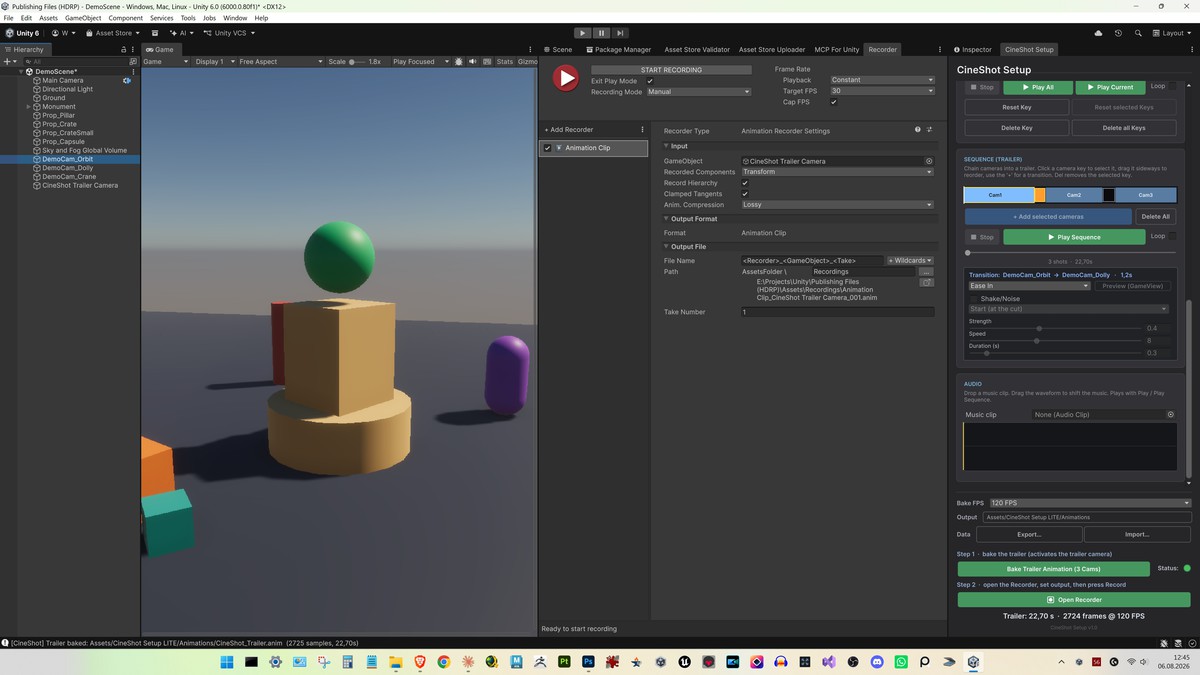
🎬 Bake & Record
- Bakes to a standard AnimationClip + AnimatorController
- Single camera, or a full multi-camera trailer baked onto a generated
trailer camera
- Selectable bake FPS and output folder
- Bake status light: red = not baked or the baked result was deleted,
yellow = changed since the bake, green = up to date
- Bake info shows the exact clip length and frame count, the number
the Recorder's end frame wants
- Open Recorder makes the camera you are about to record the live one,
hands over to Unity's Recorder window and uses your own settings
unchanged
💾 Data & Safety
- Stored per project in UserSettings/CineShotData.json, written
atomically with a backup copy
- Export / Import as JSON; import merges by GlobalObjectId, so shared
or backed-up moves land on the right cameras
- Undo support across camera, key and sequence edits
- While the window is open, Cinemachine's own camera frusta are hidden
in the Scene View so they do not fight CineShot's game frame; the
original gizmo settings are saved and restored when you close it
🎯 Intended For
- Solo developers and small teams making trailers, cutscenes and store
videos
- Level and environment artists presenting their scenes
- Asset Store publishers producing showcase footage
- Anyone who wants a camera move without opening the Animation window
Not intended for
- Gameplay camera logic or runtime camera control
- Character or object animation
- Replacing Cinemachine, CineShot builds on it
🔧 Render Pipeline Support
✅ Built-in Render Pipeline
✅ Universal Render Pipeline (URP)
✅ High Definition Render Pipeline (HDRP)
Depth-of-field auto-focus is carried over to the trailer camera on
HDRP only. Everything else behaves identically in all three pipelines.
ℹ️ Note
CineShot Setup LITE requires Cinemachine 3. The Unity Recorder is optional:
without it the Record step is disabled and authoring, preview and
baking work normally. A demo scene with three ready-made camera moves and a finished
sequence is included, shipped once per render pipeline (HDRP, URP and
Built-in), so you can watch the whole workflow before building your
own.
The full version of CineShot Setup removes both limits. You can get it here: CineShot Setup
From the publisher's Asset Store listing.
Technical details
🛠️ Tool Type
- Unity editor tool, opened via Tools > CineShot Setup LITE
- One dockable EditorWindow (UI Toolkit)
- Three small runtime components ship with it and are added only to
baked output or to cameras the tool creates: fade-to-black overlay,
music sync and a marker component
🆓 Free Edition Limits
- 2 cameras created with Set Camera per scene
- 2 shots per sequence
- Every other feature is unrestricted: no watermark, no time limit,
no account, no phoning home
🧪 Tested Unity Versions
- Unity 6.0 LTS (6000.0.80f1)
- Unity 6.3 (6000.3.21f1)
- Unity 6.5 (6000.5.7f1)
🎮 Render Pipeline Compatibility
- Built-in Render Pipeline
- Universal Render Pipeline (URP)
- High Definition Render Pipeline (HDRP)
- Only pipeline-specific behaviour: HDRP depth-of-field auto-focus is
copied to the trailer camera
📁 Asset Type
- Editor code ships as a precompiled assembly (CineShot.Editor.dll)
plus UI Toolkit UXML/USS
- Runtime scripts (3) and the Recorder bridge (2) ship as C# source
- Demo scene shipped three times, once per render pipeline (HDRP, URP,
Built-in), each with its own materials and demo data file (.json)
- No custom shaders or models: the demo uses Unity primitives and
simple materials on each pipeline's own lit shader
🎥 Camera & Targeting
- Creates and drives CinemachineCamera components (Cinemachine 3)
- Look-at detection ranked by view ray through mesh bounds; LOD parts
resolved to their root object
- Hover-pick directly in the Scene View with green highlight
- Pivot from combined mesh bounds (geometry only, particle and VFX
renderers are ignored); with Keep View each camera gets its own pivot
on its view axis
- Decouple / Couple, game-frame and camera-path overlays, optional
Scene-View follow
🎚️ Move Channels (per key)
- Orbit horizontal, Orbit vertical (°)
- Crane (m)
- Pan side, Pan up/down, Pan forward/backward (m)
- Zoom FOV (°), Dolly Zoom
- Roll, Yaw, Tilt (°)
- Duration (s)
- Keep View, Key Reverse, per-channel mute
- Drag modifiers: Shift = 10x finer (0.001 m grid), Ctrl = 10x faster
⏱️ Timing
- Ease modes per key: Smooth, Linear, Slow, Fast
- Separate ease-in / ease-out phase durations, editable in the key bar
- Shake/Noise per key: strength, speed, window (full, start, end),
length
- Continuity linter with per-key warning and fix hint
- Scrubbing, single- and multi-key playback, loop
🎞️ Sequence
- Up to 2 shots, reordered by dragging
- Transitions: Cut, Linear, Ease In, Ease Out, Ease In-Out, Fade Black
- Per-transition impact shake, anchored at the cut or after the blend
- Full sequence playback inside the editor
- Play selected Cam button (plays the selected camera's timeline)
- Clicking a shot moves the time slider to that camera's start
- Sequence and single-camera playback work in Play Mode
🔊 Audio
- One music clip per project, with adjustable offset
- Scheduled playback with drift correction
🎬 Baking & Recording
- Output: AnimationClip + AnimatorController
- Configurable bake FPS and output folder
- Multi-camera sequences bake onto a generated trailer camera
- Bake status light: red = not baked or the baked result was deleted,
yellow = changed since the bake, green = up to date
- Recording via Unity Recorder: CineShot opens the Recorder window,
your recorder settings (resolution, codec, FPS, audio, output folder)
are used unchanged
💾 Data
- Per project in UserSettings/CineShotData.json
- Atomic write with .bak fallback
- Export / Import as JSON, merged by GlobalObjectId
- Cameras referenced by GlobalObjectId, which includes the scene GUID
⚙️ Dependencies
- Cinemachine 3.x (com.unity.cinemachine): required
- Unity Recorder (com.unity.recorder): optional, only for the Record
step; silently excluded when the package is absent
- No other external packages
- One precompiled editor assembly (CineShot.Editor) and two assembly
definitions: CineShot.Runtime and CineShot.Editor.Recorder
- Namespace: CineShot
🔐 Safety
- Undo support for camera creation, key edits, sequence edits, shake
edits and every component a bake adds (Animator, fade overlay,
audio sync)
- Baked AnimationClips and controllers are files: written only to the
folder you pick and overwritten by the next bake, not removed by Undo
- Your Recorder settings are never touched; CineShot only opens the
Recorder window and activates the camera that is about to be recorded
- Tool options (bake FPS, loop, overlays) are stored in EditorPrefs
under a CineShot prefix
- While the window is open, Cinemachine's brain and vcam frusta are
hidden in the Scene View; the original gizmo settings are stored and
restored when the window closes
- No project settings are changed, and no scene data outside the
cameras you edit
- All operations are explicit and triggered by the user
📋 Known Limitations
- 2 cameras created with Set Camera, 2 shots per sequence
- One look-at target per camera timeline (switch targets by cutting to
a second camera)
- Fade Black is currently the only overlay transition effect
- Authored data lives in UserSettings/ and is therefore not shared
through version control by default
Compatibility
| Unity version | Built-in | URP | HDRP | Custom |
|---|---|---|---|---|
| 6000.0.80f1 | Compatible | Compatible | Compatible | Compatible |
Supports Unity 6.0 LTS and higher, tested on 6.0, 6.3 and 6.5. The tool behaves identically in Built-in, URP and HDRP and ships no custom shaders, so switching pipelines breaks nothing. The demo scene ships three times (HDRP/, URP/, Built-In/) because a material binds to a single shader: keep the folder for your pipeline and delete the other two, or their materials show up pink.
As listed on the Asset Store.