
 View on Asset Store (opens in new tab)
Package details
- Latest version
- 1.2.0
- Last updated
- First released
- Unity version
- 2022.3.62 or later
- Package size
- 198 KB
- Files
- 67
- Favorites
- 1
- Views in the past week
- 6
Price tracking
- Last checked
- Tracked since
- Lowest recorded
- $10.00 on
Keywords
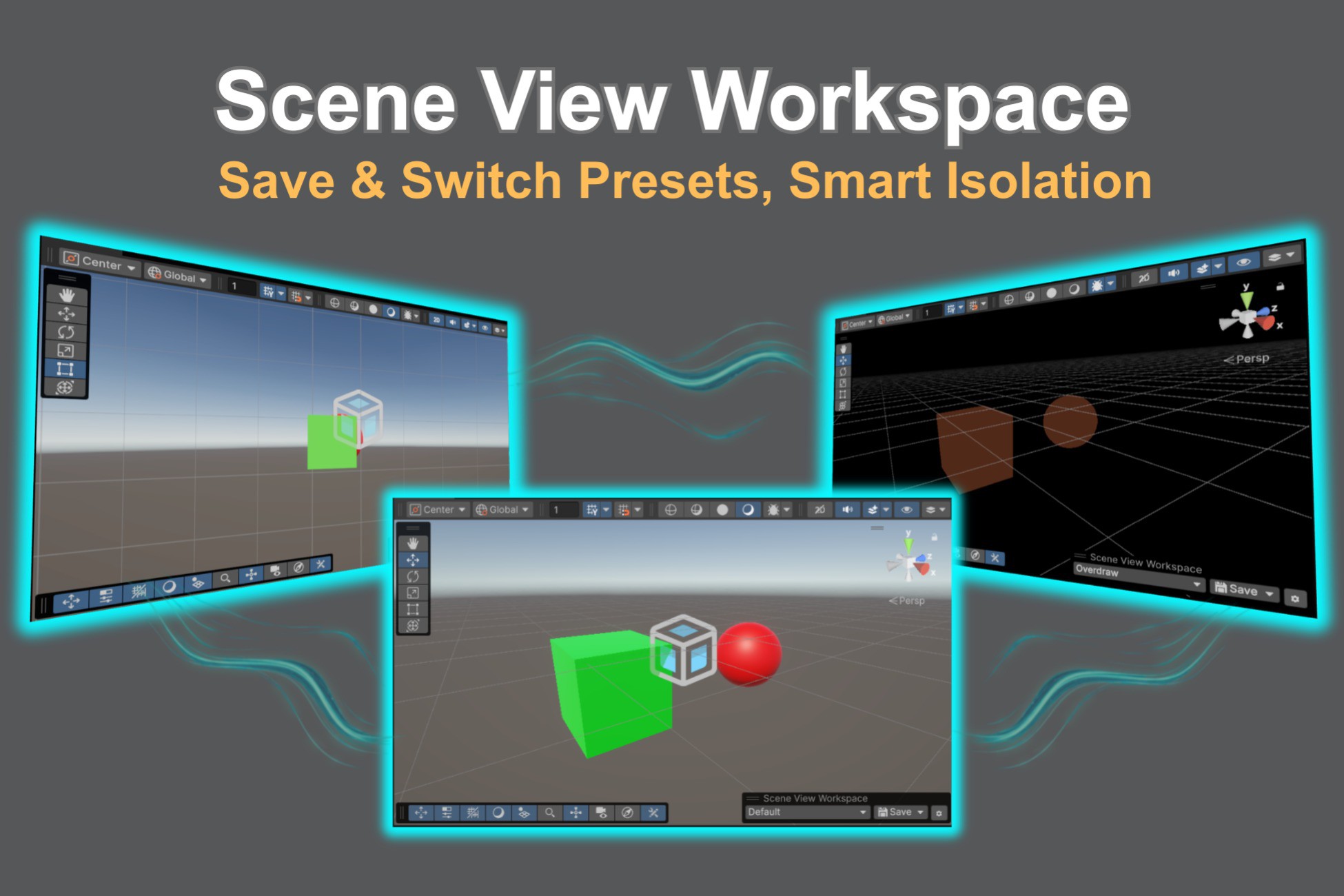
Scene View Workspace: Save & Switch Presets, Smart Isolation
An Editor extension that saves your Scene View as task-optimized presets, switchable in one click and auto-applied on Isolation — UI, modeling, lighting, capture, or any setup of your own.
Affiliate link · Purchases support this site
Price history
Last 6 months
USDAsset preview
1 / 4
Scene View Workspace: Save & Switch Presets, Smart Isolation screenshot 1

About this asset
Tired of resetting the same Scene View settings every time you switch tasks?
Lighting, Gizmos, draw mode, grid snap — toggled by hand, over and over.
Scene View Workspace is an Editor extension that saves your entire Scene View setup as task-optimized presets and restores it in one click.
🚀 Key Features
Why choose Scene View Workspace?
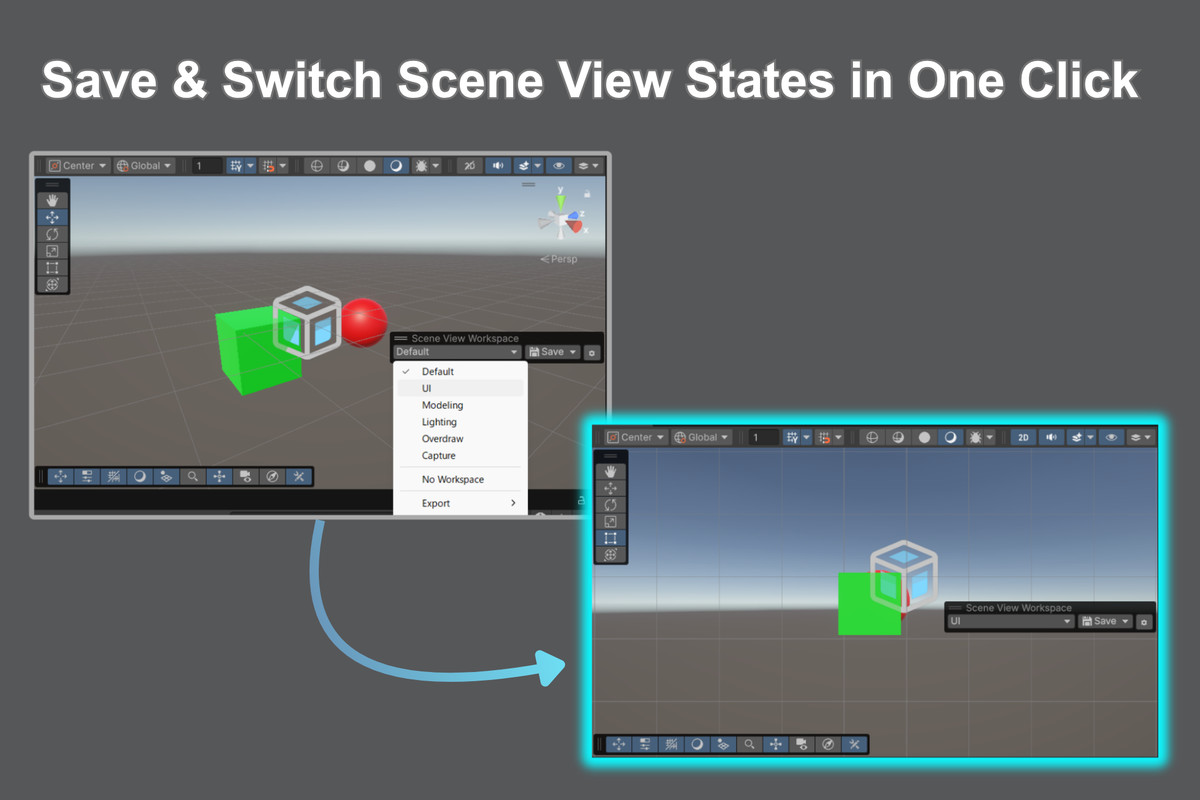
- One-Click Scene View Preset Switching: Switch your whole Scene View setup from a dropdown overlay right inside the Scene View.
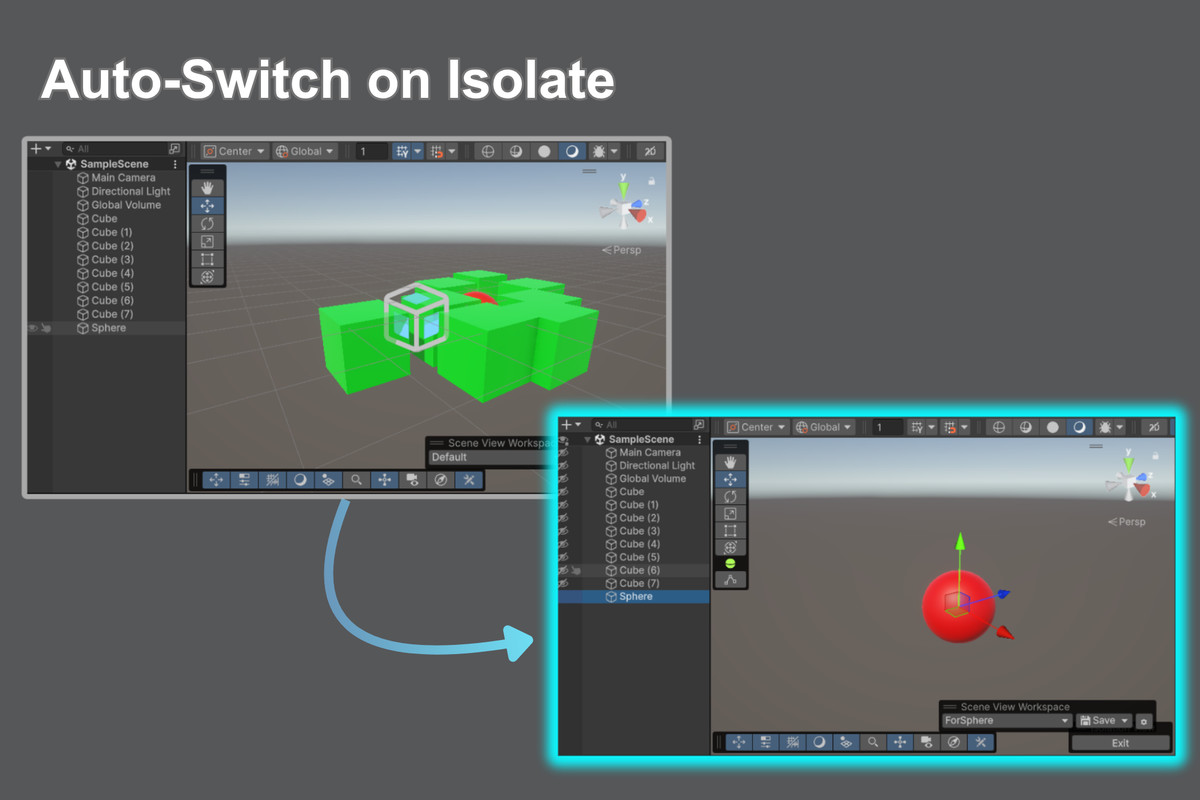
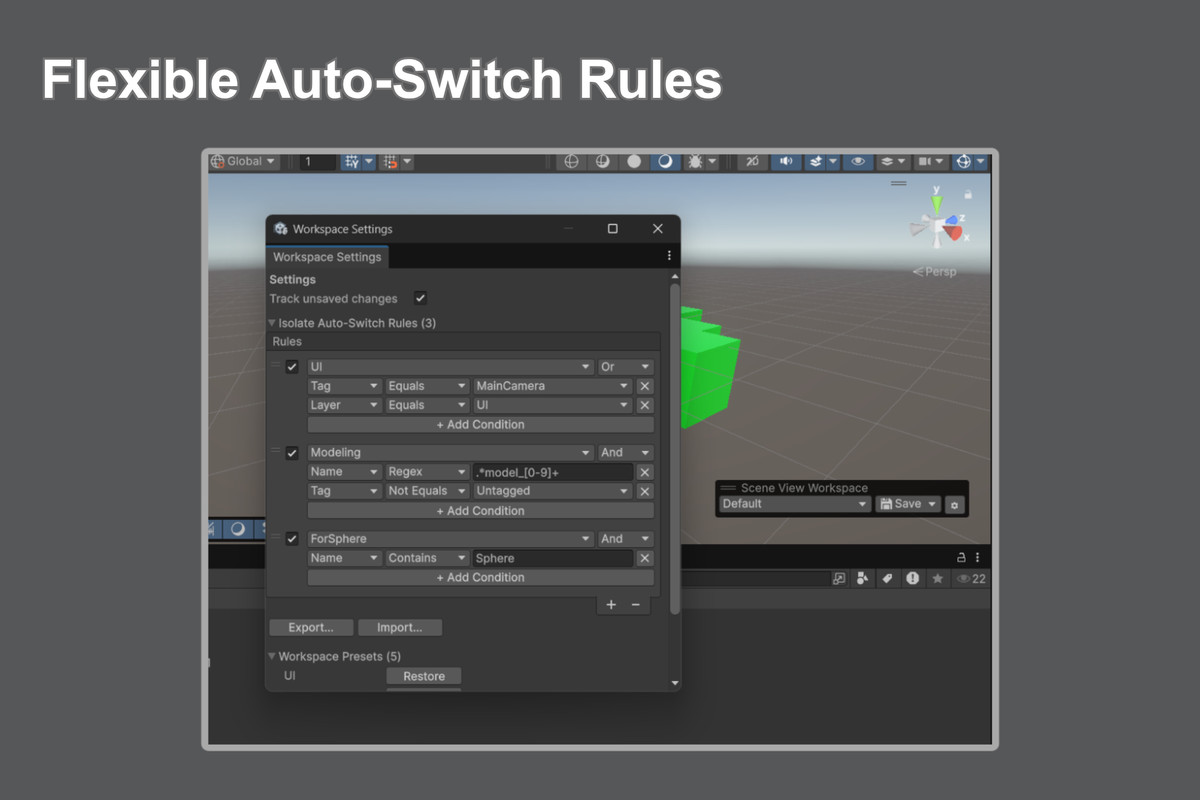
- Smart Isolation Auto-Switch: Enter Unity's Isolation view (Shift + H) and the switch happens for you — the right Workspace is picked by the selected object's name, tag, or layer. Exit, and your previous view returns.
- Captures Every Scene View Setting That Matters — Including the Camera: From the camera viewpoint down to every per-component Gizmo toggle. Full list below.
- Non-Destructive — and Your Original Setup Is Safe: Only Editor-side Scene View state changes — never your Scene or assets — so your Git history stays diff-free. Your original setup is stashed automatically, one click away.
- Fully Customizable Rules: Build auto-switch rules from And/Or conditions — Equals, NotEquals, Contains, StartsWith, EndsWith, and Regex. Reorder by drag-and-drop; disable any with a checkbox.
- Ready-to-Use Presets: UI, Modeling, Lighting, Overdraw, and Capture Workspaces work the moment you import. Customize, overwrite, or reset them to the defaults anytime.
- Export & Import as JSON: Back up your Workspaces and rules, or share them across projects and teammates.
💾 What a Scene View Workspace Saves
- Camera pose — yes, the viewpoint is saved: pivot position, rotation, and zoom, restored instantly with no fly-over animation. A Workspace doubles as a viewpoint bookmark that takes you back to where you were working — or turn Apply Camera Pose off per Workspace to switch settings only and keep the camera where it is. Moving the camera never marks a Workspace as modified.
- Projection & mode: 2D/3D mode, perspective/orthographic, camera rotation lock.
- Camera settings: Field of View, near/far clip planes, dynamic clipping, occlusion culling, navigation speed range, acceleration, and easing.
- Draw mode: Shaded, Wireframe, Shaded Wireframe, Overdraw, and every other built-in mode.
- Scene View toggles: Scene Lighting, Audio, Grid visibility, the Scene Visibility master toggle, and the master Gizmos toggle.
- Effects: Fog, Skybox, Flares, Image Effects, Particle Systems, Visual Effect Graphs, Always Refresh.
- Tools: active tool, Pivot/Center, Local/Global, handle visibility, and the layer visibility mask.
- Grid & Snap: grid axis, opacity, size, grid pivot, snap toggles, and the move/rotate/scale snap increments.
- Gizmos window, in full: every per-component gizmo and icon toggle, plus 3D icons, icon size, gizmo fade, selection outline/wire, and Light Probe visualization.
🔄 Getting Back to Where You Were
The setup you already had is the thing you cannot afford to lose — so it is protected before anything is applied.
- Automatic stash. The first time you activate a Workspace, your current Scene View state — down to Gizmo toggles, layer mask, and snap settings — is captured. No need to save it first.
- One-click revert. Choose No Workspace from the dropdown to restore that state in full — the setup from before you started using Workspaces, not just one step back.
- Isolation restores itself. Exiting Isolation rolls back its auto-applied Workspace — to the Workspace you were in, or to your own pre-Isolation state.
- It survives a restart. The stash persists across script compiles and Editor restarts.
- Undo is not supported. Revert a manually applied Workspace from the dropdown, not with Ctrl + Z.
🎯 Use Cases — A Workspace for Every Task
- UI work: Flat 2D view with lighting, fog, post effects, and gizmos off — true UI colors, Rect tool ready.
- Modeling & level layout: 3D perspective with grid and snapping on and shaded wireframe for precise placement.
- Lighting & look-dev: Skybox, fog, and effects on, gizmos hidden, for a clean, in-game-like viewport.
- Performance checks: Drop into Overdraw mode at the crowded spot you always check — without touching a toggle.
- Screenshots & trailers: Your hero angle without gizmos, grid, or selection outlines, in one click — the same shot after every art change.
- Team standardization: Export your Workspaces and share the file, so everyone reviews the Scene the same way.
Built for developers who wear every hat.
Whether you're a solo creator juggling UI, gameplay, lighting, and VFX, or part of a studio standardizing Scene View setups across a team, Scene View Workspace is designed to cut context-switching out of your Unity Editor workflow, reduce cognitive load, and keep you in flow.
💬 Support
Questions, bug reports, and feature requests are all welcome — send me an email. Including your Unity version and what you were doing when it happened gets you a useful answer fastest.
From the publisher's Asset Store listing.
Technical details
- Data Storage: Everything is saved as ScriptableObjects inside your project's UserSettings folder — kept as personal, per-user settings that never pollute your version control.
- Editor Version Differences Are Handled for You: Unity 6 splits snapping into a master toggle plus a separate grid-rounding setting, while 2022.3 has a single toggle. A Workspace stores whichever one your Editor version actually provides, so the same Workspace file loads correctly on both.
- No External Dependencies.
- Supported Unity Version: Unity 2022.3 and all Unity 6 versions
- Source Code included: Full C# source code is included for easy customization.
- Documentation: Documentation: See the online manual for full details. The included Readme.pdf covers getting started and links to it.
Compatibility
| Unity version | Built-in | URP | HDRP | Custom |
|---|---|---|---|---|
| 6000.6.0f1 | Compatible | Compatible | Compatible | Compatible |
| 6000.3.2f1 | Compatible | Compatible | Compatible | Compatible |
| 6000.0.64f1 | Compatible | Compatible | Compatible | Compatible |
| 2022.3.62f3 | Compatible | Compatible | Compatible | Compatible |
As listed on the Asset Store.