
 View on Asset Store (opens in new tab)
Package details
- Latest version
- 2.0.0
- Last updated
- First released
- Unity version
- 2022.3.62 or later
- Package size
- 1.8 MB
- Files
- 82
- Favorites
- 1
- Views in the past week
- 18
Price tracking
- Last checked
- Tracked since
- Lowest recorded
- $9.50 on
Keywords
- Search for missing prefab
- Search for search scenes
- Search for where used
- Search for quick open
- Search for Missing Scripts
- Search for play mode start scene
- Search for scene browser
- Search for Missing References
- Search for find references
- Search for cene switcher
- Search for find in scenes
- Search for bootstrap scene

Quick Scene Switcher - Search Inside Every Scene
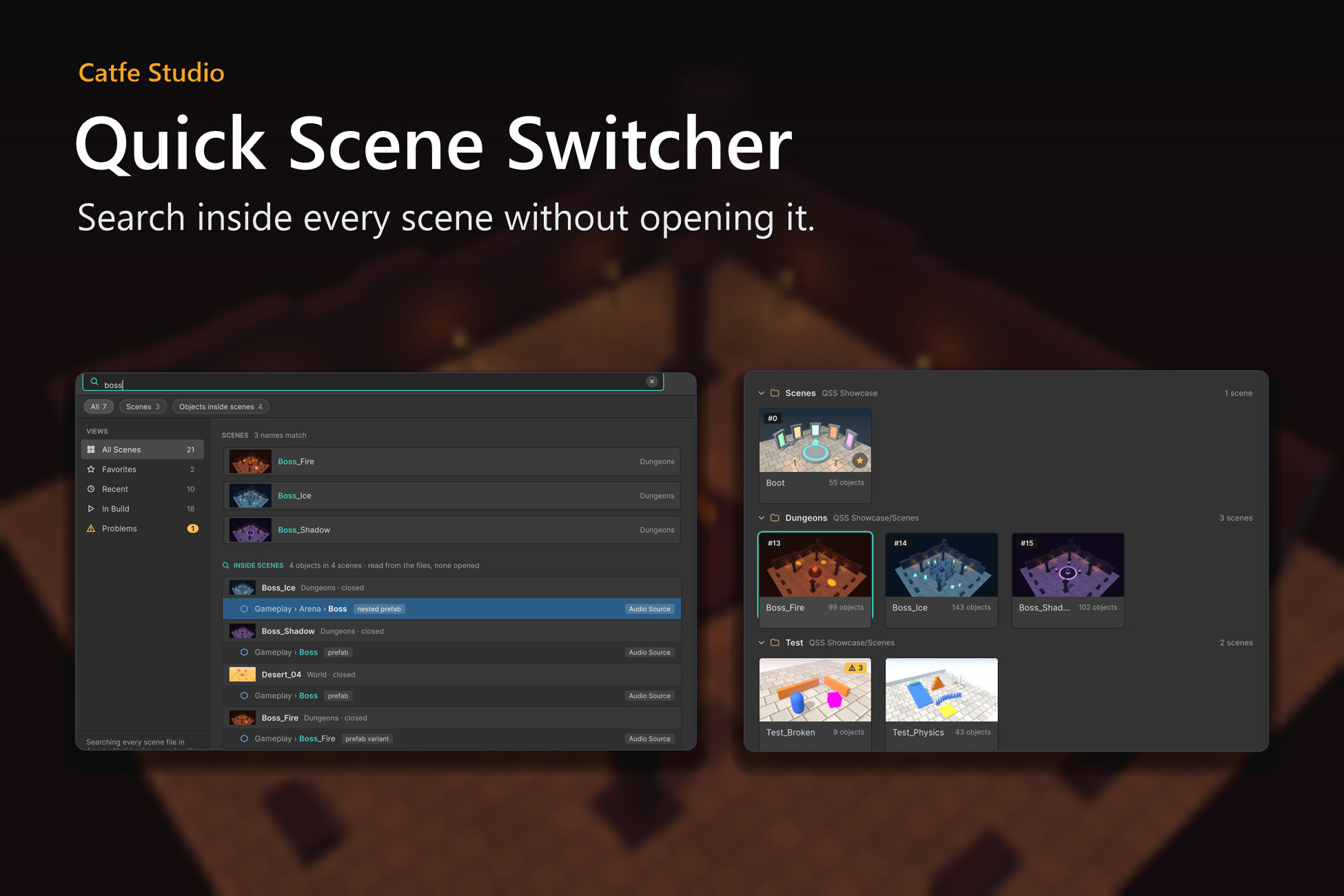
Find in Scenes without opening them: GameObjects, components, missing scripts, missing references, and Where Used for any asset or prefab. Zero setup. Read-only. Unity 2022.3 LTS and Unity 6.
Affiliate link · Purchases support this site
Price history
Last 6 months
USDAsset preview
1 / 11
Quick Scene Switcher - Search Inside Every Scene screenshot 1

About this asset
Which scenes have a boss with an AudioSource? Which scenes still use Ground.mat? Which scenes broke when a script lost its .meta file? Quick Scene Switcher answers from your saved scene files, without opening a single scene, and then takes you straight to the object.
Documentation: https://docs.google.com/document/d/1DZzaXnP_LgjRnaQiJ5G9H9-aZC3ZvuL8xPHSXAe0J0k
Support: [email protected]
FIND IN SCENES
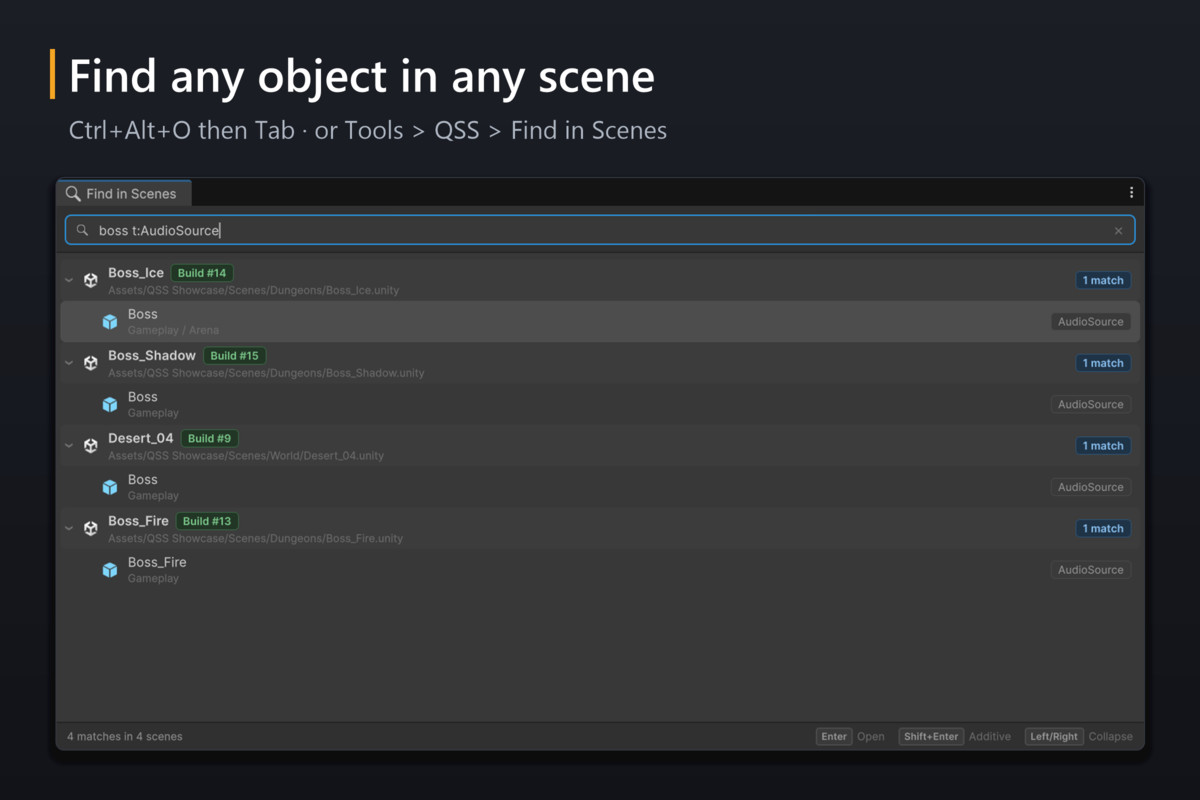
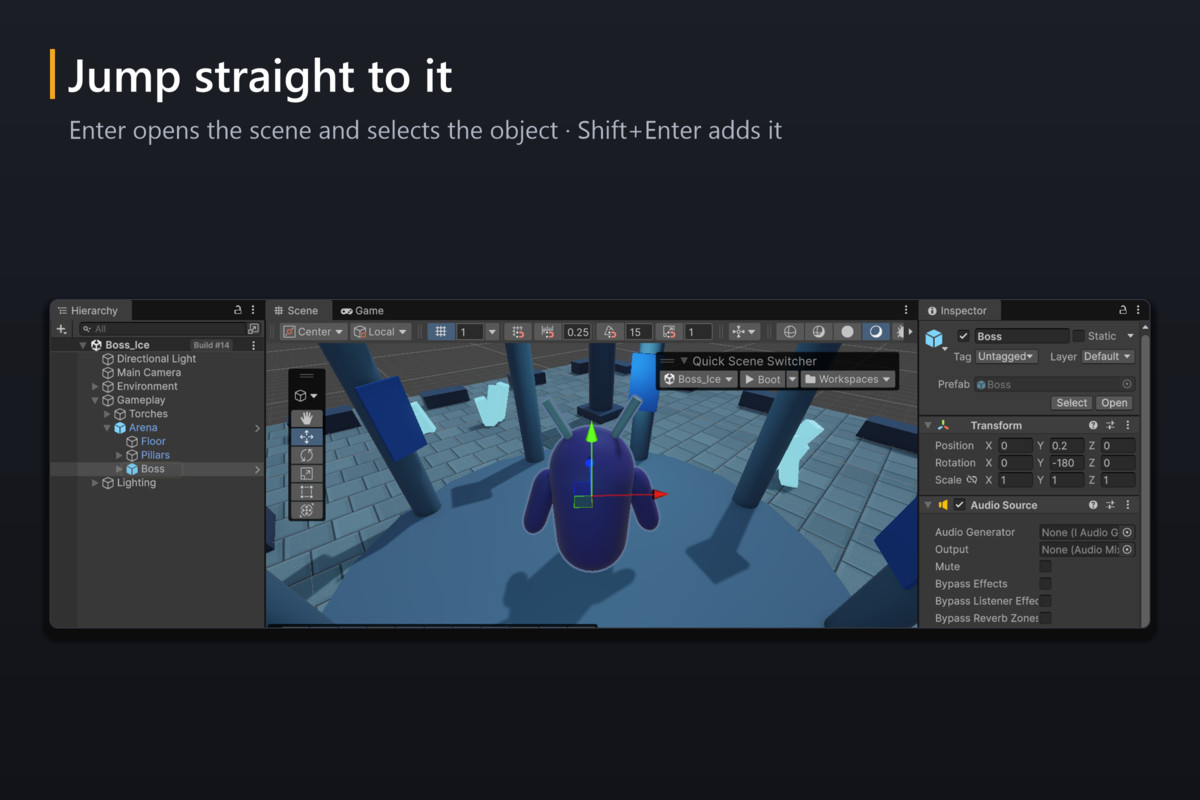
Search GameObjects by name and by component in every saved scene, for example "boss t:AudioSource". Objects inside prefab instances, nested prefabs and variants are included, and results are grouped by scene. Enter opens the scene and selects the object. Shift+Enter opens the scene additively.
• Ctrl+Alt+O, then Tab
• Tools > QSS > Find in Scenes... (Ctrl+Shift+Alt+F)
• Hierarchy: right-click an object > Find in All Scenes
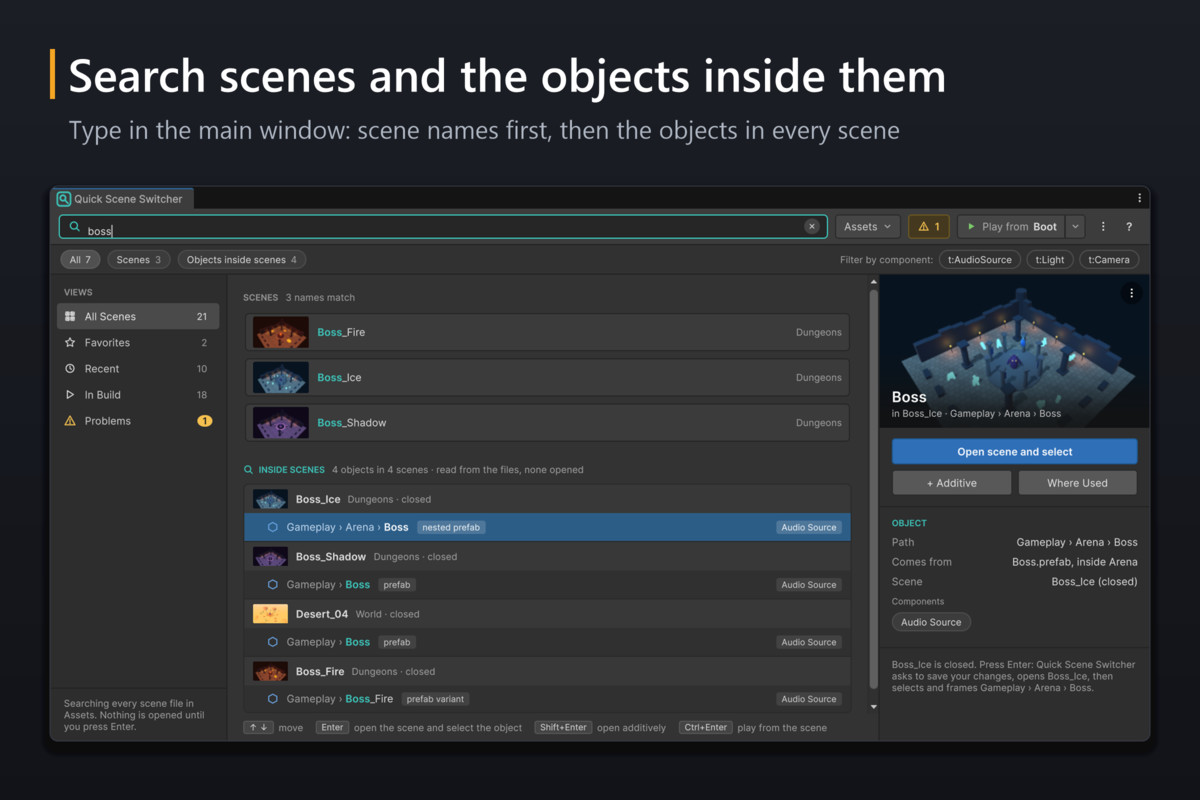
• Main window: type in its search field; matching objects appear under the scene names
PROBLEM BADGES AND SCENE HEALTH
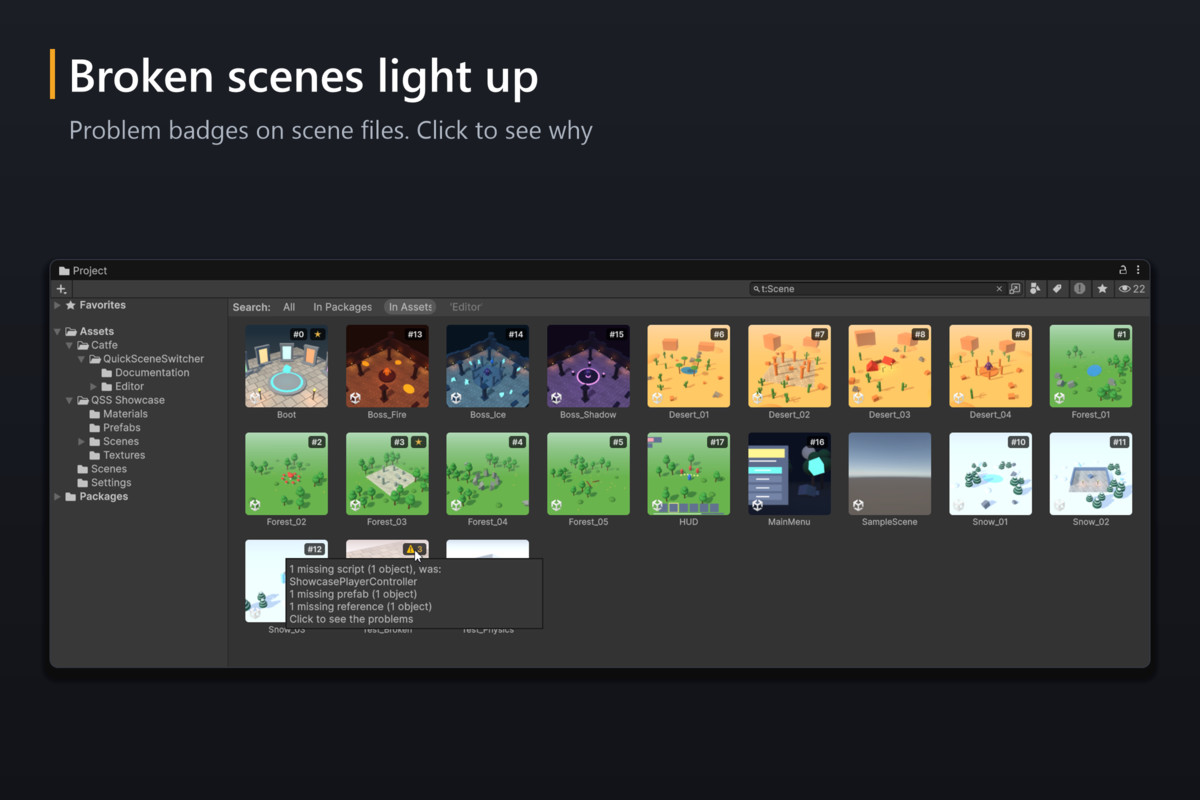
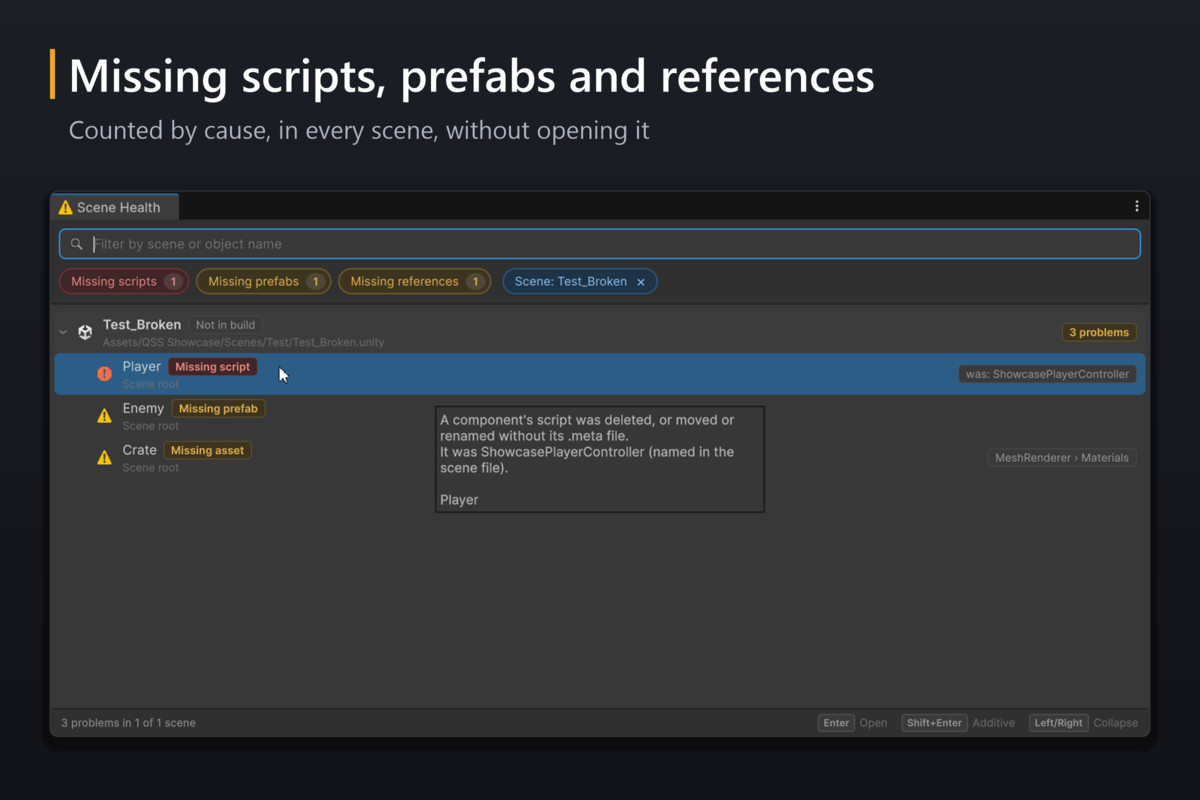
Scene files with missing scripts, missing prefabs or references to deleted assets get a warning badge in the Project window and on their card in the main window. There is no scan to run. Problems are counted by cause, so one broken prefab used 200 times counts once: "1 missing script on prefab Enemy (200 objects)". Click the badge to open Scene Health, then press Enter to select the broken object. When the scene file or QSS's own history recorded the class, a missing script is named, for example "Missing script (was: PlayerController)", together with where that name came from.
• Click a warning badge, the warning button in the main window's toolbar (it opens the Problems view), or Tools > QSS > Scene Health...
• When an import (after a pull, for example) gives a scene new problems while Unity is open, QSS writes one warning to the Console that names the scene and links to Scene Health.
WHERE USED IN SCENES
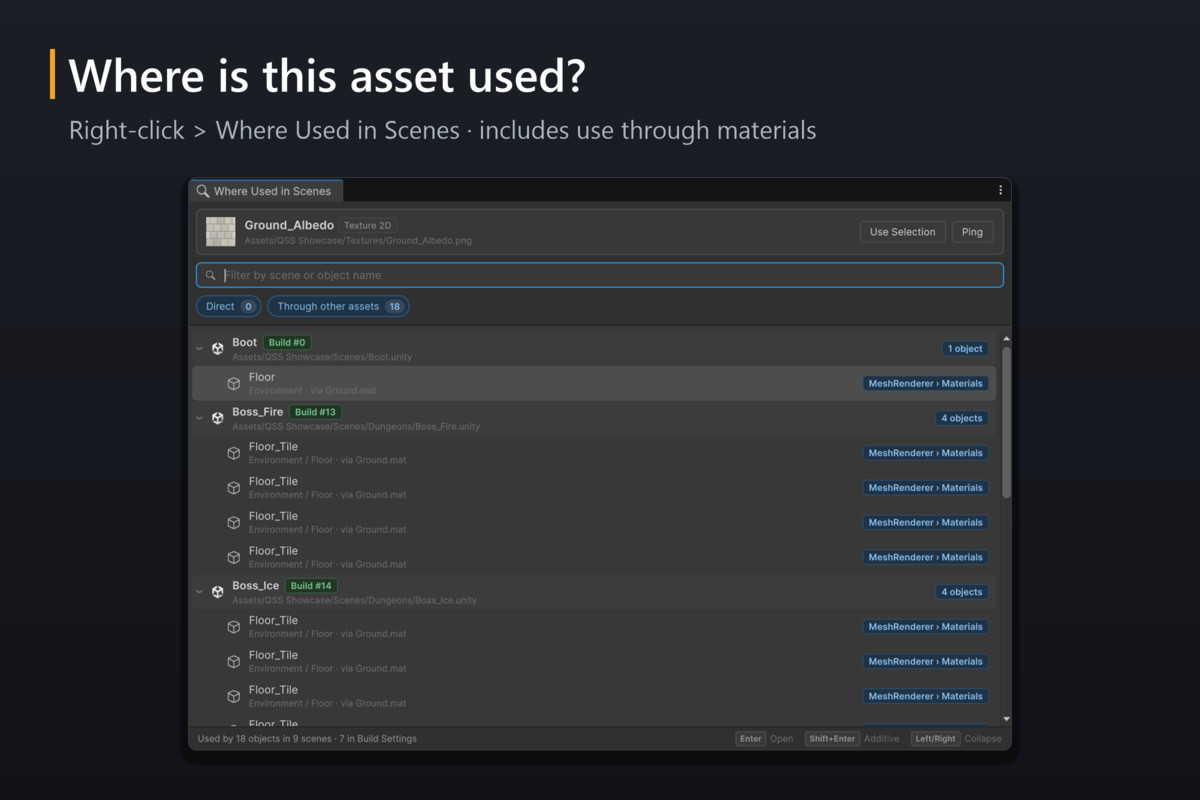
Right-click any asset, prefab or script and choose Where Used in Scenes. You get every scene and object that uses it, including use through materials and model files ("via Ground.mat"), the build status of each scene (Build #2, Excluded from build, Not in build), and a count of binary scenes it could not read.
• Project window: right-click > Where Used in Scenes
QUICK OPEN
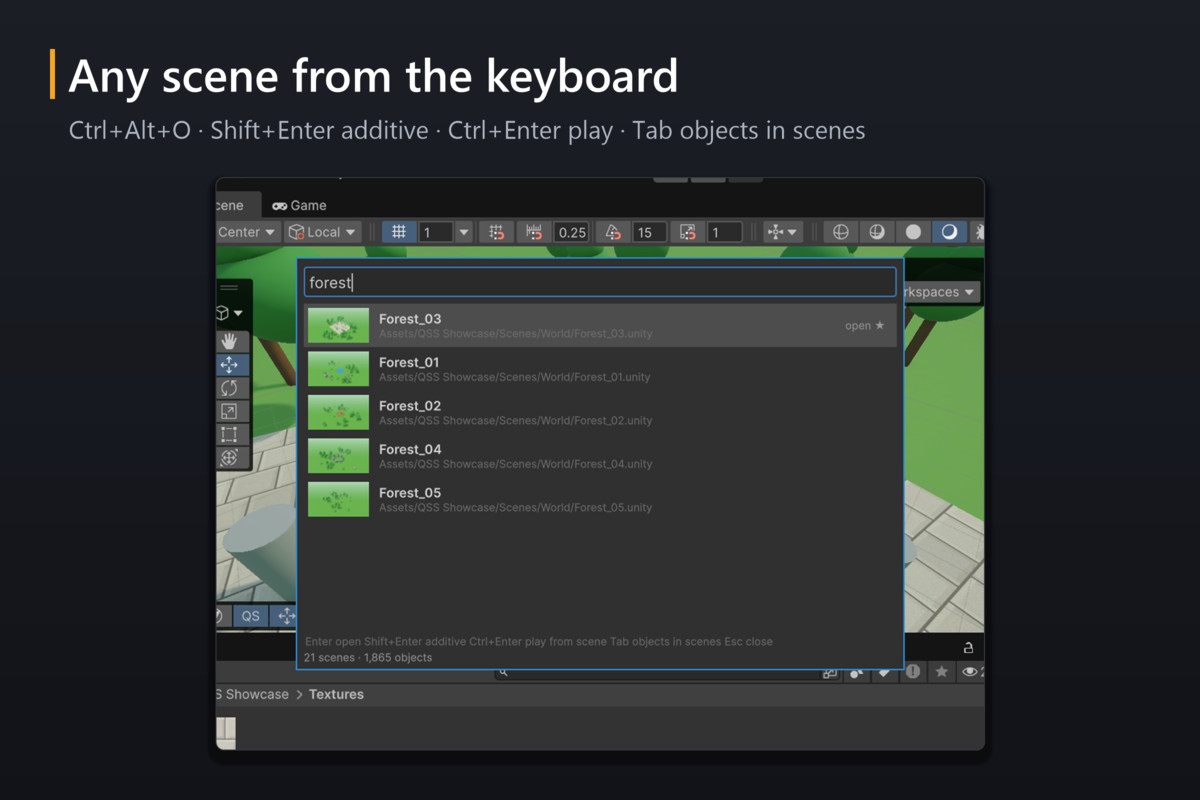
Fuzzy search for any scene, with thumbnails. Enter opens the scene, Shift+Enter opens it additively, Ctrl+Enter plays from it, and Tab searches the objects inside every scene. With nothing typed, the first row offers Where Used in Scenes for the selected asset, or Find in Scenes for the selected GameObject.
• Ctrl+Alt+O (Cmd+Option+O on macOS)
PLAY FROM YOUR BOOT SCENE
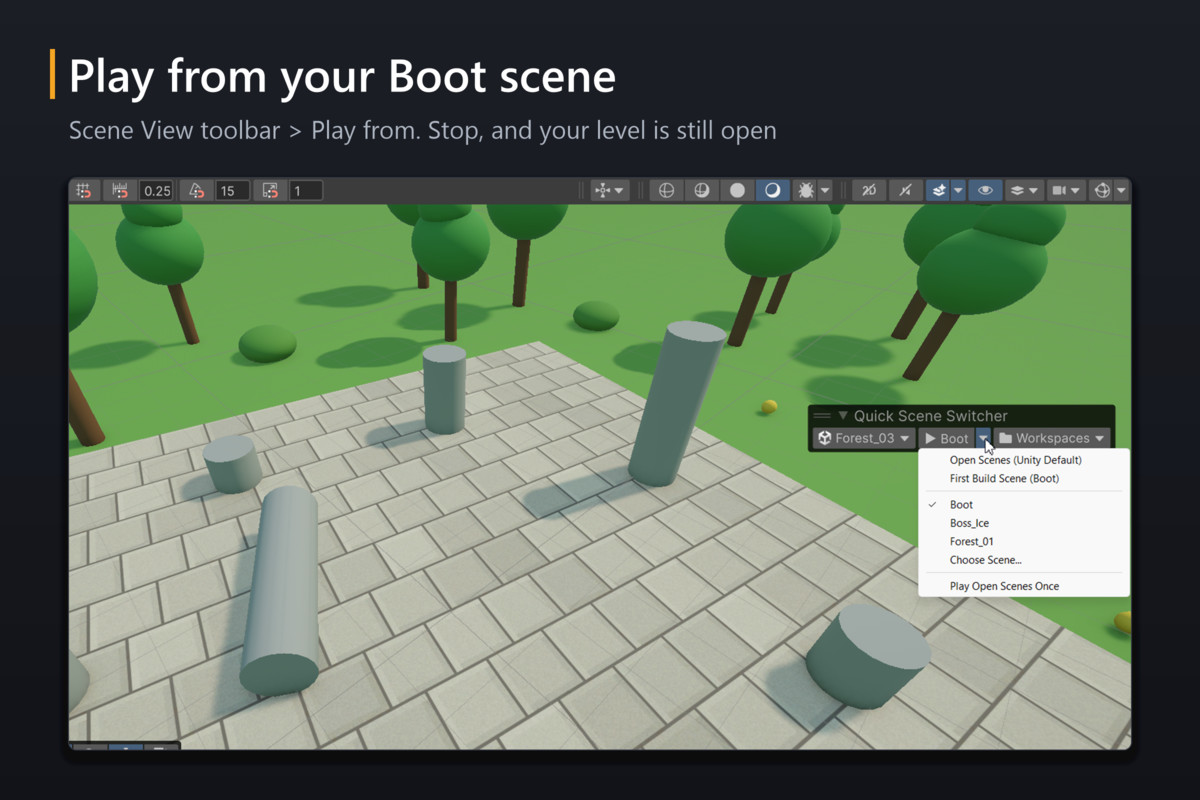
The Play from button in the Scene View toolbar shows where Play will start (▶ Boot or ▶ Open scenes) and lets you change it. When you stop, the scenes you were editing are open again. If a script in your project already sets the start scene, QSS shows "set by project", its menu doesn't offer to replace that scene, and QSS doesn't change it on its own. Works with domain reload disabled. When the Test Runner runs Play Mode tests, QSS steps aside so they start in their own test scene.
• Scene View toolbar > Play from (the main window's toolbar has the same control)
THUMBNAILS FOR EVERY SCENE
Tools > QSS > Capture Thumbnails for All Scenes... opens each scene that has no thumbnail yet (or every scene, if you choose), renders it from its Main Camera (or a framed view of the whole scene), and then reopens the scenes you had open. Scene files show their thumbnail in the Project window's icon view, with favorite and build-index markers.
THE MAIN WINDOW
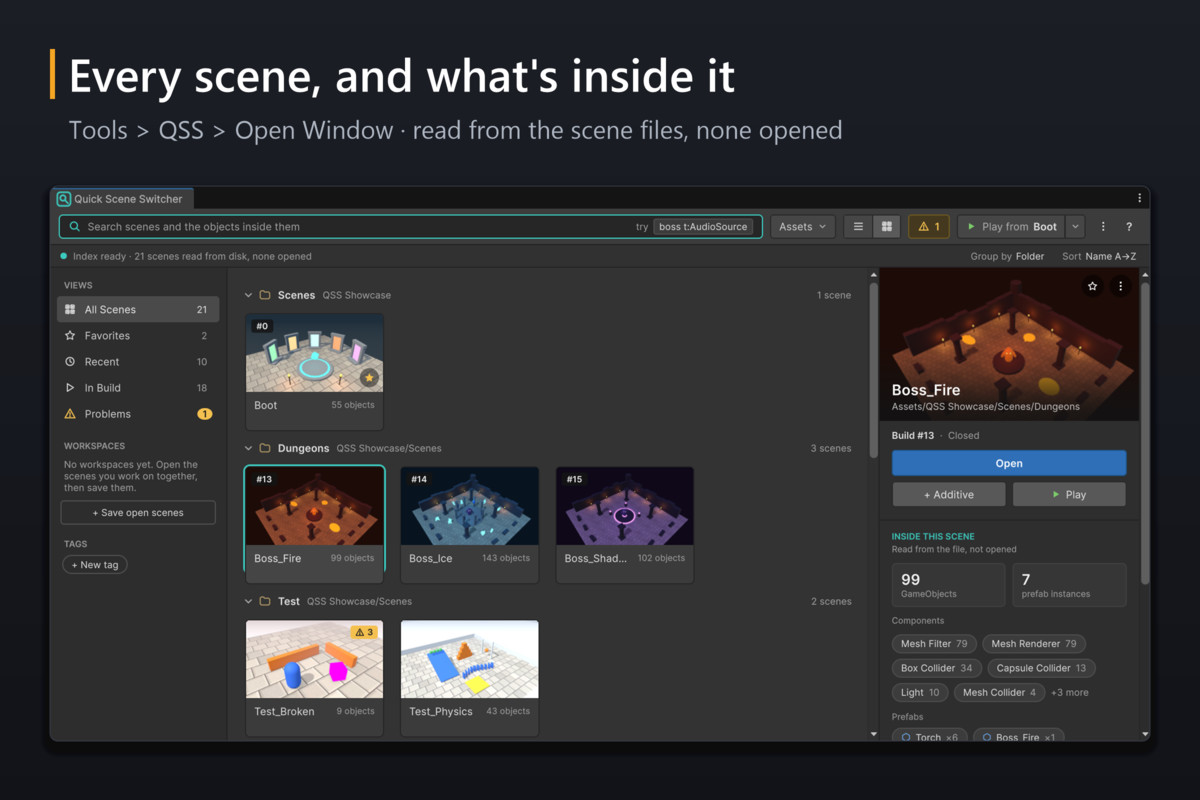
The main window shows every scene as a card with its thumbnail, grouped by folder (or as a list), with the build index, which scenes are open, and a warning badge on scenes with problems. Select a scene to see what is inside it, read from the file without opening it: how many GameObjects and prefab instances it holds, its most common components and the prefabs placed in it. Click a component to find it in every scene, or a prefab to see where it is used. One search field matches scene names and the objects inside every scene. A Problems view lists the scenes with problems by cause, and Play from sits in the toolbar.
• Tools > QSS > Open Window (Ctrl+Shift+Alt+Q on Windows)
HOW IT WORKS
• QSS reads your saved .unity and .prefab files in the background, rebuilds prefab instances, and keeps a cache in Library/SceneNavigator. Indexing starts the first time you use QSS (or a few seconds after the editor loads), pauses in Play Mode, and picks up changes when you save.
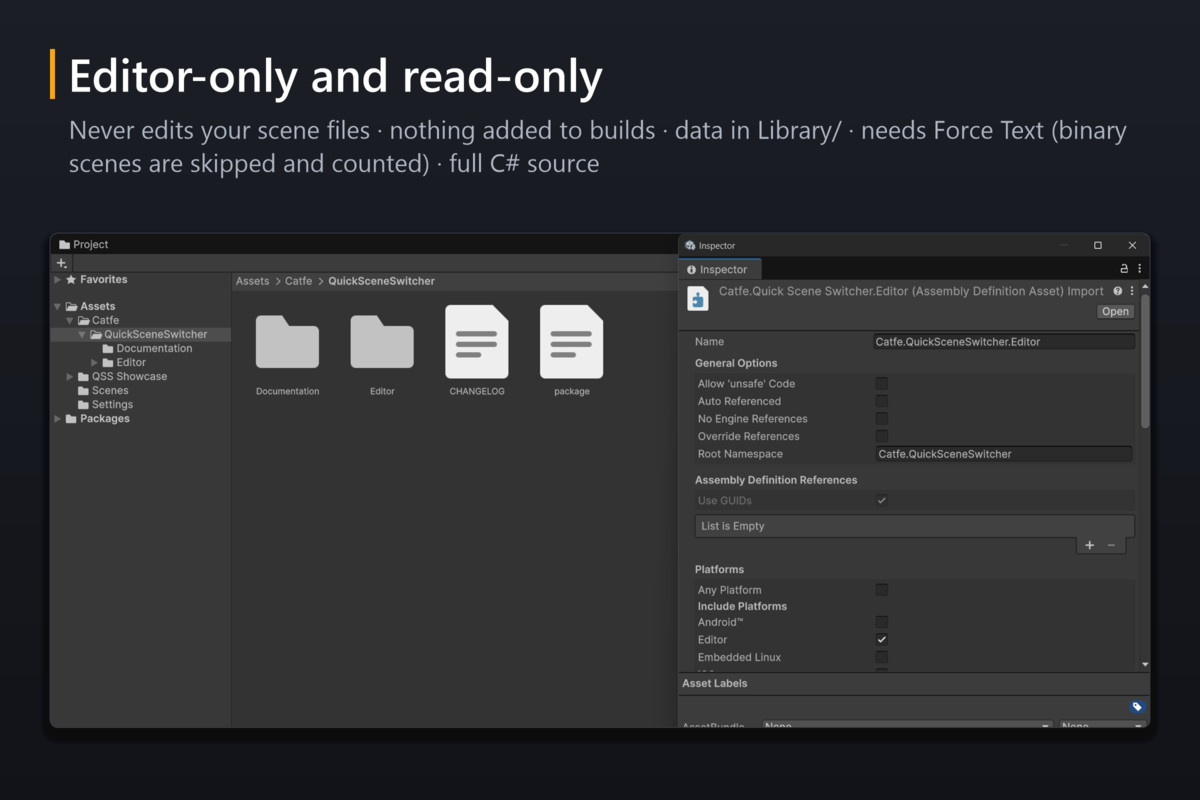
• Read-only: QSS never writes to your scene files. Opening a result asks you to save your changes first, the same way opening a scene does.
• Editor-only: nothing is added to your scenes or builds.
• Full C# source in two editor assemblies.
• After import, the Getting Started window shows what QSS found in your project (scenes, GameObjects, prefab instances, and how many scenes have problems), with Try buttons built from your own scenes.
• The video and screenshots on this page were recorded with the 20 sample scenes from Tools > QSS > Create Showcase Project..., so you can repeat the same searches.
• Measured on a generated test project of 300 scenes (86,027 GameObjects, 70 MB of scene files) with Unity 2022.3.62f3 on Windows, Intel Core i7-12650H, 32 GB RAM: the first index took 7.3 s, and 0.6 s from the cache after a domain reload. Saving one scene then cost about 2 ms of editor main-thread time. Saving a prefab placed in all 300 scenes re-checked them over about 1 s, with one 228 ms pause caused by a garbage collection.
FAQ
Doesn't Unity Search do this?
Unity Search can search inside scenes once you set it up. On Unity 6.3 and later, turn on Preferences > Search > Indexing > Deep scene and prefab indexing (off by default; indexing takes longer). On Unity 2022.3 to 6.2, create a Scene index with Sub objects in the Search Index Manager. If that works well for you, you may not need Find in Scenes. QSS needs no setup, groups results by scene, follows nested prefabs and variants, and Enter opens the scene and selects the object.
Will it tell me which script is missing?
When the name was recorded. Recent Unity 6 versions store the class name in the scene file next to the script reference; scenes saved by Unity 2022.3 usually don't have it. QSS also remembers the scripts it has seen in your project on your computer since you installed it. If neither source has the name, the row says "Missing script". QSS never guesses.
Does it change my scenes?
No. QSS reads scene files and never writes to them. Its own data (index cache, script history, thumbnails, settings, notes) stays in Library/SceneNavigator, outside version control.
My project sets a start scene from code. Will QSS overwrite it?
No. If a script sets EditorSceneManager.playModeStartScene, the Play from button shows "set by project", its menu doesn't offer to replace that scene, and QSS doesn't change it on its own.
If Where Used finds nothing, can I delete the asset?
Not on that basis. Where Used looks at scenes. Code, Resources, Addressables, other prefabs and ScriptableObjects can still use the asset. A project cleaner is the right tool for that job.
Will it slow down my editor?
The first index reads each scene and prefab file once on a background thread. After that, saving a scene re-reads that file and re-checks the scenes it affects in short slices of editor time, and indexing pauses in Play Mode. The measured numbers, and the conditions, are under How it works.
LIMITATIONS
• Scenes must be saved as text: Project Settings > Editor > Asset Serialization > Mode = Force Text (Unity's default). Binary scenes are skipped and counted.
• Results reflect saved files. Changes in an open scene appear after you save it.
• Scenes under Assets/ are indexed. Scenes inside packages are not; prefabs from packages are read when a scene uses them.
• Where Used covers use in scenes. It does not list use by other prefabs, ScriptableObjects or code, and it is not a project cleaner.
• A sub-asset (for example a mesh inside a model file) is matched by its file.
• The build status follows Build Settings (the active Build Profile on Unity 6). It does not read Addressables groups, so an Addressable scene shows as not in build.
• Play from sets Unity's Play Mode start scene. Play starts in your Boot scene, and your Boot scene decides what loads next; QSS does not load the scene you were editing after Boot.
• Hierarchy badges appear in the classic Hierarchy window. Unity 6.6's new Hierarchy, the default there, doesn't show them; Project window badges and all QSS windows work.
• Missing-script names appear when they were recorded (see the FAQ).
ALSO INCLUDED
• In the main window: favorites, recent scenes, workspaces (save and restore multi-scene setups), tags and notes per scene, Build Settings actions
• Favorites, recents and workspaces follow scenes you move or rename
• Hierarchy scene-header badges and a Scene View toolbar
• Getting Started window, and Create Showcase Project: 20 sample scenes to try every feature, removed again with Delete Showcase Project
• Shortcuts you can rebind in Edit > Shortcuts (Main Menu > Tools > QSS)
• Documentation online (Google Docs), with a copy in the package
TESTED ON
Unity 2022.3.62f3 and Unity 6000.5.9f1 on Windows, with the Built-in Render Pipeline and URP.
From the publisher's Asset Store listing.
Technical details
• Editor-only: nothing is added to your scenes or builds
• Read-only: never writes to your scene files
• Unity 2022.3 LTS or newer. Tested on Unity 2022.3.62f3 and 6000.5.9f1 (Windows)
• Scenes must use text serialization (Force Text, Unity's default); binary scenes are skipped and counted
• Index cache, script history, thumbnails, settings and notes are stored in Library/SceneNavigator
• Supports entering Play Mode with domain reload disabled
• Render pipelines: tested with the Built-in Render Pipeline and URP
• Full C# source in separate editor assemblies; no runtime code, no DLLs
• Shortcuts (rebindable): Ctrl+Alt+O Quick Open, Ctrl+Shift+Alt+F Find in Scenes (Cmd instead of Ctrl on macOS), Ctrl+Shift+Alt+Q main window (Windows; no default on macOS)
• Documentation: Tools > QSS > Documentation opens the online manual (Google Docs); a copy ships in the package
Compatibility
| Unity version | Built-in | URP | HDRP |
|---|---|---|---|
| 6000.5.9f1 | Compatible | Compatible | Compatible |
| 2022.3.62f3 | Compatible | Compatible | Compatible |
As listed on the Asset Store.