
 View on Asset Store (opens in new tab)
Package details
- Latest version
- 1.0
- Last updated
- First released
- Unity version
- 2022.3.13 or later
- Package size
- 196 KB
- Files
- 34
- Favorites
- 1
- Views in the past week
- 11
Price tracking
- Last checked
- Tracked since
- Lowest recorded
- $6.00 on
Keywords

FlyingChess
- Price drop
The resource pack is a full game asset pack with all visuals, SFX, and UI components needed to build the game, boosting development in game design.
Lowest recorded price
Get 70% off on Asset Store (opens in new tab)Affiliate link · Purchases support this site
Price history
Last 6 months
USDAsset preview
1 / 7

FlyingChess screenshot 1
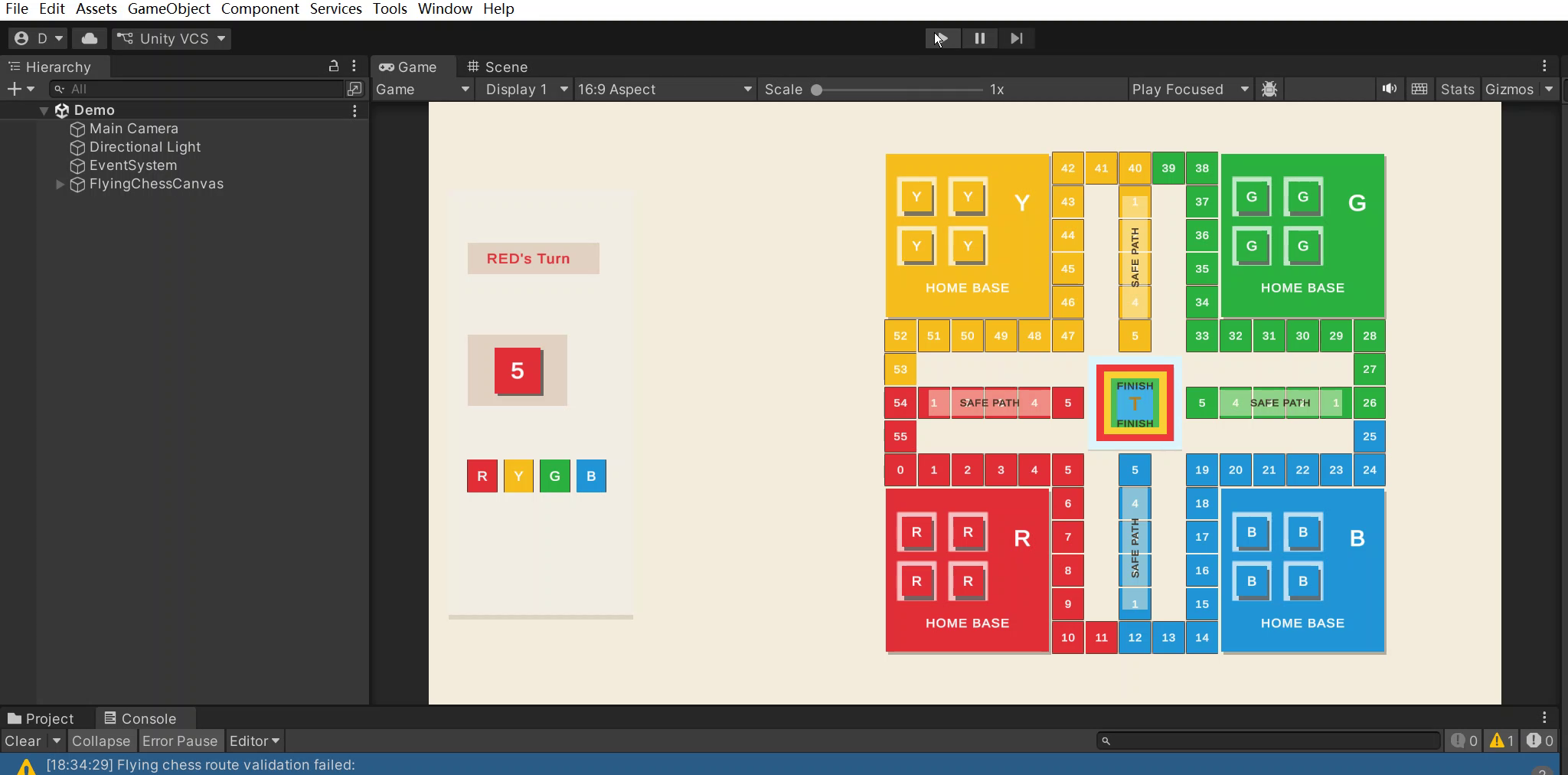


About this asset
# Flying Chess Rules
## Game Mode
- The player selects one color from Red, Yellow, Green, or Blue.
- The other three colors are controlled by robots.
- Turn order is Red -> Yellow -> Green -> Blue, then repeats.
## Controls
- Press `R`, `Y`, `G`, or `B`, or click the color indicator to select the player's color before rolling.
- Press `Space` or click the dice button to roll the dice on the player's turn.
- Press `1`, `2`, `3`, or `4`, or click a piece to move the corresponding piece.
- Robot players roll and move automatically.
## Takeoff
- A piece in its home base can only take off when its color rolls a 6.
- On takeoff, the piece moves from its home slot to that color's outer path start.
- Outer path start points: - Red: `Waypoint_0` - Blue: `Waypoint_14` - Green: `Waypoint_28` - Yellow: `Waypoint_42`
## Outer Path
- The board has 56 outer path points, numbered `Waypoint_0` through `Waypoint_55`.
- Every color moves clockwise along the same outer path order.
- Each color owns a 14-point color section.
- The color section starts two points before that color's takeoff start point.
## Safety Path And Finish
- After completing one full outer lap, a piece enters its own safety path.
- Safety path entrance is two points before the color's takeoff start point: - Red enters after `Waypoint_54` - Blue enters after `Waypoint_12` - Green enters after `Waypoint_26` - Yellow enters after `Waypoint_40` - Safety path nodes are named in order, for example `Safe_Red_1` through `Safe_Red_5`.
- After the last safety path node, the piece reaches the center finish.
## Collision Rule
- After a piece finishes moving on the outer path, the game checks whether that destination path point already has pieces from other colors.
- Every opponent piece on that same outer path point is sent back to its own home slot.
- Collision only happens on the outer path.
- Pieces on home slots, safety paths, or the center finish are not collided with by this rule.
- Pieces of the same color are not sent home by this rule.
## Robot Rule
- Robots roll automatically on their turn.
- A robot first tries to move a piece that is already on the board.
- If no active board piece can move, the robot tries to take off when it has rolled a 6.
- If no legal move exists, the turn advances automatically.
From the publisher's Asset Store listing.
Technical details
# Flying Chess Prefab Workflow
The layout, coordinates, path numbers, and logical components of the chessboard in this project are still generated uniformly by `UGUIFlyingChessBuilder`; the artistic presentation can be replaced through prefab.
## One-click completion
Execute in the Unity top menu:
```textTools/Setup Flying Chess Prefab Workflow```
This menu will be completed in one go:
- Create or update the default prefab.
- Create or update the `FlyingChessPrefabLibrary.asset`.
- Automatically write the default prefab into the prefab library.
- Verify the naming of prefabs and components.
- Regenerate the UGUI of the flying dice in the scene.
This is the current recommendation process.
## Step-by-step menu
You can also follow the steps:
```textTools/Create Flying Chess Prefab LibraryTools/Create Flying Chess Default PrefabsTools/Validate Flying Chess PrefabsTools/Build Flying Chess UGUI```
`Create Flying Chess Default Prefabs` will generate:
- `Assets/FlyingChess/Prefabs/Waypoint_Prefab.prefab`- `Assets/FlyingChess/Prefabs/CenterFinish_Prefab.prefab`- `Assets/FlyingChess/Prefabs/HomeBase_Prefab.prefab`- `Assets/FlyingChess/Prefabs/HomeSlot_Prefab.prefab`- `Assets/FlyingChess/Prefabs/Piece_Prefab.prefab`- `Assets/FlyingChess/Prefabs/Dice_Prefab.prefab`
At the same time, it will create or update:
- `Assets/FlyingChess/FlyingChessPrefabLibrary.asset`
## Verifying Prefab
After replacing or adjusting the prefab, you can execute:
```textTools/Validate Flying Chess Prefabs```
This menu will check whether the prefabs in `FlyingChessPrefabLibrary` are missing common components or agreed-upon child nodes, and output a warning in the Console.
These warnings may not necessarily prevent the generation of the chessboard, as the Builder will automatically complete many runtime components; however, if you want to make the prefab more stable and controllable, it is recommended to correct them according to the warnings.
## Prefab Replaceable Items
`FlyingChessPrefabLibrary` contains the following fields:
- `Waypoint Prefab`: Peripheral waypoints and safe waypoints.
- `Center Finish Prefab`: Center Finish Prefab.
- `Home Base Prefab`: Four color bases.
- `Home Slot Prefab`: A parking spot within the base.
- `Piece Prefab`: Airplane chess piece.
- `Dice Prefab`: Dice button.
## Naming Convention
To enable Builder to automatically bind existing child nodes, it is recommended to retain these names:
- Waypoint text: `Text`- Home base title: `HOME BASE`- Home base color marker: `ColorMark`- Home base parking slot container: `Slots`- Home base parking slots: `Slot_1` to `Slot_4`- Aircraft text: `Text`- Dice icon: `Dice_Icon`- Dice value text: `Dice_Value_Text`
If these child nodes are missing, the Builder will automatically create them.
## Automatically configured content
Every time a chessboard is generated, the Builder will overwrite the following runtime data:
- Node name.
- Node color.
- Path point coordinates.
- Path point `FlyingChessWaypoint` data.
- The ownership color and number of the aircraft `FlyingChessPiece`.
- Reference to the dice button.
- `FlyingChessUIRefs` runtime reference.
Therefore, prefab is more suitable for managing appearance, such as images, shadows, borders, text styles, and basic layers; path logic continues to be uniformly maintained by code.
## Recommended art replacement process
1. Execute `Tools/Setup Flying Chess Prefab Workflow`.
2. Copy the default prefab, or directly replace the Sprite, color, shadow, and text style on the default prefab.
3. Execute `Tools/Validate Flying Chess Prefabs` to check naming and components.
4. Execute `Tools/Build Flying Chess UGUI` to regenerate the scene UI.
5. Run the game and check whether the movement of chess pieces, dice rolls, collisions, and entering safe paths are functioning properly.
Compatibility
| Unity version | Built-in | URP | HDRP |
|---|---|---|---|
| 2022.3.13f1c1 | Compatible | Not listed | Not listed |
As listed on the Asset Store.