
 View on Asset Store (opens in new tab)
Package details
- Latest version
- 1.0.0
- Last updated
- First released
- Unity version
- 2022.3.62 or later
- Package size
- 48 KB
- Files
- 3
- Favorites
- 2
- Views in the past week
- 3
Price tracking
- Last checked
- Tracked since
- Lowest recorded
- $7.50 on
Keywords

Bulk Package Importer
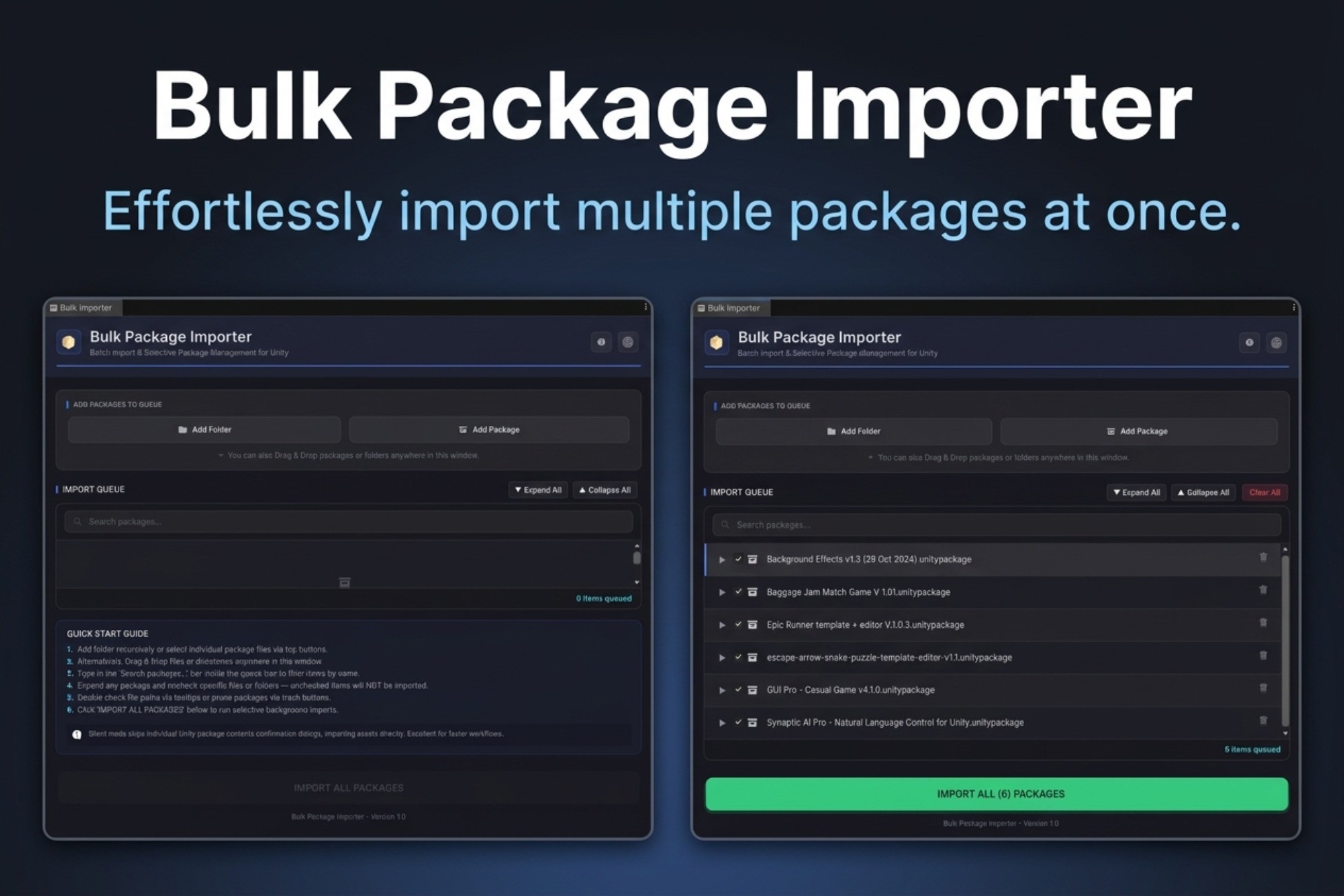
Queue, inspect, and selectively import multiple .unitypackage files in one batch - with a live tree preview and full Light/Dark theme support.
Affiliate link · Purchases support this site
Price history
Last 6 months
USDAsset preview
1 / 3
Bulk Package Importer screenshot 1
About this asset
Bulk Package Importer
Stop clicking through endless import confirmation dialogs one package at a time. Bulk Package Importer lets you queue dozens of .unitypackage files, inspect their full contents, selectively exclude files or folders you don't need, and run the entire batch with a single click — all from a clean, native-feeling editor window built with Unity's UI Toolkit.
KEY FEATURES
Flexible Package Ingestion
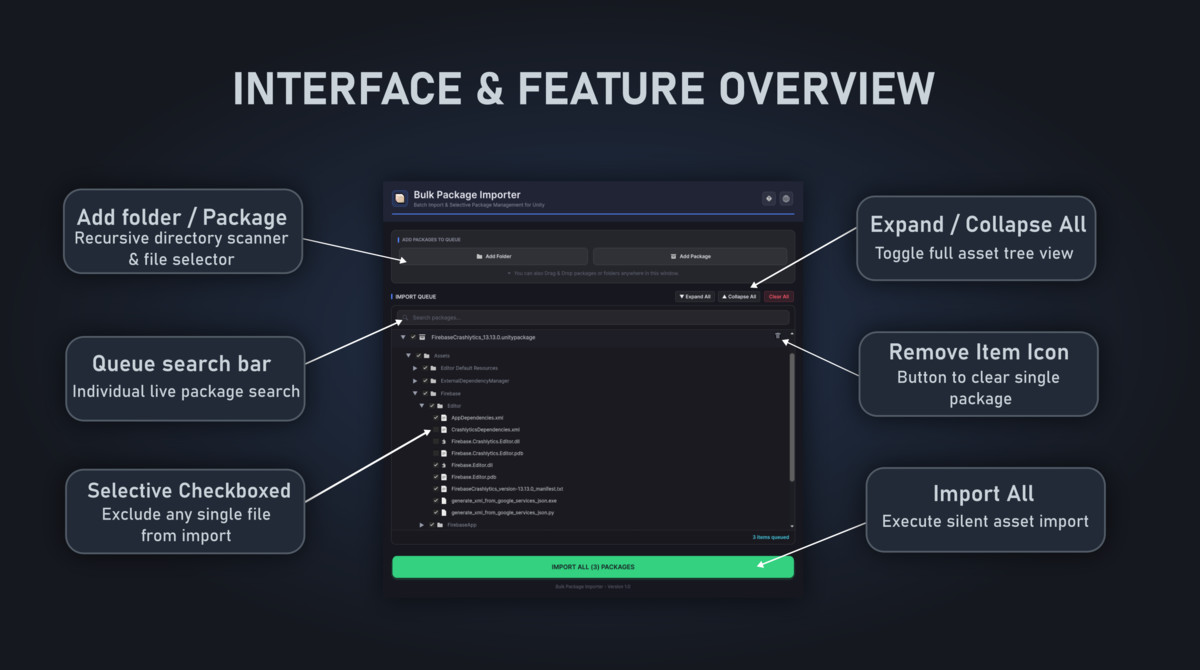
• Add Folder — recursively scan any directory for .unitypackage files
• Add Package — browse and select individual or multiple files at once
• Drag & Drop — drop files or folders directly onto the window from Explorer/Finder
Selective Import & Tree Inspection
• Unity-style tree view with native asset icons (.cs, .prefab, .mat, .wav, .anim, .controller, .unity, .shader, .dll, .aar, .jar, and more)
• Checkbox selection — uncheck any file or subfolder to exclude it from the import
• Folders-first alphabetical sorting, matching Unity's own Project window
• Expand All / Collapse All for quick navigation
• Automatic filtering of TAR PaxHeader metadata and macOS .DS_Store junk entries
Queue Search & Management
• Live search to filter queued packages by name
• Queue state, expanded folders, and checkbox selections persist across script recompiles and domain reloads
• One-click removal of any queued package
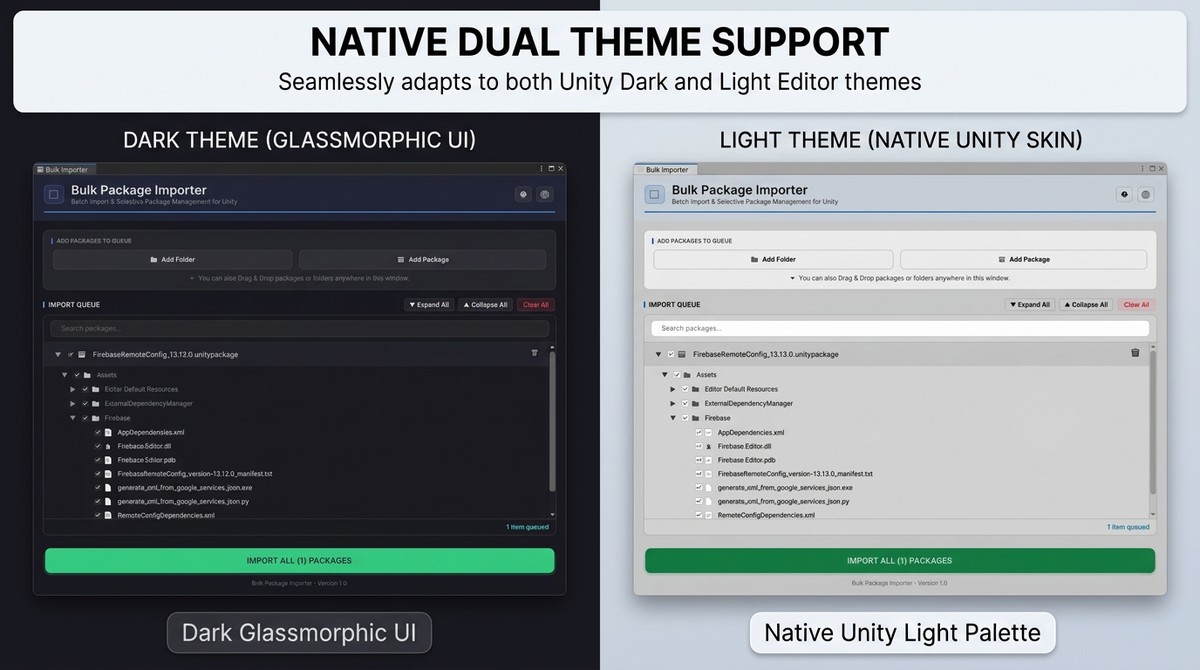
Dual Theme UI
• Fully native support for both Unity Light and Dark editor themes
• Glassmorphic panel styling with subtle borders and hover states
• Fixed header/search/stats layout with an independently scrolling queue viewport
Simple Workflow
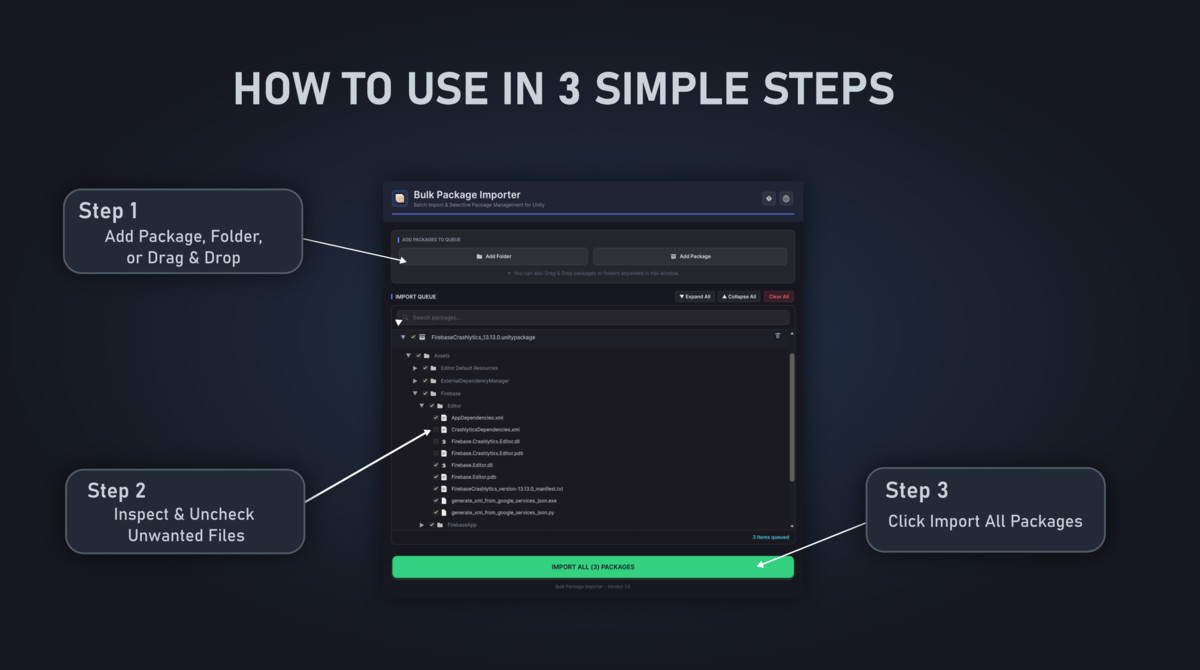
1. Open via Window → Bulk Package Importer
2. Add packages by folder, file picker, or drag-and-drop
3. Expand and review each package's contents, uncheck anything you don't want
4. Click Import All Packages — a cancelable progress bar tracks the batch, and a summary reports the result
TECHNICAL DETAILS
• Compatible with Unity 2020.1 LTS and newer, including Unity 6
• Editor-only tool — no runtime dependencies, does not affect builds
• Single-file architecture, no third-party packages required
SUPPORT
Documentation: https://bulk-importer.vercel.app/#documentation
Email: [email protected]
From the publisher's Asset Store listing.
Compatibility
| Unity version | Built-in | URP | HDRP | Custom |
|---|---|---|---|---|
| 6000.0.66f2 | Compatible | Compatible | Compatible | Compatible |
| 2022.3.62f2 | Compatible | Compatible | Compatible | Compatible |
As listed on the Asset Store.