
 View on Asset Store (opens in new tab)
Package details
- Latest version
- 1.0.0
- Last updated
- First released
- Unity version
- 6000.0.73 or later
- Package size
- 2.9 MB
- Files
- 131
- Favorites
- 11
- Views in the past week
- 39
Price tracking
- Last checked
- Tracked since
- Lowest recorded
- Free on
Keywords

Camera Controllers Pack: Strategy, Fly, Orbit
This is a free collection of camera controllers using Unity's new Input System. Strategy/RTS, Scene-like Fly and Orbit cameras. Custom cursor system and editor utilities for focus and edge scrolling.
Affiliate link · Purchases support this site
Price history
Last 6 months
USDAsset preview
1 / 3
Camera Controllers Pack: Strategy, Fly, Orbit video 1 (plays on the Asset Store)
About this asset
Camera Controller
This is a free collection of camera controllers using Unity's new Input System. Also available on Github.
For more advanced strategy game camera controllers, check out Strategy Camera Controllers
These camera controllers are designed to be modular and extensible so that you can easily drop them into any Unity project for prototyping or to customise and extend them as the basis for your own gameplay systems.
A ScriptableObject-based simple cursor system and default cursors for different
camera states is included.
Keybindings
All keybindings can be remapped through the InputActions asset for each controller. Find out how to do this here.
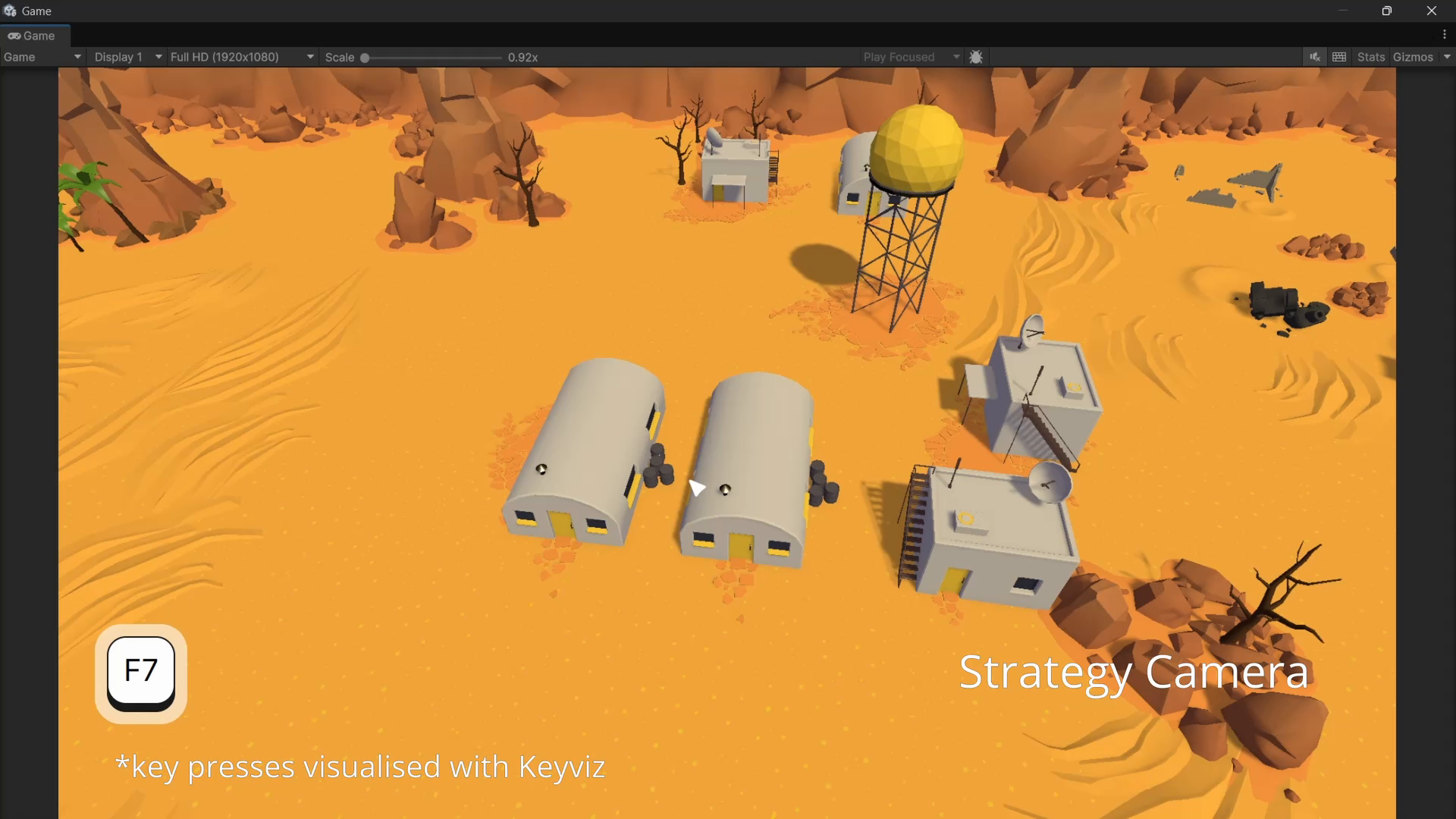
1. Strategy Camera Controller
This overhead strategic camera controller combines elements of top-down cameras found in games like Total War with zoom and pitch and yaw rotation and mouse drag for rotation and movement, as well as traditional RTS controls like edge panning and keyboard controls.
Custom editor code for edge-scrolling constrains the pointer within the game view.
Setup
This controller should be placed on a Camera Rig game object, which you should treat as the 'focus' of the camera.
The actual camera in the scene should be a child of this rig, and should be positioned at the desired default zoom distance from the rig, with a rotation such that it is looking at the rig. The default values for these are then initialized from this position whenever the game is launched.
There is an RTS Camera Rig prefab in the Prefabs folder that you can drop in your scene.
Make sure to remove any duplicate cameras if you do this.
Controls
- Keyboard:
- `WASD` or `Arrow Keys` to pan the camera
- `QE` to rotate the camera yaw
- `Space` to reset pitch and yaw
- Mouse:
- `Left Click + Drag` to pan the camera
- `Right Click + Drag` to rotate the camera yaw
- `Scroll Click + Drag` to rotate the camera pitch
- `Scroll Wheel` to zoom in and out
You can also pan the camera by moving the mouse cursor to the edges of the screen.
All parameters of this camera are exposed in the inspector and customisable:
- Pan, yaw, pitch and zoom speeds
- Camera bounds, pitch limits, zoom limits
- Screen edge pan width and height zone
There is automatic pan speed adjustment based on the camera's zoom level, which is controlled by the
`m_maxZoomSpeedMultiplier` - at max zoom the camera moves slower, and at min zoom the camera moves faster.
This is to ensure that the camera movement feels consistent regardless of the zoom level.
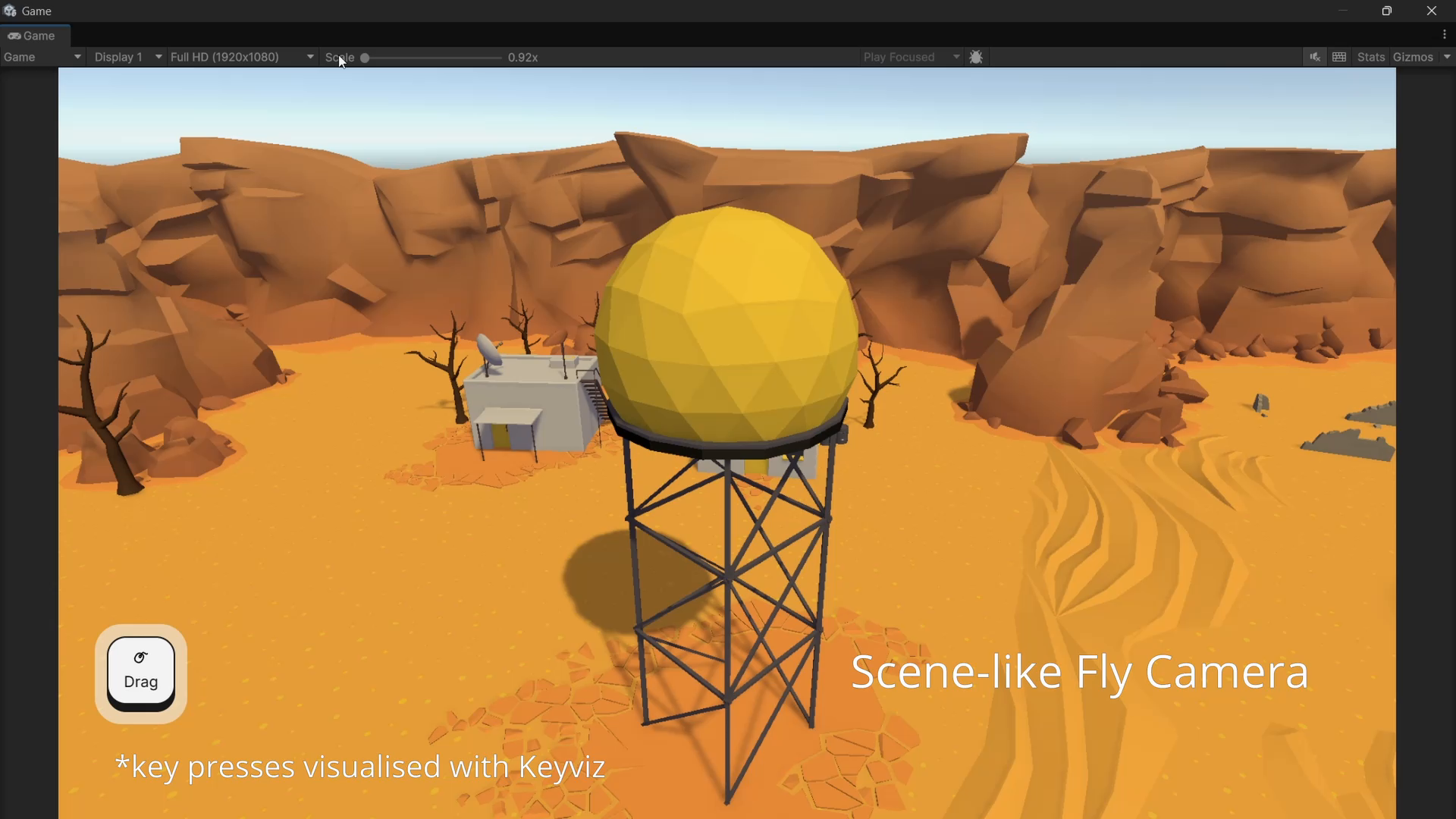
2. Scene-like Fly Camera Controller (+Fly Camera Controller)
This is a free-flying camera controller, similar to the fly mode in the Unity Editor Scene view. This camera accumulates speed during separate move events like the in-Editor scene camera. It has a simple UIToolkit display that display the camera speed as you adjust it with the scroll wheel during movement.
The Fly Camera Controller is a simplified variant that is always active and does not have the speed adjustment through scrolling feature.
Setup
Drop the Scene-like Fly Camera prefab into your scene. Make sure to remove any duplicate cameras if you do this.
Controls
Hold down right mouse button to activate the camera.
- Keyboard:
- `WASD` or `Arrow Keys` to move the camera
- `QE` to move the camera vertically
- `Escape` to pause the camera and unlock the cursor. Pressing `Escape` again will resume the camera and lock the cursor.
- `Left Shift` to boost movement speed
- Mouse:
- Hold down right mouse button to activate the camera.
- Look around by moving the mouse. The camera's yaw and pitch will be adjusted based on the mouse movement.
- While holding right mouse button, use the scroll wheel to adjust the camera speed.
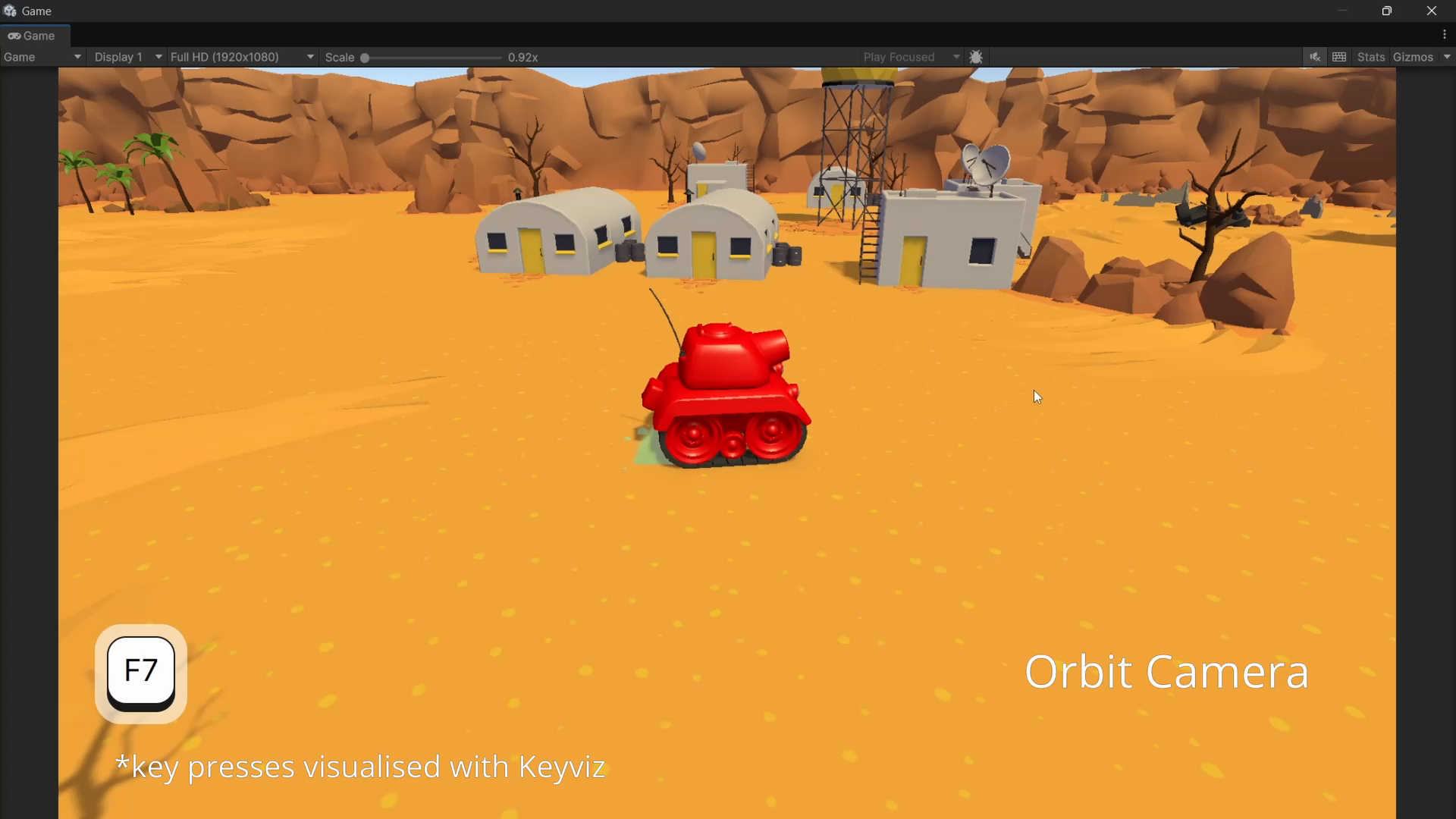
3. Orbit Camera Controller
This is a simple orbit camera controller that allows the user to orbit around a target object, zoom in and out, and adjust the pitch and yaw of the camera.
It can be combined with a character controller for a third person camera setup, or used on its own to demo a scene or object.
Controls
- Keyboard:
- `Space` to reset zoom and rotation
- Mouse:
- `Right Click + Drag` to orbit the camera around the target point
- `Scroll` to adjust the camera's zoom
From the publisher's Asset Store listing.
Compatibility
| Unity version | Built-in | URP | HDRP | Custom |
|---|---|---|---|---|
| 6000.0.73f1 | Compatible | Compatible | Compatible | Compatible |
As listed on the Asset Store.