
 View on Asset Store (opens in new tab)
Package details
- Latest version
- 1.0.0
- Last updated
- First released
- Unity version
- 6000.3.3 or later
- Package size
- 1.9 MB
- Files
- 11
- Views in the past week
- 3
Price tracking
- Last checked
- Tracked since
- Lowest recorded
- $4.99 on
Keywords

Input Device UGUI Manager
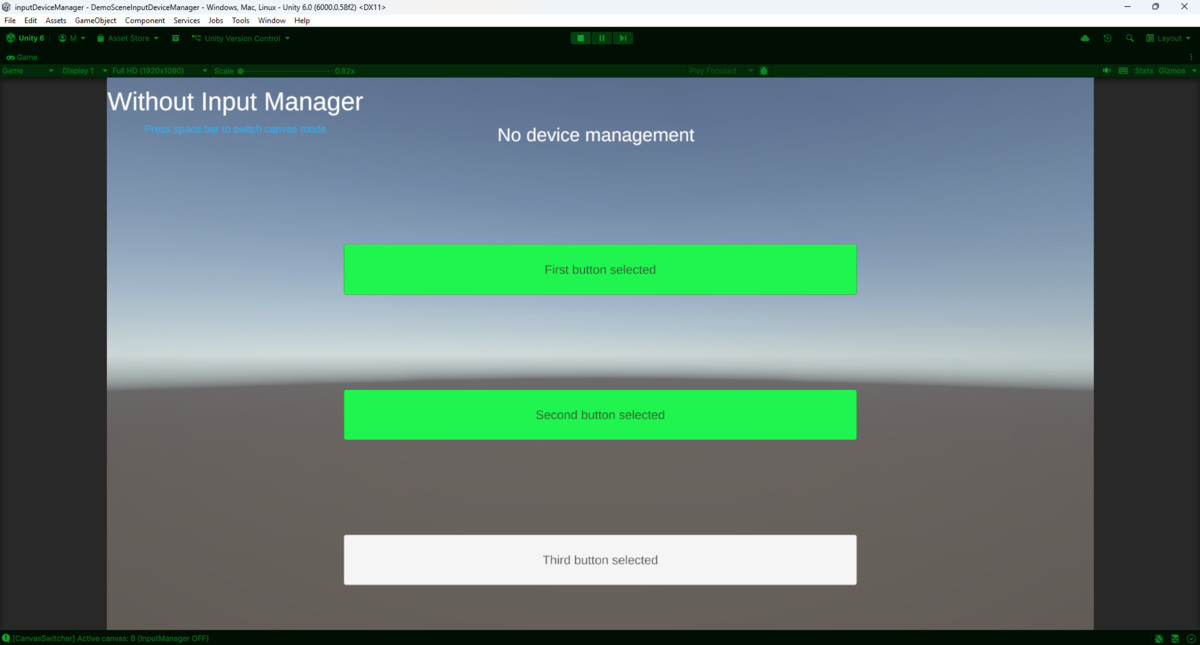
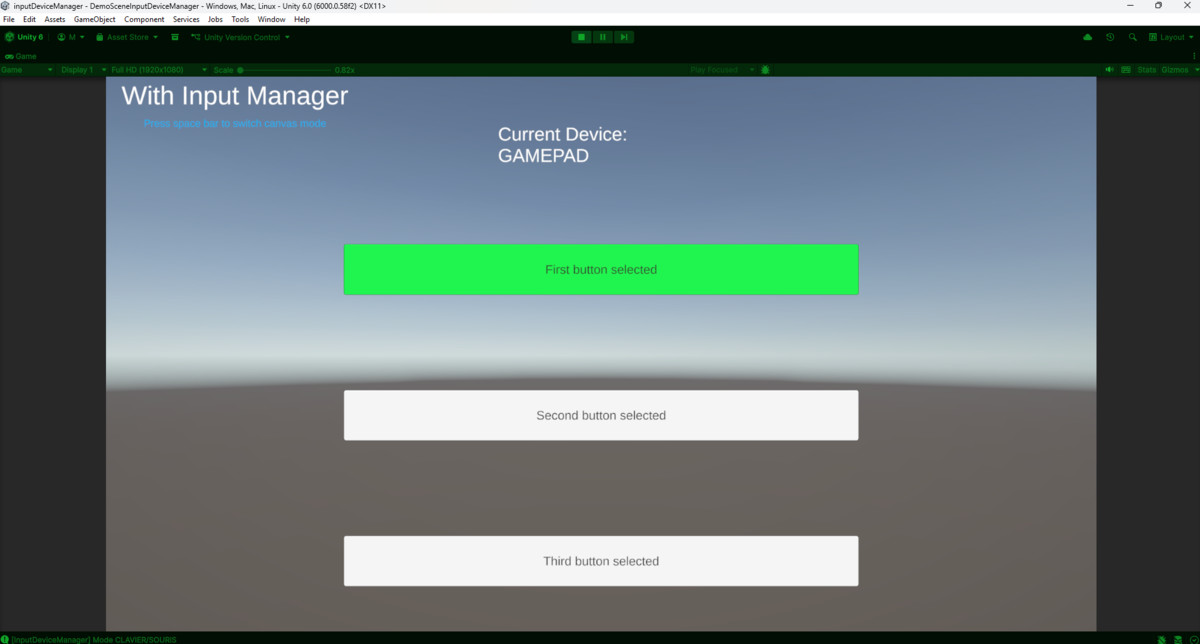
Input Device UI Manager is a lightweight and plug-and-play solution for UGUI navigation using the new Input System. It automatically detects whether the player is using a gamepad or keyboard/mouse.
Affiliate link · Purchases support this site
Price history
Last 6 months
USDAsset preview
1 / 3
Input Device UGUI Manager screenshot 1

About this asset
Input Device UI Manager is a lightweight and plug-and-play solution for Unity UI navigation using the new Input System.
It automatically detects whether the player is using a gamepad or keyboard & mouse, and adjusts your UI behavior accordingly:
- Switching UI navigation mode
- Selecting the default UI element (for gamepad navigation)
- Hiding or locking the system cursor
- Broadcasting input-method events to the UI
Perfect for menus, option screens, inventory interfaces, and any UI that requires smooth interaction both with gamepad and mouse.
This package contains:
- InputDeviceManager.cs
Handles device detection, switching logic, and cursor state. - UIMenuInputHandler.cs
Automatically updates individual menus based on the active input method.
Minimal setup, zero dependencies beyond Unity’s Input System.
From the publisher's Asset Store listing.
Technical details
Installation
- Import the package through Unity’s Package Manager or drag into your project.
- Ensure InputSystem package is enabled in your project.
- Create a new GameObject:
Right-click → Create Empty → Rename: InputSystemManager - Add InputDeviceManager to it.
- Mark the object as DontDestroyOnLoad (automatically done in script).
- On each UI screen, add UIMenuInputHandler.
Done — no configuration required.
Compatibility
| Unity version | Built-in | URP | HDRP | Custom |
|---|---|---|---|---|
| 6000.3.3f1 | Compatible | Compatible | Compatible | Compatible |
As listed on the Asset Store.