
 View on Asset Store (opens in new tab)
Package details
- Latest version
- 1.2.1
- Last updated
- First released
- Unity version
- 2022.3.42 or later
- Package size
- 60 KB
- Files
- 14
- Favorites
- 23
- Views in the past week
- 9
Price tracking
- Last checked
- Tracked since
- Lowest recorded
- Free on
Keywords
PlayerPrefs Editor & Manager
A comprehensive Unity Editor tool for managing, monitoring, and organizing PlayerPrefs with advanced features including real-time notifications, filtering, and data export/import capabilities.
Affiliate link · Purchases support this site
Price history
Last 6 months
USDAsset preview
1 / 5
PlayerPrefs Editor & Manager screenshot 1
About this asset
The PlayerPrefs Editor & Manager is a powerful Unity Editor window that provides a complete solution for working with Unity's PlayerPrefs system. It offers multiple views and features to help developers efficiently manage game settings, user preferences, and persistent data during development and testing.
From the publisher's Asset Store listing.
Technical details
## Installation
1. Copy the `Notorious Creations` folder into your Unity project's `Assets` directory
2. The tool will automatically appear in Unity's menu system
3. Access via **Tools → Notorious Creations → PlayerPrefs Editor**
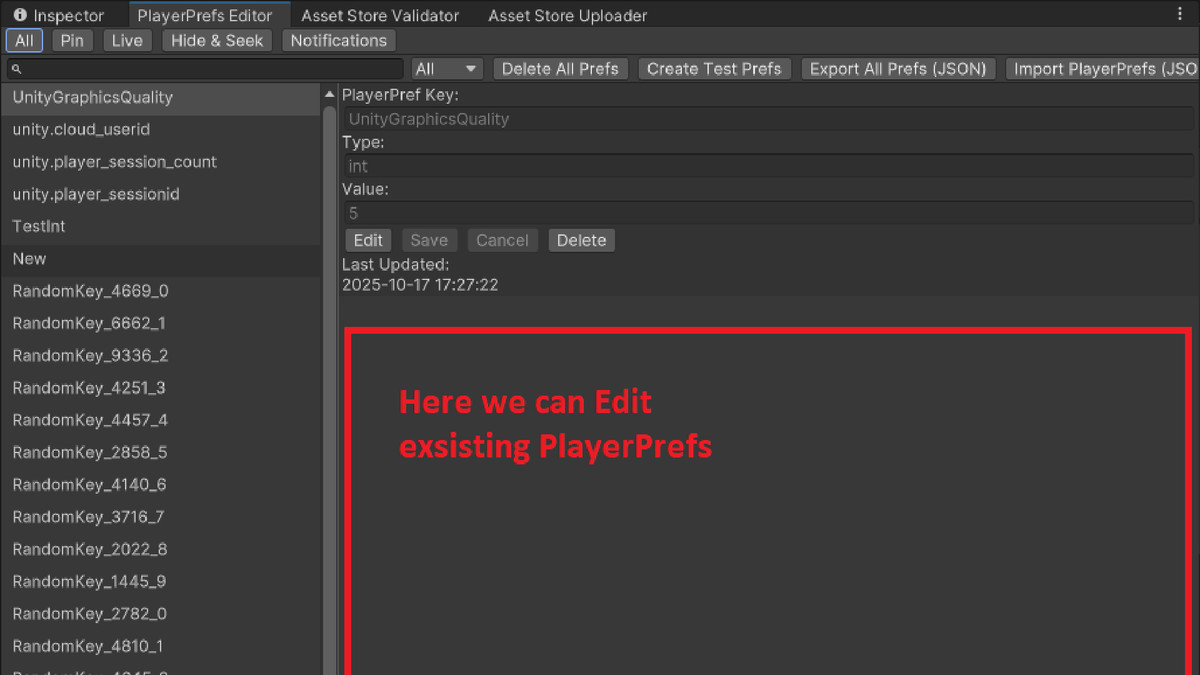
### 🔍 **All Tab - Complete Overview**
- View all PlayerPrefs in your project with their types and values
- Search functionality with real-time filtering
- Type-based filtering (int, float, string, or all)
- Alternating row colors for better readability
- Bulk operations support
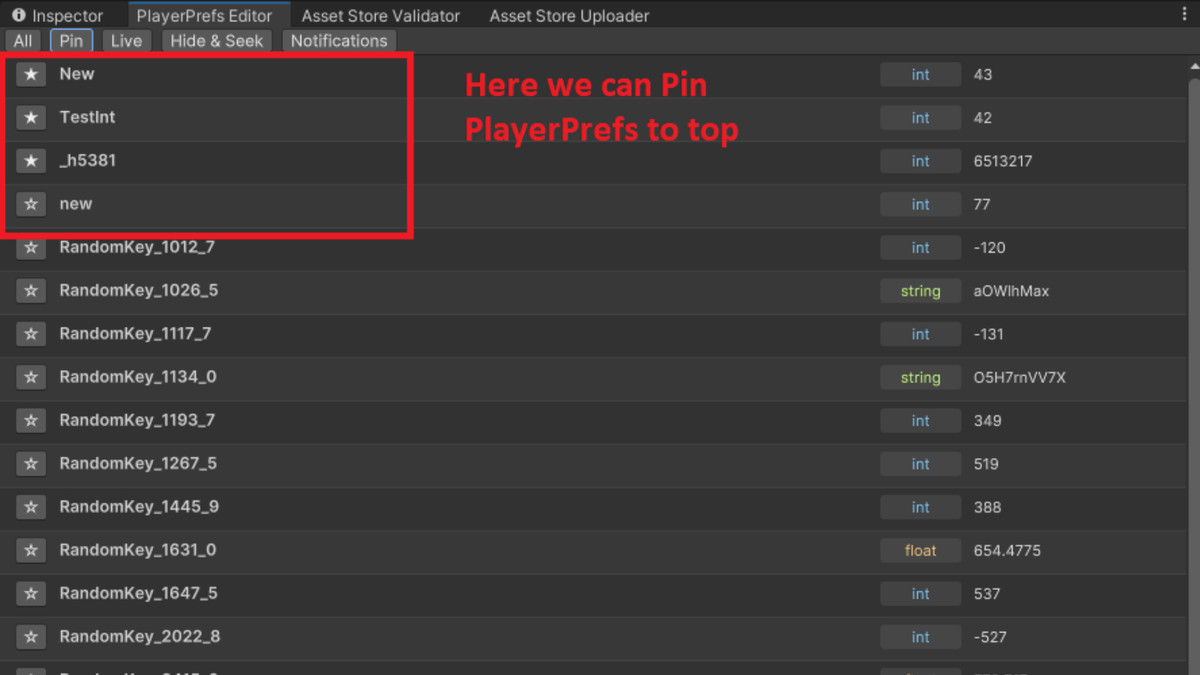
### 📌 **Pin Tab - Favorite Management**
- Pin frequently used PlayerPrefs for quick access
- Persistent pinning across Unity sessions
- Toggle pin/unpin with star indicators
- Organized view of only your most important settings
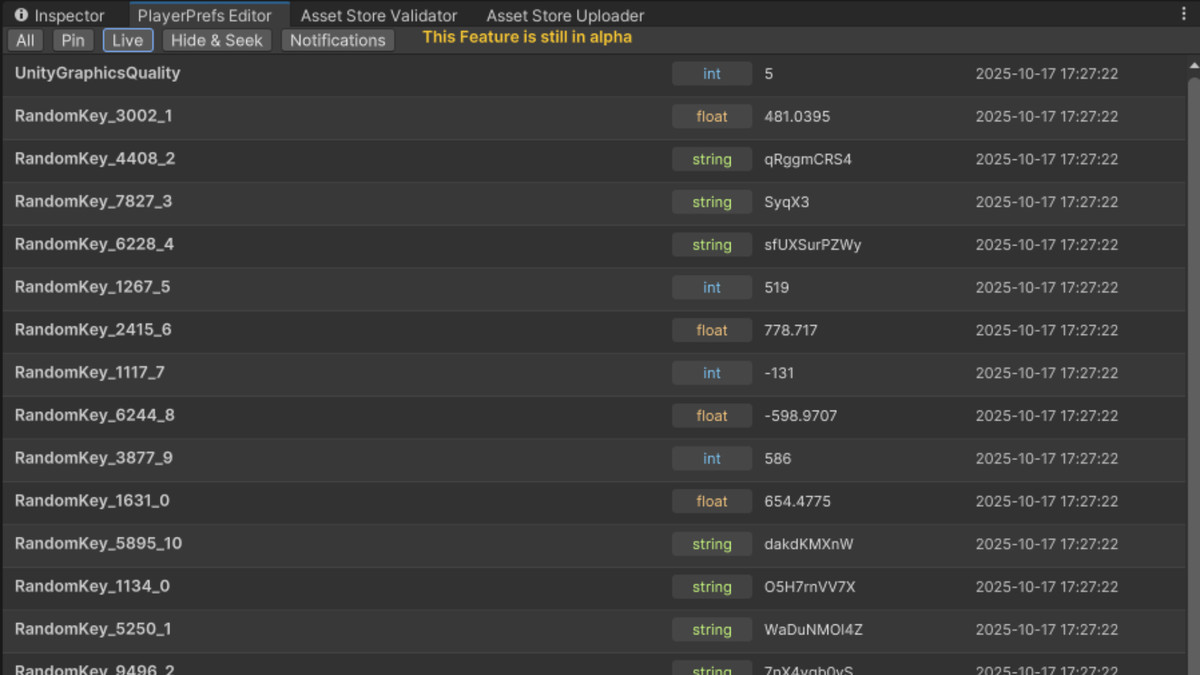
### ⚡ **Live Tab - Real-time Monitoring** (Alpha)
- Monitor PlayerPrefs changes in real-time
- Sort by last updated time
- Track when values were modified
- Ideal for debugging and testing scenarios
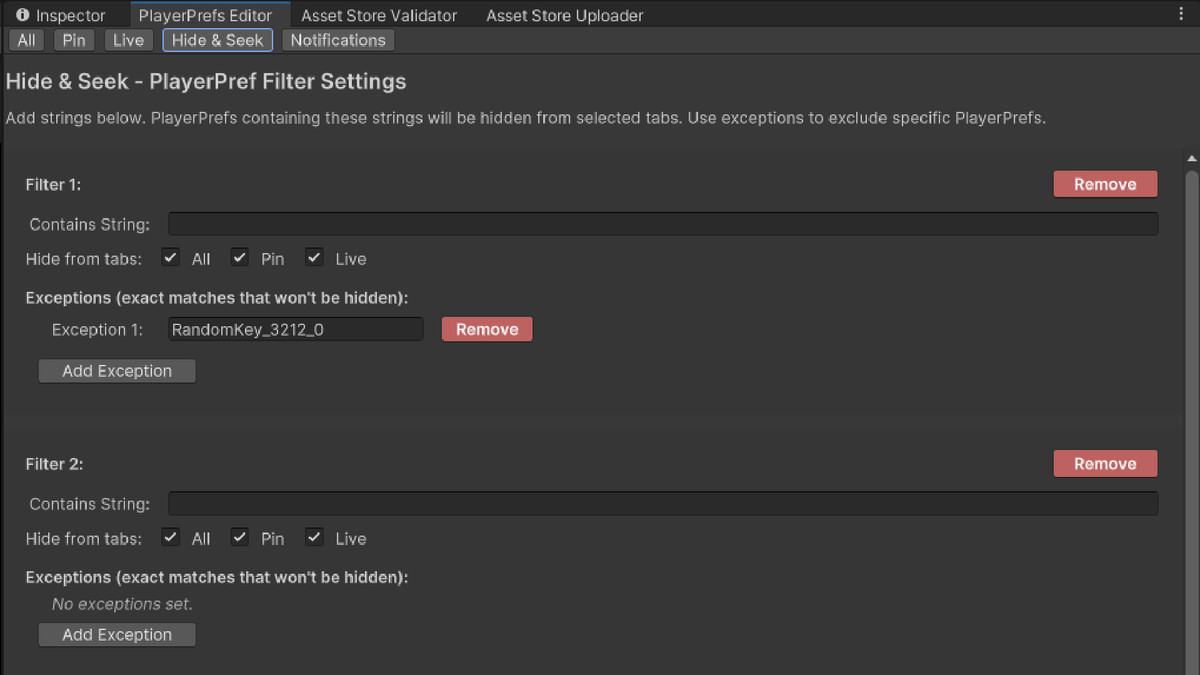
### 🔒 **Hide & Seek Tab - Advanced Filtering**
- Create custom hide filters based on string patterns
- Exception lists for specific keys you want to keep visible
- Tab-specific hiding (configure which tabs show/hide filtered items)
- Multiple filter rules with individual controls
- Perfect for hiding Unity/third-party library PlayerPrefs
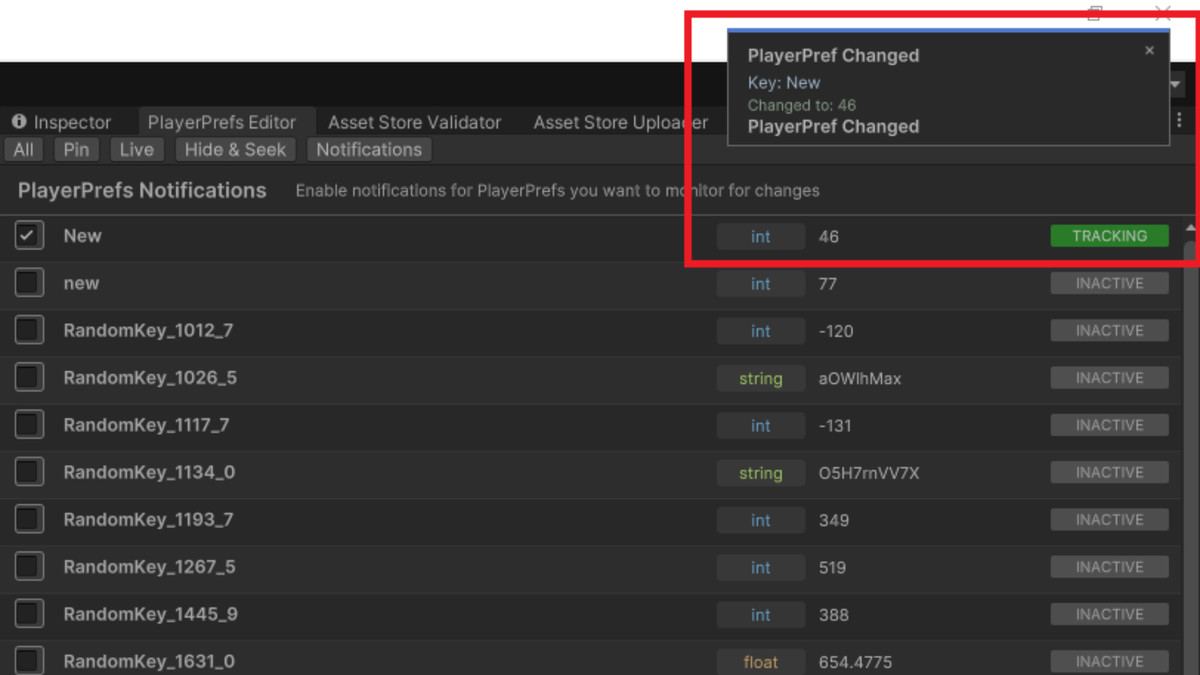
### 🔔 **Notifications Tab - Change Tracking**
- Enable notifications for specific PlayerPrefs
- Real-time change detection with visual alerts
- Sliding notification windows from top-right corner
- Track value changes, deletions, and new additions
- Persistent tracking across Unity sessions
## Installation
1. Copy the `Notorious Creations` folder into your Unity project's `Assets` directory
2. The tool will automatically appear in Unity's menu system
3. Access via **Tools → Notorious Creations → PlayerPrefs Editor**
## Usage
### Opening the Tool
Navigate to **Tools → Notorious Creations → PlayerPrefs Editor** in Unity's menu bar.
### Navigation
The tool features a tabbed interface at the top:
- **All**: Browse all PlayerPrefs
- **Pin**: View pinned favorites
- **Live**: Real-time monitoring (Alpha feature)
- **Hide & Seek**: Configure filtering rules
- **Notifications**: Set up change tracking
### Basic Operations
#### Viewing PlayerPrefs
- All PlayerPrefs are displayed with their key names, types (int/float/string), and current values
- Use the search field to filter by key name
- Select type filter dropdown to show only specific data types
#### Creating Test Data
- Use the "Create Test Prefs" button to generate sample PlayerPrefs for testing
- Creates `test_string`, `test_int`, and `test_float` entries
#### Bulk Operations
- "Delete All Prefs" button removes all PlayerPrefs (with confirmation dialog)
- Export/Import functionality for backing up and restoring PlayerPrefs
### Advanced Features
#### Pinning System
1. Navigate to any tab showing PlayerPrefs
2. Click the star icon (☆) next to any PlayerPref to pin it
3. Pinned items (★) appear in the Pin tab for quick access
4. Click again to unpin
#### Setting Up Notifications
1. Go to the **Notifications** tab
2. Check the box next to any PlayerPref you want to monitor
3. When that PlayerPref changes, a notification window will slide in from the top-right
4. Notifications persist across Unity sessions
#### Configuring Hide Filters
1. Open the **Hide & Seek** tab
2. Click "Add Hide Filter" to create a new filter rule
3. Enter a string pattern that keys should contain to be hidden
4. Configure which tabs the filter applies to
5. Add exceptions for specific keys you want to keep visible
6. Use "Remove" to delete individual filters or "Clear All Filters" to reset
#### Data Export/Import
- **Export**: Creates a JSON file with all current PlayerPrefs
- **Import**: Restores PlayerPrefs from a previously exported JSON file
- Useful for backing up settings or transferring between projects
Compatibility
| Unity version | Built-in | URP | HDRP | Custom |
|---|---|---|---|---|
| 2022.3.42f1 | Compatible | Compatible | Compatible | Compatible |
Currently works for Windows Only
As listed on the Asset Store.