
 View on Asset Store (opens in new tab)
Package details
- Latest version
- 1.0
- Last updated
- First released
- Unity version
- 6000.0.47 or later
- Package size
- 45 KB
- Files
- 22
- Favorites
- 1
- Views in the past week
- 1
Price tracking
- Last checked
- Tracked since
- Lowest recorded
- $10.00 on
Keywords

DevShell - Console
Want to invoke functions by just writing them in a console or you love using your keyboard more than your mouse? If yes, then this package is just for you! Improve your workflow with easy integration.
Affiliate link · Purchases support this site
Price history
Last 6 months
USDAsset preview
1 / 4
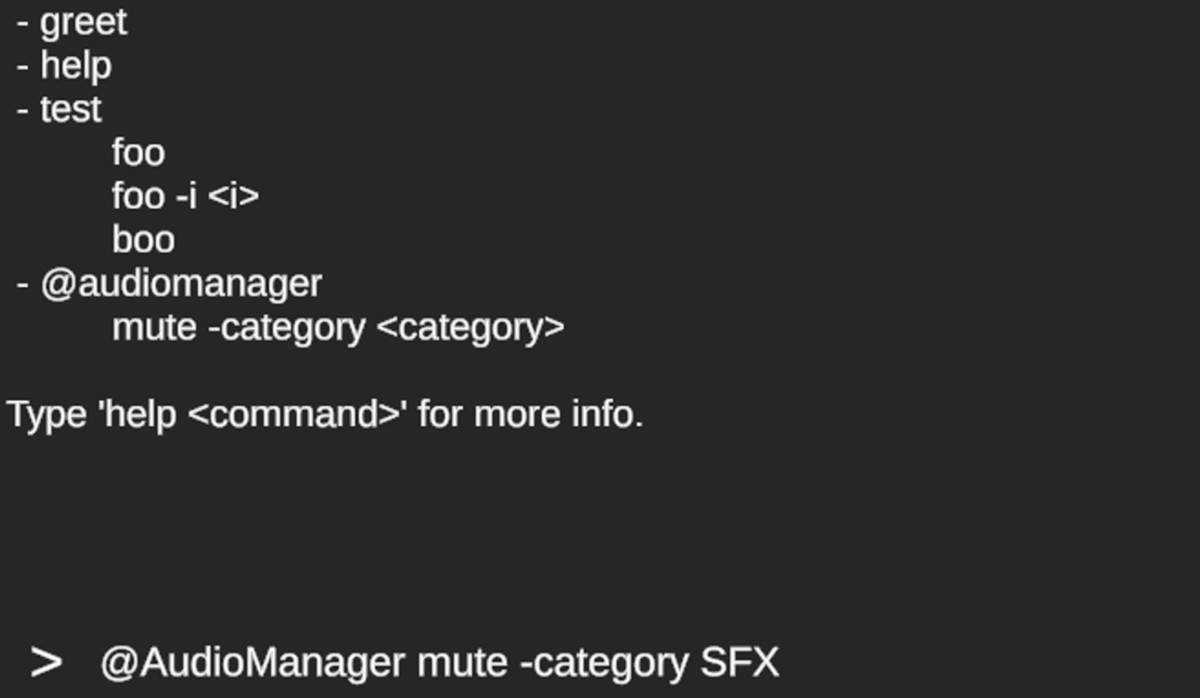
DevShell - Console screenshot 1
About this asset
The DevShell-Console supports static and non-static command functions using a simple attribute-based system. This allows you to register and expose methods as console commands with minimal setup.
Creating a Static Command
To create a static command:
1. Define a static method in any class.
2. Add the [ShellCommand] attribute to it.
3. Optionally, provide an alias name inside the attribute. If no alias is specified, the method name will be used as the command name.
Access modifiers (public, protected, private) do not matter for command registration.
Example:
public static class GameCommands
{
[ShellCommand("reset-game")]
private static void ResetGameState()
{
// Reset logic
}
}
In this example, the console command is reset-game. If no alias was provided, the command would be called via ResetGameState.
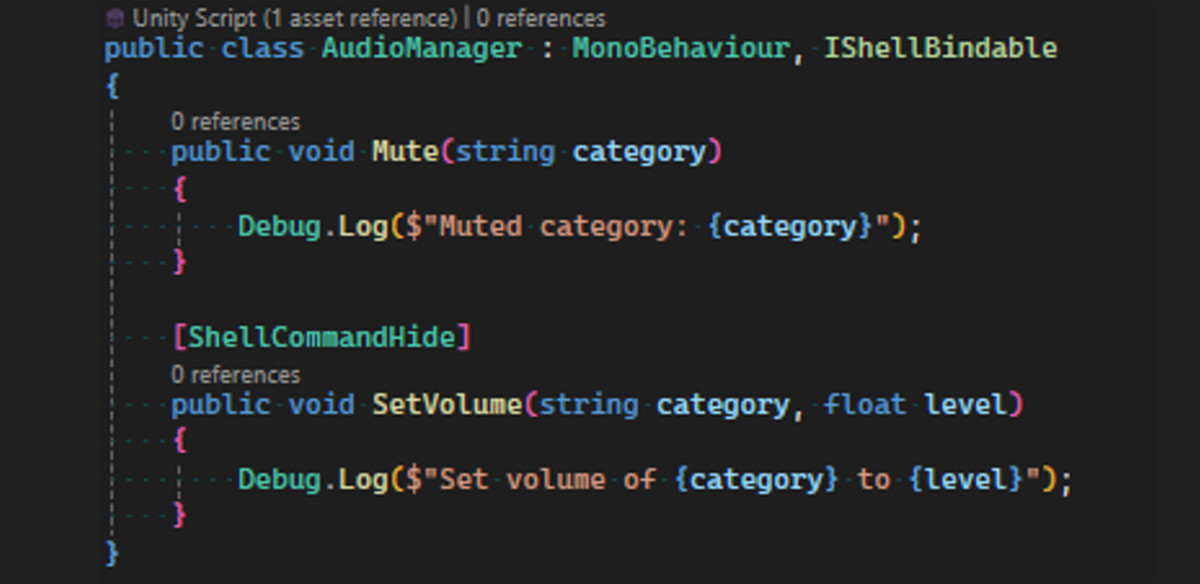
Creating non-static Command using Shell Bindable
To make a component bindable, implement the IShellBindable interface:
public class AudioManager : MonoBehaviour, IShellBindable
{
public void Mute(string category)
{
Debug.Log($"Muted category: {category}");
}
[ShellCommandHide]
public void SetVolume(string category, float level)
{
Debug.Log($"Set volume of {category} to {level}");
}
}
In this example, Mute is exposed to the console and can be executed at runtime. SetVolume is hidden from the shell due to the [ShellCommandHide] attribute.
Command Arguments
Each parameter of a static method can be annotated with the [ShellArgument] attribute to define:
- A human-readable name
- Whether the argument is optional
- An optional alias used to pass the value via the console
If no [ShellArgument] is applied, the parameter is treated as optional by default.
Example with Arguments:
public static class TimeCommands
{
[ShellCommand]
public static void SetTime(
[ShellArgument(Alias: "time")] float timeOfDay,
[ShellArgument(Optional: true, Alias: "pause")] bool pauseGame = false)
{
// Apply time and pause logic
}
}
Passing Arguments in the Console
You can pass arguments in two ways:
1. Named Arguments (Recommended)
Use -alias or -parameterName syntax. Argument order does not matter.
Example:
settime -time 18.5 -pause true
2. Positional Arguments
If no named arguments are provided, the console will match arguments in order, from left to right.
Example:
settime 18.5 true
From the publisher's Asset Store listing.
Technical details
- Arguments without [ShellArgument] are optional by default.
- If an alias is defined, use the alias in the console, not the parameter name.
- Static command methods must be static to be discovered.
- Use method overloading with caution. While it is supported, ensure that each overloaded command differs clearly in the number of parameters. For example, avoid defining two overloads that both take exactly two arguments, as this can lead to ambiguity during command resolution and undefined behaviour.
- There must be only one bindable component/class per GameObject
Compatibility
| Unity version | Built-in | URP | HDRP | Custom |
|---|---|---|---|---|
| 6000.0.47f1 | Compatible | Compatible | Compatible | Compatible |
* Requires Unity 2023.1.0. or newer
As listed on the Asset Store.