
 View on Asset Store (opens in new tab)
Package details
- Latest version
- 2.0
- Last updated
- First released
- Unity version
- 6000.3.10 or later
- Package size
- 90 KB
- Files
- 3
- Favorites
- 2
- Views in the past week
- 6
Price tracking
- Last checked
- Tracked since
- Lowest recorded
- $4.99 on
Keywords
Multi Texture Material Creator (URP) - Editor Tool
Create URP materials faster with automatic texture detection, batch creation, map processing, previews, and smart material setup from Extynct Studios.
Affiliate link · Purchases support this site
Price history
Last 6 months
USDAsset preview
1 / 7
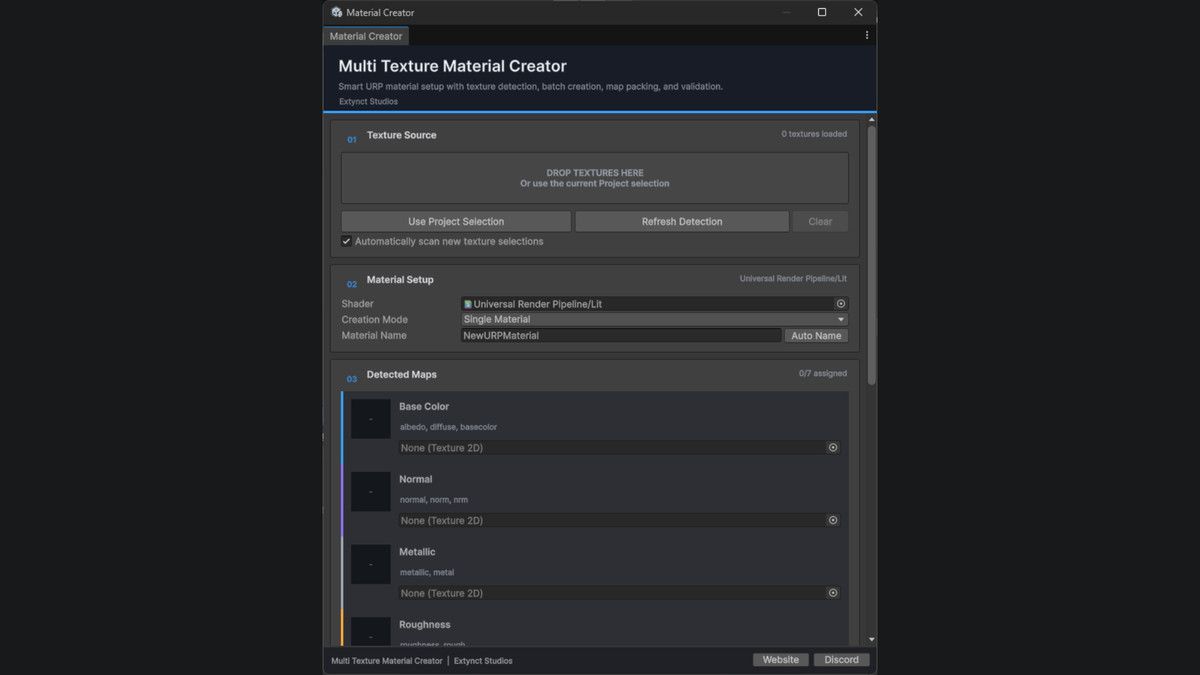
Multi Texture Material Creator (URP) - Editor Tool screenshot 1
About this asset
Multi Texture Material Creator (URP) - Unity Editor Tool
Create URP materials from complete texture sets in seconds.
Multi Texture Material Creator by Extynct Studios is a Unity Editor tool designed to speed up material creation for Universal Render Pipeline projects.
Instead of manually creating a material, assigning every texture, configuring import settings, and preparing texture data for URP, simply select or drag in your texture set and let Multi Texture Material Creator handle the setup.
The tool automatically detects common texture-map naming conventions, previews the detected maps, processes them for URP when needed, and creates ready-to-use Material assets.
Key Features
Automatic Texture Detection
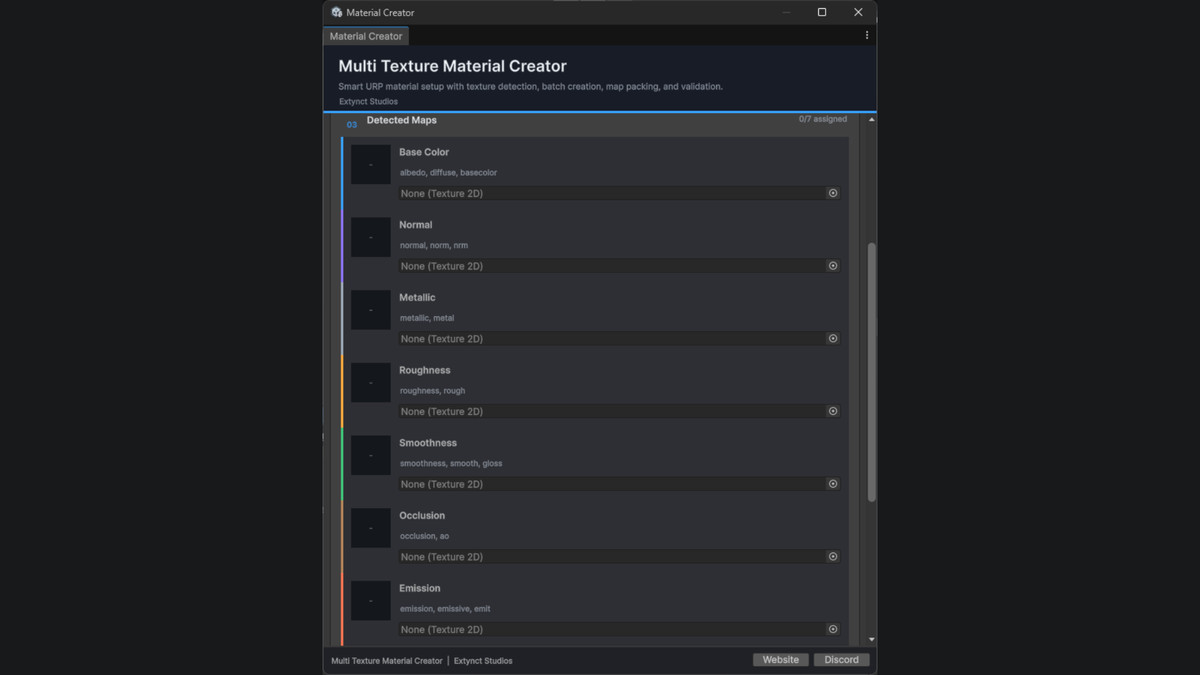
Automatically identifies common texture maps based on their filenames, including:
- Base Color / Albedo / Diffuse
- Normal
- Metallic
- Roughness
- Smoothness
- Ambient Occlusion
- Emission
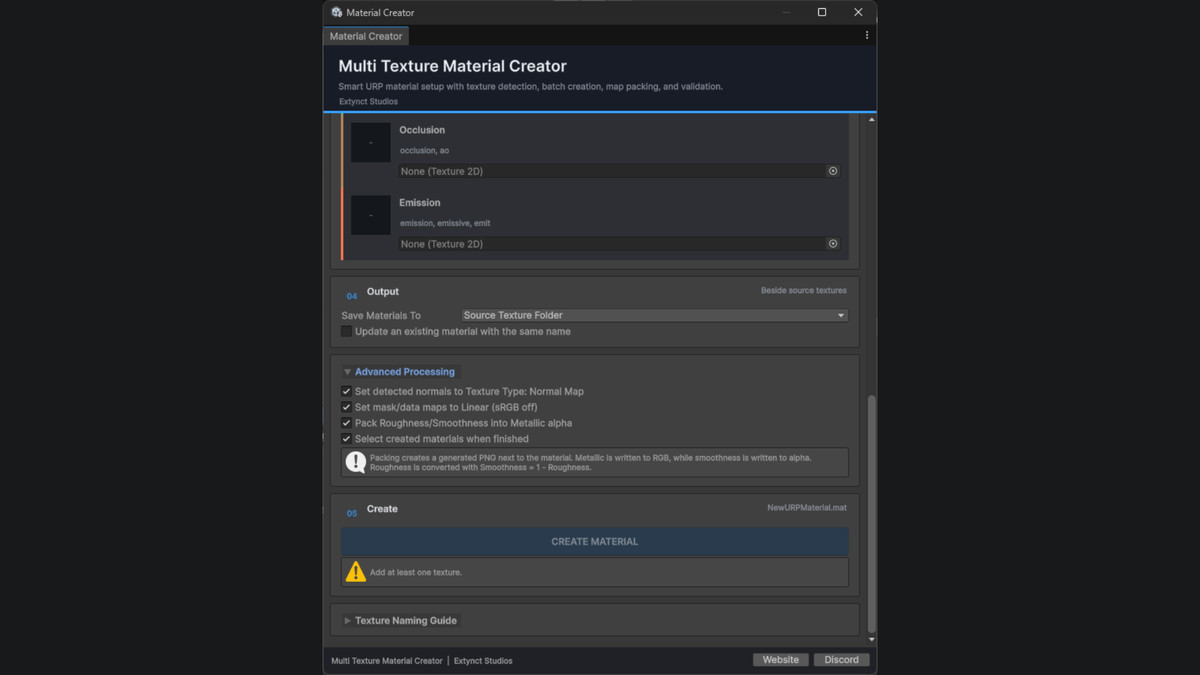
Detected textures are shown directly inside the Editor window and can be manually overridden at any time.
Drag and Drop Workflow
Drag Texture2D assets directly into the tool or load your current Project window selection.
The creator automatically scans the supplied textures and assigns recognized maps to their corresponding roles.
Texture Previews
Each detected texture map includes a preview so you can quickly verify that everything has been assigned correctly before creating your material.
Automatic Material Naming
Use your own material name or let the tool generate one automatically from the detected texture-set name.
For example:
SciFiPanel_BaseColor.png
SciFiPanel_Normal.png
SciFiPanel_Roughness.png
can automatically become:
SciFiPanel.mat
Batch Material Creation
Have several texture sets to process?
Batch mode automatically groups textures by their shared base name and creates a separate material for each detected set.
For example:
Rock_BaseColor.png
Rock_Normal.png
and
Metal_BaseColor.png
Metal_Normal.png
can be processed together to create both:
Rock.mat
Metal.mat
in a single workflow.
URP Metallic + Smoothness Packing
URP/Lit commonly stores Metallic information in RGB and Smoothness in the Alpha channel.
Multi Texture Material Creator can automatically generate this packed texture for you.
When a Roughness texture is supplied, it is automatically converted using:
Smoothness = 1 - Roughness
The resulting packed texture can then be assigned directly to the URP material.
Automatic Texture Import Configuration
The tool can automatically configure detected textures for their intended purpose.
This includes:
- Setting Normal textures to Texture Type: Normal Map
- Setting Metallic maps to Linear data
- Setting Roughness maps to Linear data
- Setting Smoothness maps to Linear data
- Setting Occlusion maps to Linear data
- Disabling sRGB where appropriate for data textures
URP Shader Setup
Universal Render Pipeline/Lit is automatically selected when available.
You can also assign another shader manually.
When using compatible shaders, the tool checks for supported shader properties before assigning textures.
Shader Keyword Configuration
Supported material features can be configured automatically, including:
- Normal Maps
- Metallic Maps
- Occlusion
- Emission
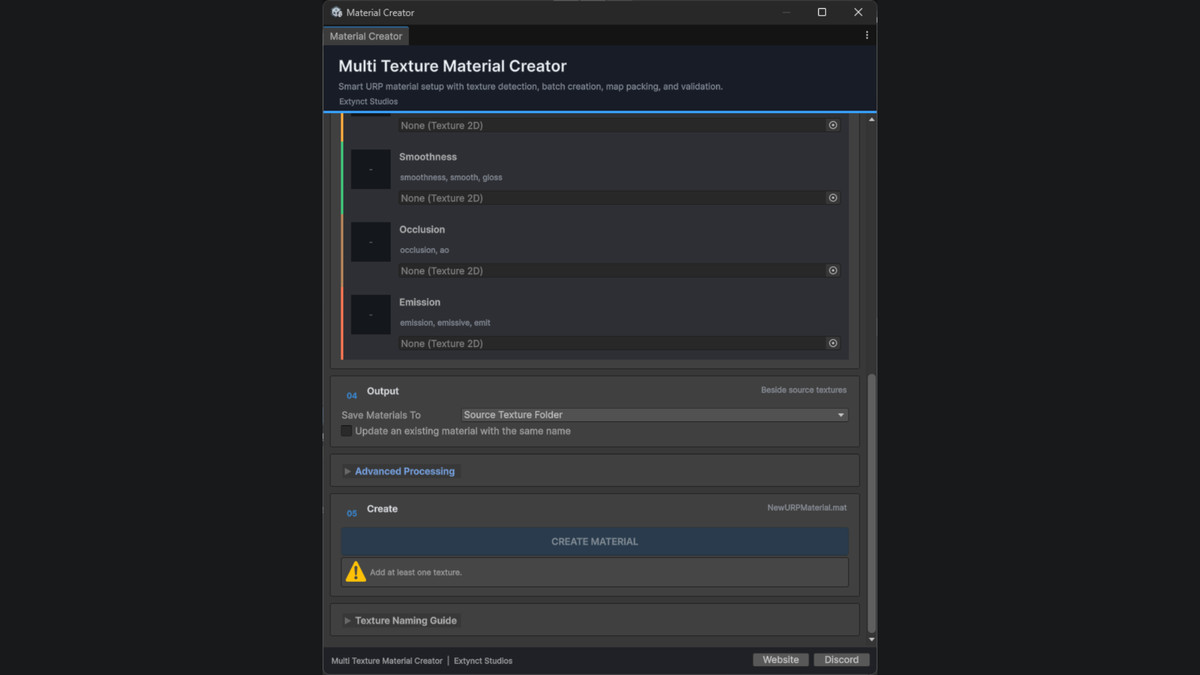
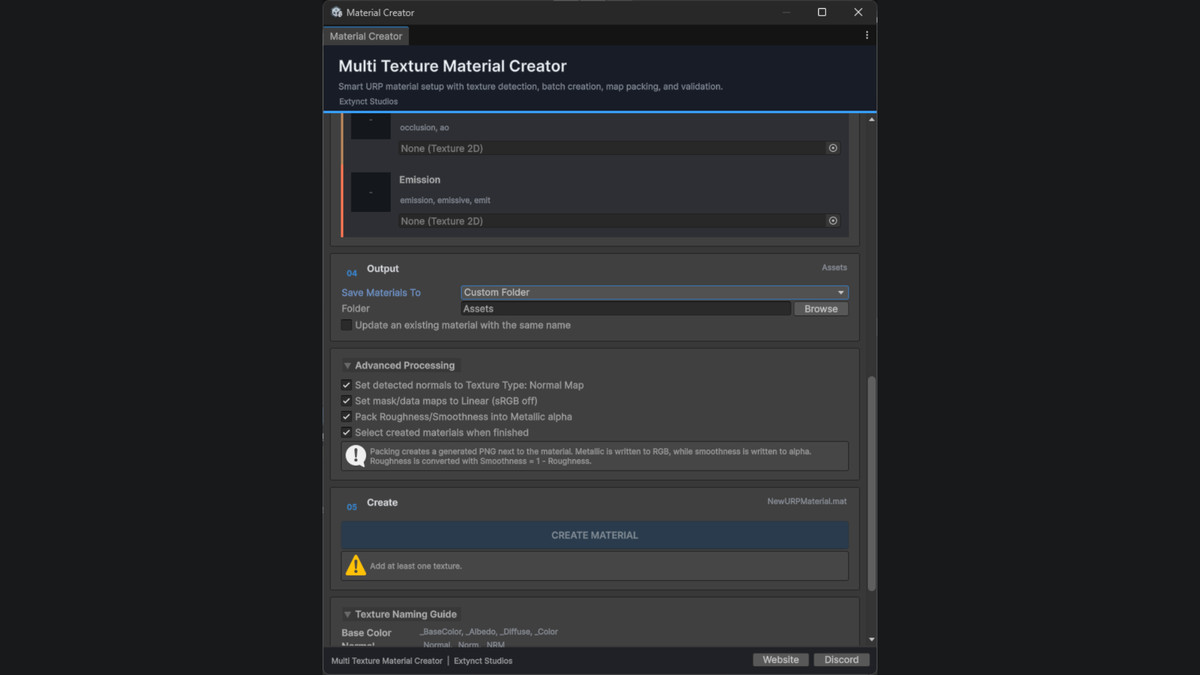
Flexible Output Options
Choose where generated materials should be saved.
You can:
- Create materials beside their source textures
- Choose a custom folder inside the project's Assets directory
Safe Material Updating
Need to regenerate an existing material after updating its textures?
Enable existing-material update mode to update the Material asset while preserving its existing GUID.
This helps prevent references from breaking in:
- Prefabs
- Scenes
- Renderers
- Script references
- Other assets
Detection Warnings
The tool can warn you when:
- A texture could not be recognized
- Multiple textures match the same material role
- A required setting is missing
- An assigned shader does not expose an expected property
Unrecognized textures can still be manually assigned.
Responsive Unity Editor Interface
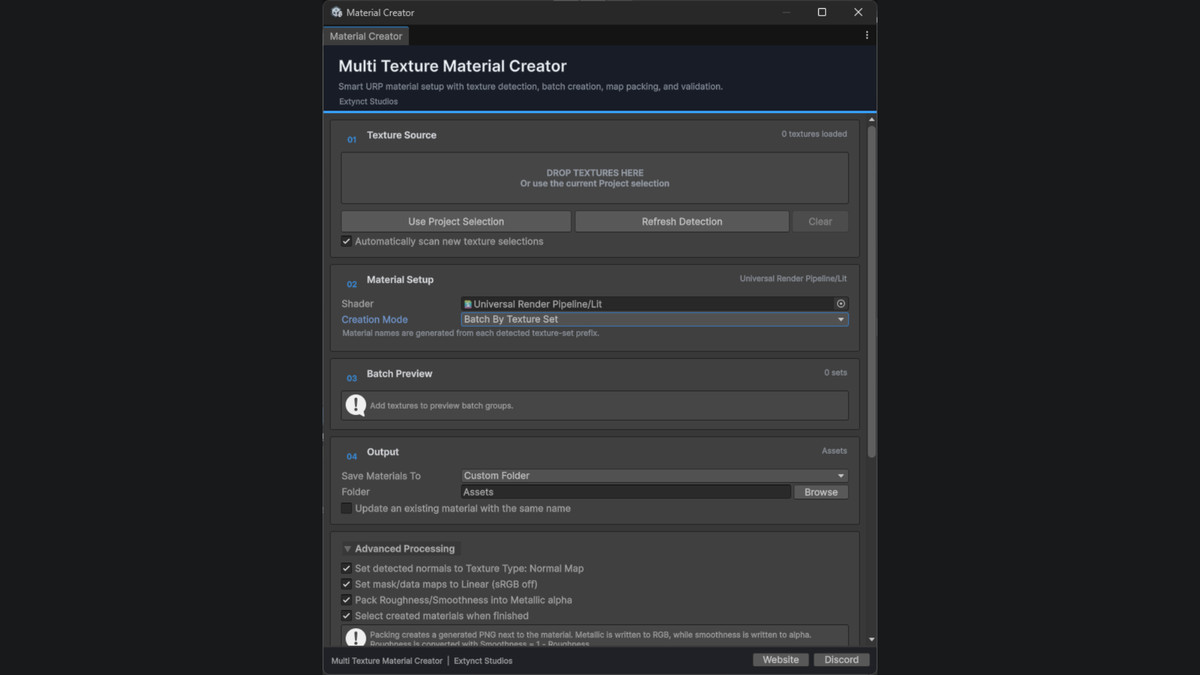
The interface has been redesigned around a clear workflow:
- Texture Source
- Material Setup
- Detected Maps
- Output
- Advanced Processing
- Create
The UI includes texture previews, status indicators, validation messages, foldouts, drag-and-drop support, and layouts designed to work across different Editor window sizes.
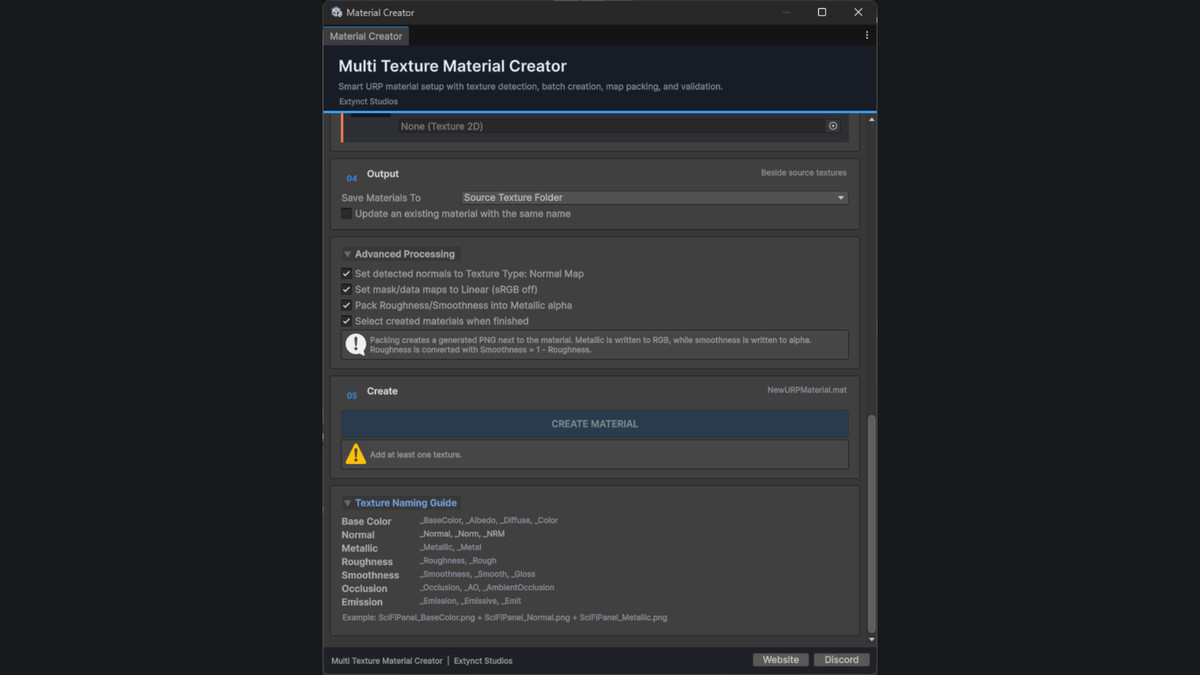
Supported Naming Conventions
The detector recognizes common naming terms such as:
Base Color
BaseColor, Albedo, Diffuse, Color
Normal
Normal, Norm, NRM
Metallic
Metallic, Metalness, Metal
Roughness
Roughness, Rough
Smoothness
Smoothness, Smooth, Gloss, Glossiness
Occlusion
Occlusion, AmbientOcclusion, AO
Emission
Emission, Emissive, Emit
Common separators such as _, -, and spaces are supported.
Example Workflow
- Select your material textures in the Unity Project window or drag them into the tool.
- Review the automatically detected texture maps.
- Select your shader and material name.
- Choose your output location and processing options.
- Click Create Material.
Your URP material is created and can automatically be selected in the Project window when processing is complete.
Batch Workflow
For larger projects:
- Select textures belonging to multiple material sets.
- Switch to Batch By Texture Set mode.
- Review the detected groups.
- Click Create Batch Materials.
The tool automatically groups and processes each texture set individually.
Designed for Faster Material Setup
Multi Texture Material Creator reduces repetitive Editor work involved in importing texture sets and preparing URP materials.
It is useful for:
- Environment asset packs
- Photogrammetry materials
- PBR texture libraries
- Character materials
- Props
- Modular environment kits
- Large imported asset collections
- Projects containing many material variations
Spend less time manually configuring materials and more time building your project.
Developed by Extynct Studios
Website:
https://extynctstudios.com/
Discord:
https://discord.extynctstudios.com/
© Extynct Studios
From the publisher's Asset Store listing.
Technical details
- Automatic Texture Detection: Detects Base Color, Normal, Metallic, Roughness, Smoothness, Occlusion, and Emission maps using common naming conventions.
- Manual Map Overrides: Lets you manually assign or replace detected textures before creating the material.
- Batch Material Creation: Groups texture sets by shared base name and creates multiple materials in one workflow.
- URP Material Processing: Supports Metallic + Smoothness packing, Roughness to Smoothness conversion, and URP-friendly material setup.
- Importer Setup Automation: Can automatically configure Normal maps and set data textures like Metallic, Roughness, Smoothness, and Occlusion to Linear.
- Flexible Shader and Output Options: Supports URP-compatible shaders, custom material naming, source-folder output, and custom output folders.
- Safe Material Updating: Can update existing materials while preserving their asset references and GUIDs.
- Improved Editor Workflow: Includes drag and drop support, texture previews, detection warnings, validation messages, and a responsive Unity Editor interface.
Compatibility
| Unity version | Built-in | URP | HDRP |
|---|---|---|---|
| 6000.3.10f1 | Not listed | Compatible | Not listed |
As listed on the Asset Store.