
 View on Asset Store (opens in new tab)
Package details
- Latest version
- 1.0.5
- Last updated
- First released
- Unity version
- 2022.3.25 or later
- Package size
- 7.3 MB
- Files
- 8
- Favorites
- 1
- Views in the past week
- 7
Price tracking
- Last checked
- Tracked since
- Lowest recorded
- $4.99 on
Keywords

BrainIT Auto Project Backup
The BrainIT Auto Project Backup tool automates the backup of Unity projects at scheduled times. Projects are backed up to a designated folder while excluding unnecessary Unity-generated files.
Affiliate link · Purchases support this site
Price history
Last 6 months
USDAsset preview
1 / 6

BrainIT Auto Project Backup screenshot 1




About this asset
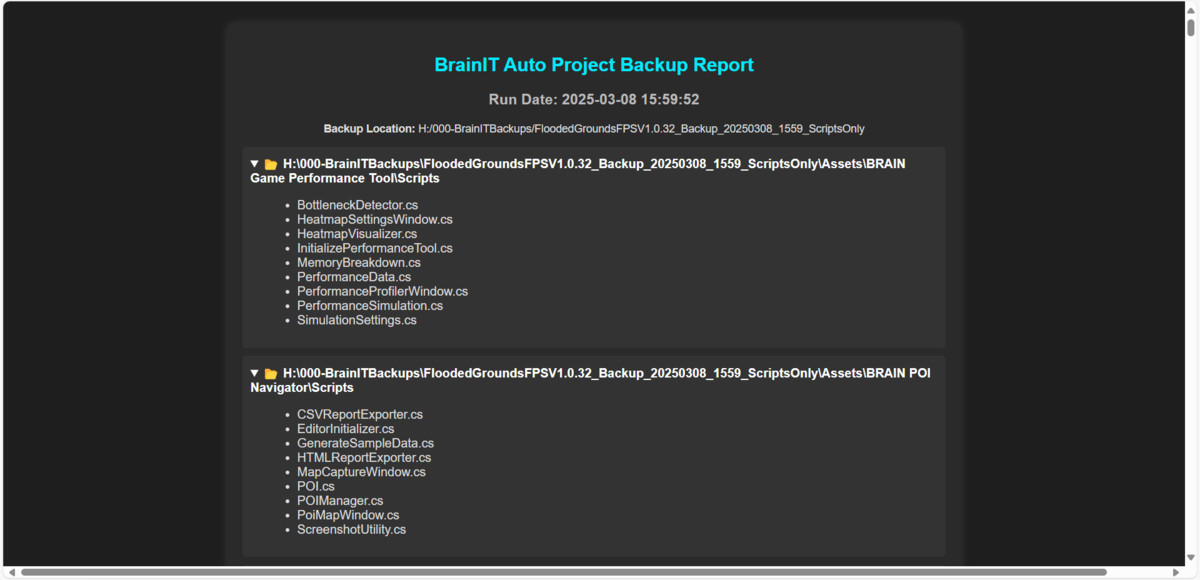
The BrainIT Auto Project Backup tool automates the backup of Unity projects at scheduled times. It ensures that projects are backed up to a designated folder while excluding unnecessary Unity-generated files. The tool also provides notifications and allows manual backups at any time.
The tool is smart enough to skip open/locked files until the next cycle. It has four custom timeslots for auto project backups, but you can run a manual backup any time without having to exit unity or close your project!
It is fast since it only backs up critical files.
From the publisher's Asset Store listing.
Technical details
Quick Start
- Open Unity Editor and go to Tools > Auto Backup Settings.
- Select a Backup Folder where your backups will be saved.
- Set up to three backup times (HH:mm format).
- Adjust notification interval and notification duration if needed.
- Click Save Settings.
- Wait for the automatic backup or trigger it manually.
- Tools > Backup Unity Project Now.
Workflow
Step 1: Configure Settings
- Open Tools > Auto Backup Settings.
- Set the Backup Folder.
- Define backup times and notification preferences.
- Click Save Settings.
Step 2: Automatic Backup
- The tool monitors system time.
- When a scheduled time arrives, it creates a backup in the designated folder.
- A notification appears showing backup progress.
Step 3: Manual Backup
- Open Tools > Backup Unity Project Now.
- The backup starts immediately.
- A success or failure message appears.
Step 4: Viewing Backups
- Navigate to the backup folder.
- Each backup is named as:
Example: MyUnityGame_Backup_20250302_1500
format: ProjectName_Backup_yyyyMMdd_HHmm
Step 5: Restoring a Backup
- Locate your desired backup folder.
- Copy and paste the contents into your Unity project directory.
- Restart Unity.
Compatibility
| Unity version | Built-in | URP | HDRP | Custom |
|---|---|---|---|---|
| 6000.0.41f1 | Compatible | Compatible | Compatible | Compatible |
| 2022.3.25f1 | Compatible | Compatible | Compatible | Compatible |
As listed on the Asset Store.