
 View on Asset Store (opens in new tab)
Package details
- Latest version
- 1.3
- Last updated
- First released
- Unity version
- 2022.3.62 or later
- Package size
- 2.1 MB
- Files
- 65
- Favorites
- 14
- Views in the past week
- 11
Price tracking
- Last checked
- Tracked since
- Lowest recorded
- Free on
Keywords

Simple Visual Dialogue Editor
- Price drop
A simple visual dialogue editor based on xNode. With four different kind of nodes (dialogue, option, event, check), you can better create and manage your dialogue
Affiliate link · Purchases support this site
Price history
Last 6 months
USDAsset preview
1 / 2
Simple Visual Dialogue Editor screenshot 1
About this asset
This is a simple visual dialogue editor based on xNode. If you used something like Visual Scripting or Amplify Shader Editor before, you may be familiar with the operations. You can also check out the GitHub repository for the source code.
Create
Right click and choose "Create/Dialogue Graph", you will get a file named New Dialogue Graph. Before we double click the file to edit it, we can add name to the file's list in the inspector so that we can dropdown to select name in dialogue node later.
Edit
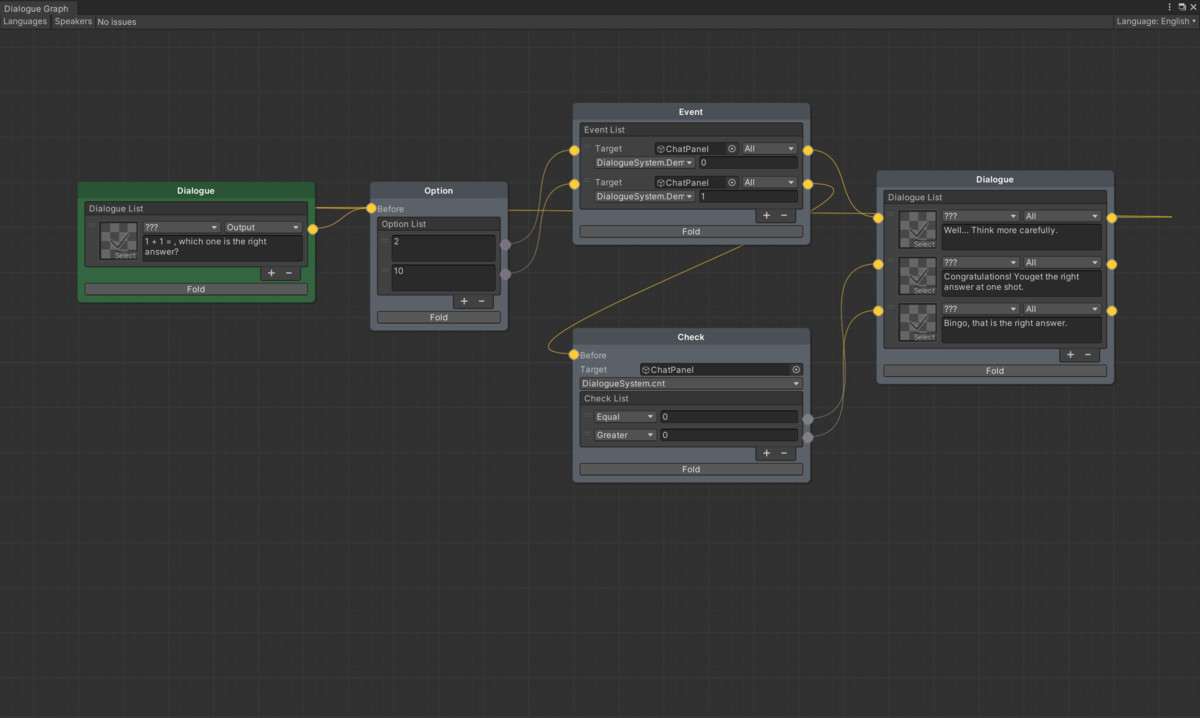
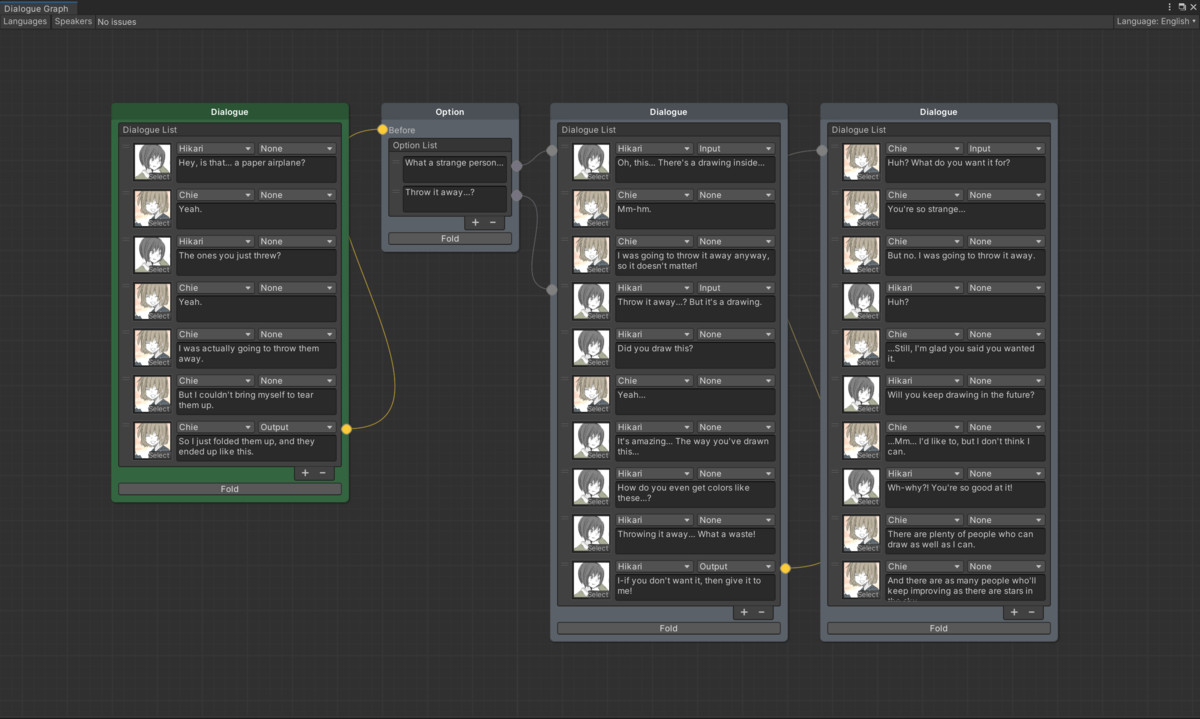
There are four different kind of nodes in Dialogue Editor. They are dialogue node (the most commonly used one), option node (making choices is also usual in games), event node (Invoke some public functions), check node (check a public variable, different value will lead different direction). The items in dialogue node and event node can have both input port and output port, this makes the node more flexible. Overall the flow of information is clear, only one thing needs to be taken care of is that if one item have an output port connect nothing, then it is an end point. By the way if the node is too long, you can also press the "Show less" button, it will save the connection info and show all of them.
Use
You need to load the graph you make as an scriptable object, then instantiate to use it. Generally, you will only use the chatInfo, optionInfo, and Next(). Though the Next(), you can get the type and relative information of the current step. And the you can get the corresponding information though dialogueInfo or optionInfo.
Asset uses XNode under MIT, see Third-Party Notices.txt file in package for details.
From the publisher's Asset Store listing.
Compatibility
| Unity version | Built-in | URP | HDRP | Custom |
|---|---|---|---|---|
| 2022.3.62f3 | Compatible | Compatible | Compatible | Compatible |
As listed on the Asset Store.