
 View on Asset Store (opens in new tab)
Package details
- Latest version
- 1.0
- Last updated
- First released
- Unity version
- 2022.3.35 or later
- Package size
- 473 KB
- Files
- 8
- Favorites
- 2
- Views in the past week
- 10
Price tracking
- Last checked
- Tracked since
- Lowest recorded
- $4.99 on
Keywords
- Search for script searching
- Search for script system template
- Search for Scripting
- Search for script searcher
- Search for script searcher system
- Search for script search framework
- Search for script finder tool
- Search for script finders
- Search for Script
- Search for script finder
- Search for script search
- Search for script finder template

Script Finder | Cross Platform Script Finder System & Framework
Script Finder locates GameObjects with specific scripts in scenes or prefabs, supporting tag, layer, and active scene filters. It enables quick selection, highlights objects, and tracks usage stats.
Affiliate link · Purchases support this site
Price history
Last 6 months
USDAsset preview
1 / 2
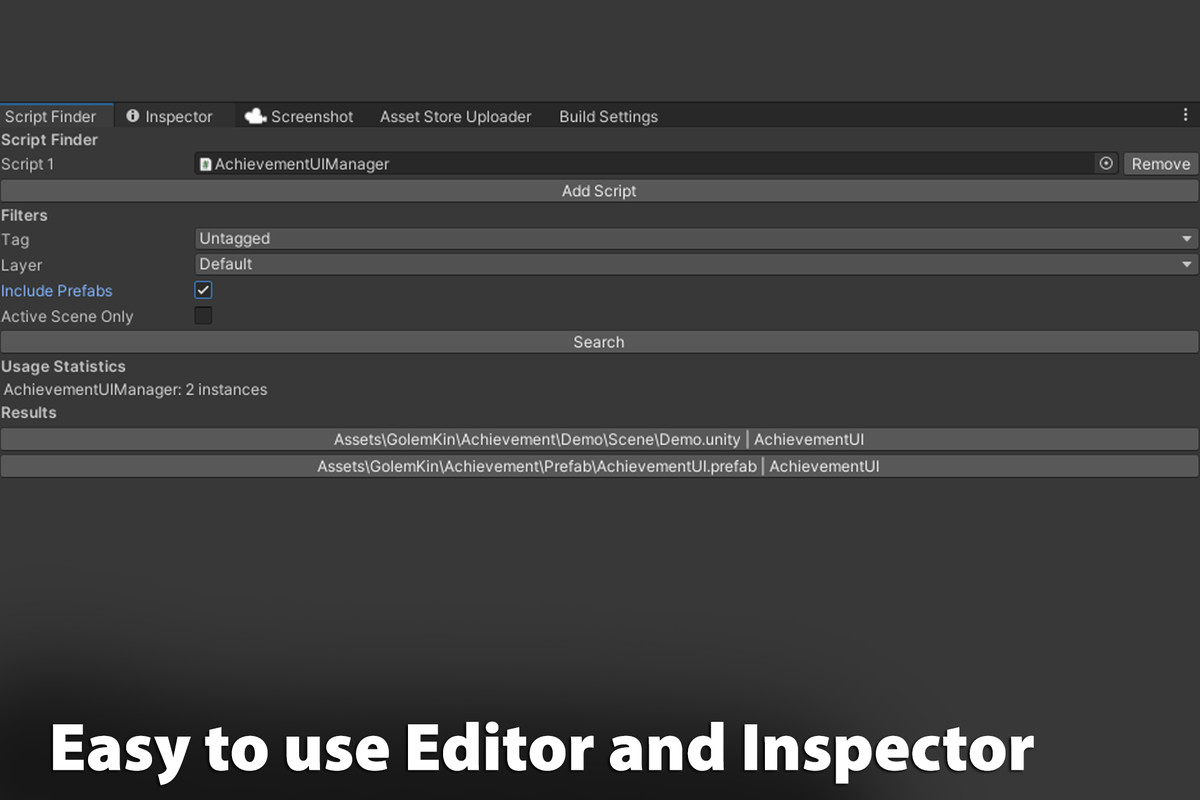
Script Finder | Cross Platform Script Finder System & Framework screenshot 1
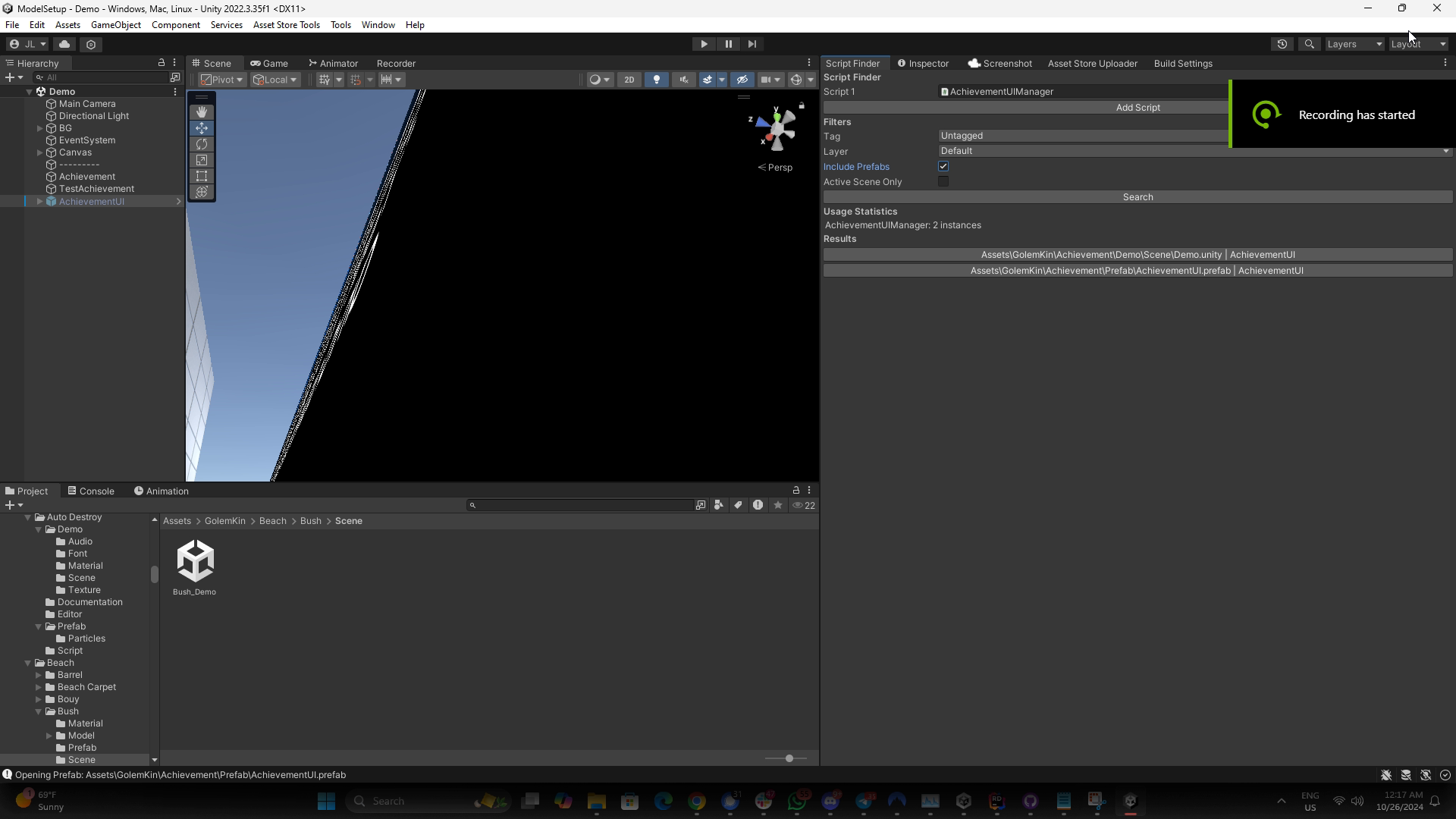
About this asset
Script Finder is a powerful Unity editor tool that helps developers quickly locate GameObjects with specific scripts across scenes or prefabs in a project. The tool offers options to filter search results by tags, layers, and active scenes, making it easy to find exactly what you need, even in large projects with complex hierarchies. It’s ideal for managing dependencies, debugging, and organizing GameObjects that share components.
Key Features and Examples
- Multi-Script Search: Add multiple scripts to search for at once. For example, if you're looking for GameObjects with both EnemyAI and HealthSystem scripts, add them to the search list, and Script Finder will display any objects containing these scripts.
- Filter by Tag and Layer: Use tag and layer filters to narrow down results. For instance, if you're working on a UI and want to find GameObjects with the Clickable script under the "UI" layer, just select the "UI" layer and run the search.
- Include Prefabs: Enable the "Include Prefabs" option to locate instances of scripts within prefab assets as well. This is helpful if you’re preparing prefabs for a project and want to check which prefabs have specific components, like a Clickable script in all interactive prefabs.
- Active Scene Only: Limit the search to the currently open scene if desired. This feature is useful when testing a single scene and searching for GameObjects with scripts such as LevelManager in the scene you’re working on.
- Usage Statistics: View a breakdown of how many times each script appears across your project. For example, after searching for EnemyAI, the tool will display how many instances are in the active scene or across the project, helping you assess the distribution of components.
- Clickable Results with Scene Switching: Click on any search result to open the relevant scene or prefab and highlight the GameObject. If a prefab is clicked, it opens in Prefab Mode. For example, clicking on an EnemySpawner GameObject will switch to its scene and select it in the hierarchy for quick edits.
- No Results Message: If no matches are found, a "No results found" message is displayed. This feedback is helpful for verifying that your project is free of specific scripts or objects.
With Script Finder, managing GameObjects with common scripts becomes a streamlined experience, especially in large projects with extensive prefabs and multiple scenes. It’s a valuable tool for debugging, organizing, and verifying GameObject setups.
From the publisher's Asset Store listing.
Technical details
Key Features and Examples
- Multi-Script Search: Add multiple scripts to search for at once. For example, if you're looking for GameObjects with both EnemyAI and HealthSystem scripts, add them to the search list, and Script Finder will display any objects containing these scripts.
- Filter by Tag and Layer: Use tag and layer filters to narrow down results. For instance, if you're working on a UI and want to find GameObjects with the Clickable script under the "UI" layer, just select the "UI" layer and run the search.
- Include Prefabs: Enable the "Include Prefabs" option to locate instances of scripts within prefab assets as well. This is helpful if you’re preparing prefabs for a project and want to check which prefabs have specific components, like a Clickable script in all interactive prefabs.
- Active Scene Only: Limit the search to the currently open scene if desired. This feature is useful when testing a single scene and searching for GameObjects with scripts such as LevelManager in the scene you’re working on.
- Usage Statistics: View a breakdown of how many times each script appears across your project. For example, after searching for EnemyAI, the tool will display how many instances are in the active scene or across the project, helping you assess the distribution of components.
- Clickable Results with Scene Switching: Click on any search result to open the relevant scene or prefab and highlight the GameObject. If a prefab is clicked, it opens in Prefab Mode. For example, clicking on an EnemySpawner GameObject will switch to its scene and select it in the hierarchy for quick edits.
- No Results Message: If no matches are found, a "No results found" message is displayed. This feedback is helpful for verifying that your project is free of specific scripts or objects.
Compatibility
| Unity version | Built-in | URP | HDRP |
|---|---|---|---|
| 2022.3.35f1 | Compatible | Not listed | Not listed |
As listed on the Asset Store.