
 View on Asset Store (opens in new tab)
Package details
- Latest version
- 1.0
- Last updated
- First released
- Unity version
- 2021.3.5 or later
- Package size
- 220 KB
- Files
- 16
- Favorites
- 9
- Views in the past week
- 5
Price tracking
- Last checked
- Tracked since
- Lowest recorded
- $9.99 on
Keywords

3D Layout Pro
- Price drop
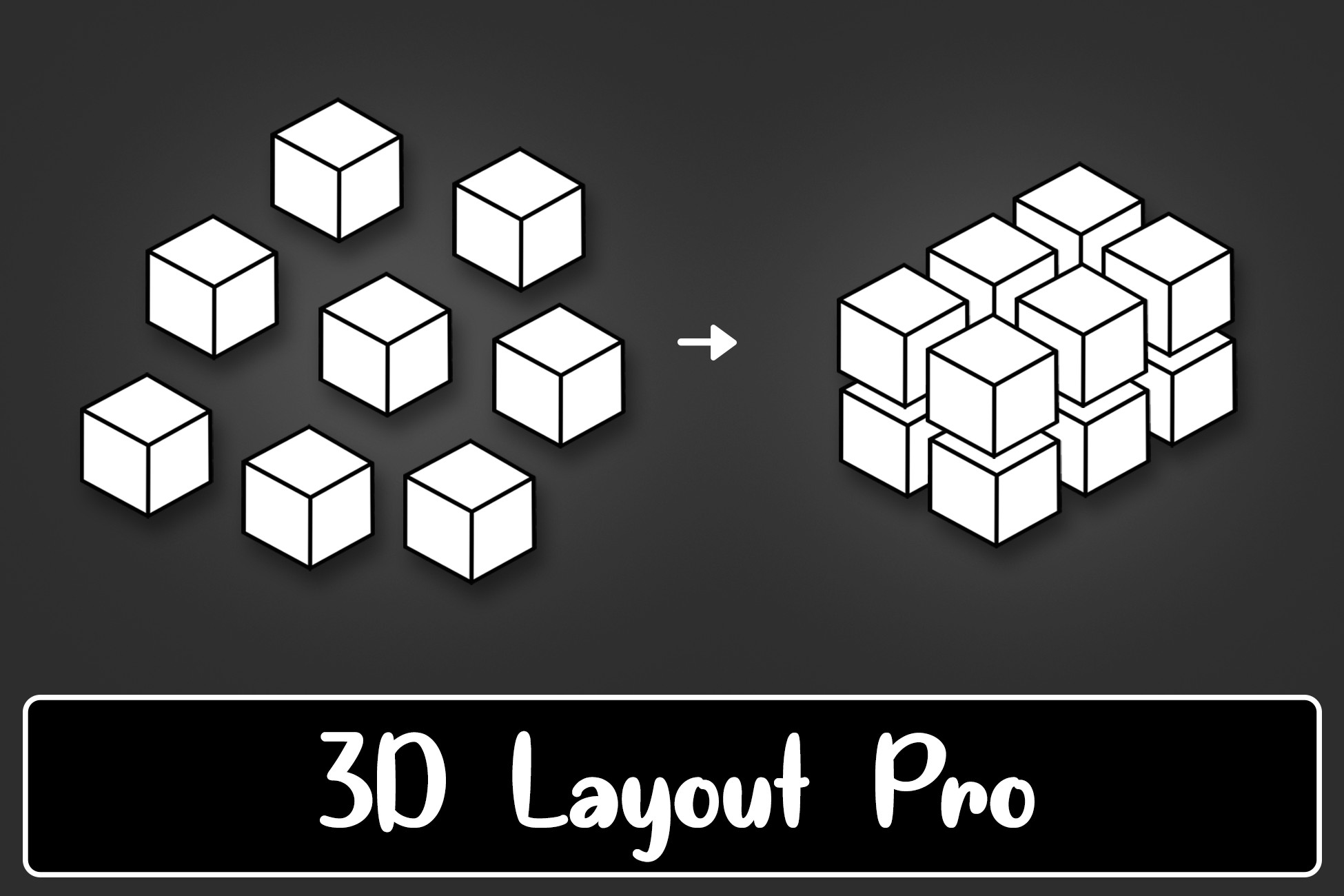
3D Layout Pro is a powerful Unity plugin that simplifies the alignment and organization of 3D objects in your scenes, perfect for games and simulations needing precise item placement.
Lowest recorded price
Get 33% off on Asset Store (opens in new tab)Affiliate link · Purchases support this site
Price history
Last 6 months
USDAsset preview
1 / 5

3D Layout Pro screenshot 1


About this asset
3D Layout Pro is a powerful Unity plugin designed to streamline the alignment and organization of 3D objects in your scenes. Perfect for games and simulations that require precise placement of items, this tool provides an intuitive interface and robust features to enhance your workflow.
Main Features
Object Alignment Window
- Open the window by clicking Tools > Align Objects.
- Drag objects to the specified area and configure the parameters.
- The objects will be automatically aligned according to the defined parameters.
3D Layout Group Component
- Create an empty object in the scene or use an existing GameObject.
- Add objects to the previously created empty object. The objects will be automatically aligned according to the defined parameters.
Item Manager & Container Component
The item management system is designed for games like supermarket simulators, where you create a database with item/product information, and they will be organized within a container, which can be a box or shelf, or any type of container you desire.
How to Use:
Create a New Item Database
- To create a new item database, open the “Item Database Editor” by clicking Tools > Item Database Editor and then click “New”.
- Now you can add new items to the database by clicking “Add Item”.
- Each item will have its parameters, such as Name, Quantity, Stand, Stack, Price, Icon...
- Quantity – Maximum quantity of items that will fit in the container.
- Stand – Whether the items will stand or lie down.
- Stack – Whether the items can be stacked on top of each other.
- Price – Set the initial price of the product.
- Icon – Set the icon (Sprite) that will be used on the product label.
- Prefab – Set the prefab that will be used as a base to generate the products.
Creating a Container:
- Add a Container component to an existing GameObject or create an empty GameObject for this purpose.
- You can configure parameters such as the size of the container in the Inspector.
- Here you can also select one of the items from the database to use as a base to define the appropriate size of the container for that particular item. This item selection is exclusive for testing in the Editor.
- The item can also be selected at runtime using the method ChangeSelectedItem(ItemData newItem).
- With everything configured, the Container component will generate an appropriate layout for the selected item based on the item's information, mainly its size.
From the publisher's Asset Store listing.
Technical details
Compatibility
| Unity version | Built-in | URP | HDRP | Custom |
|---|---|---|---|---|
| 2021.3.5f1 | Compatible | Compatible | Compatible | Compatible |
As listed on the Asset Store.