
 View on Asset Store (opens in new tab)
Package details
- Latest version
- 1.1
- Last updated
- First released
- Unity version
- 2022.3.16 or later
- Package size
- 198 KB
- Files
- 21
- Favorites
- 11
- Views in the past week
- 8
Price tracking
- Last checked
- Tracked since
- Lowest recorded
- Free on
Keywords

3D Path Drawing
Draw road indicators. It allows for the creation, cancellation, and management of paths between various points in the game world.
Price $4.99
Buy on Asset Store (opens in new tab)
Affiliate link · Purchases support this site
Price history
Last 6 months
USDAsset preview
1 / 4

3D Path Drawing screenshot 1


About this asset
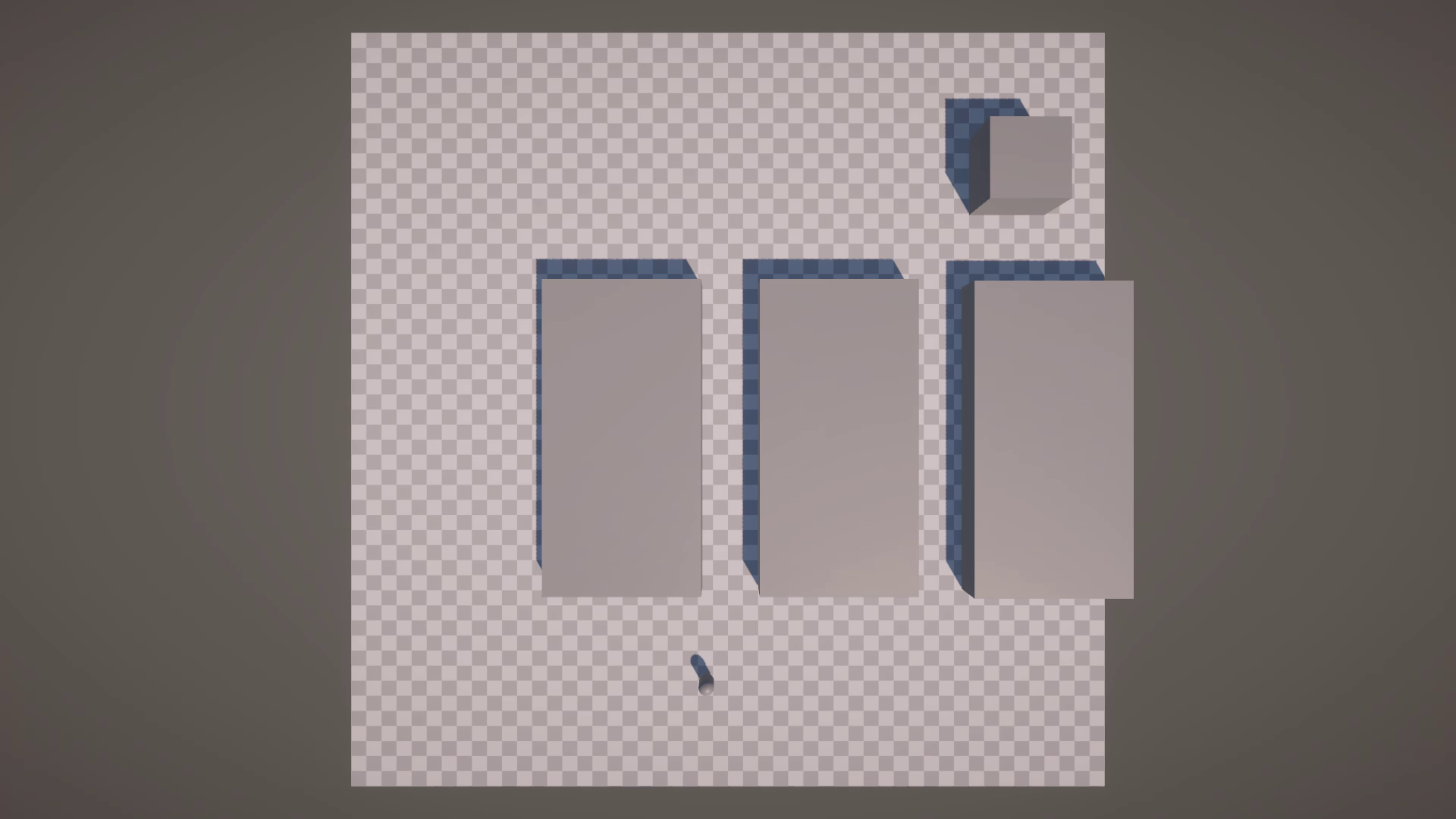
The Road Indicator package provides functionality for managing indicator paths in Unity. It includes a RoadIndicatorManager class responsible for setting up and managing the indicator paths. Key features include:
- Indicator Setup: The package allows setting indicator paths from the player's current position to designated destinations in the scene.
- Path Visualization: It visualizes the calculated path using a LineRenderer, enabling users to see the path from start to finish.
- Destination Management: Users can set destination points and customize parameters such as path width and destination point radius.
- Path Control: The package provides methods for setting and canceling indicator paths, giving users control over path creation and deletion.
From the publisher's Asset Store listing.
Technical details
Usage
- Drag and Drop: Road Indicator in your scene.
- Attach Script: Player Indicator: Assign a PlayerIndicator to the player GameObject.
- Create Location Indicators: Create an object or just assign a LocationIndicator to the point you want the player to go.
Customize each LocationIndicator with a unique ID.
If you have more than one location that represents one location such as multiple marketplaces make duplicate true so that when trying to set path it will select the nearest one to the PlayerIndicator. - Set PathCall the SetIndicator(string id) method with the desired location ID that is assigned in LocationIndicator to create a path from the player's current position.
- Cancel Indicator Path: Call the CancelIndicator(string id) method to cancel the path to a specific destination.
Example: RoadIndicatorManager.CancelIndicator("destination_id"); - EventsOnPathCompleted you can subscribe to OnPathCompleted to fire any custom scripts when the player reaches his destination.
OnPathCanceled you can subscribe to OnPathCanceled to fire any custom scripts when the player cancels his destination.
Compatibility
| Unity version | Built-in | URP | HDRP | Custom |
|---|---|---|---|---|
| 6000.2.7f2 | Compatible | Compatible | Compatible | Compatible |
| 2022.3.16f1 | Compatible | Compatible | Compatible | Compatible |
As listed on the Asset Store.