
 View on Asset Store (opens in new tab)
Package details
- Latest version
- 1.4.0.3
- Last updated
- First released
- Unity version
- 2020.3.21 or later
- Package size
- 1.8 MB
- Files
- 81
- Favorites
- 43
- Views in the past week
- 8
Price tracking
- Last checked
- Tracked since
- Lowest recorded
- Free on
Keywords
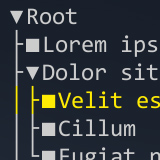
Treeview
The GUI element that represents an interactive tree.
Price Free
Get it free on Asset Store (opens in new tab)
Affiliate link · Purchases support this site
Price history
Last 6 months
USDAsset preview
1 / 2

Treeview screenshot 1

About this asset
Usage
- Scene selection.
- Developer or tester menu.
- Representation of tree objects with node controls.
Content
The project consists of C# scripts, other files are used for demonstration purposes.
- Scenes/TreeviewDemo.unity - demonstration scene with tree samples
- Textures/ - sprites for buttons and glyphs
- Treeview/ - C# scripts that represent tree entities and display GUI elements
- Glyphs.psd - Photoshop project template for creating glyphs in all states
- Slider.cs - shows the tree samples in TreeviewDemo.unity
- TreeviewDataExample.cs - example of a tree management algorithm
Get started
- Create an empty object.
- Add the Treeview.cs component.
- Set the font of the node.
- Set glyph font if branches and nodes will be represented as pseudographic text characters.
- Add the script that initializes and manages the tree hierarchy, such as TreeviewDataExample.cs.
From the publisher's Asset Store listing.
Technical details
Features
- The tree can be displayed in the Scene, Game and Inspector tabs.
- Glyphs representing branches and nodes can be textures or pseudographic text characters.
- The elements of the tree can be resized and repositioned.
- The component has its own inspector to customize the tree, the selected node and glyphs.
- The inspector has buttons for changing the position of the selected node in the tree hierarchy.
- To programmatically manage the hierarchy, it is enough to know OOP and List<T> from System.Collections.Generic.
Supported OS
Any OS with .NET and Unity support.
The project was created on Windows 10.