
 View on Asset Store (opens in new tab)
Package details
- Latest version
- 1.0
- Last updated
- First released
- Unity version
- 2020.1.0 or later
- Package size
- 1.0 MB
- Files
- 30
- Favorites
- 4
- Views in the past week
- 4
Price tracking
- Last checked
- Tracked since
- Lowest recorded
- $5.99 on
Keywords
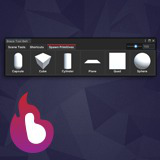
Braze Tool Belt
Are you looking to easily add custom tools to the Unity Editor? Braze Tool Belt allows you to display any static function in your application, as a UI tile within the belt.
Affiliate link · Purchases support this site
Price history
Last 6 months
USDAsset preview
1 / 7

Braze Tool Belt screenshot 1


About this asset
Overview
Braze Tool Belt is an editor extension which allows you to simply and easily mark static functions in your application as a tool. These tools can be grouped into tabs, which are then displayed within the Braze Tool Belt editor window.
The tool belt has been created to make your development life easier within the Unity Editor. Common actions or processes you undertake can now be moved into the tool and be just one click away.
Customisation
- Over 20 different customisation options to tweak within your project settings, defaults have been setup so you don't have to change anything if you dont want to
- Braze Tool Belt has 3 layout modes, Horizontal, Vertical and Dynamic to make sure you get the most out of your available editor space
- You have the ability to specify the name, tooltip, icon, and sort order for each tool within the tool belt
- Full control over size and padding of tools within the window
Usage
1. Install the plugin from the package manager
2. Find a static function you want to make a tool within the Braze Tool Belt
3. Add "Using BrazeToolBelt;" to the top of your C# file
4. Add [BrazeTool()] above your function
5. Go to the "Tools" menu in the Unity Editor (located on the top most ribbon in-between "Component" and "Window")
6. Within the Tools menu you will find "Braze Tool Belt"
For more usage information check out the user guide.
Feedback
We are more than happy to get feedback and improvment suggestions for Braze Tool Belt. Please contact us through our email or through social media.
Social Links
YouTube
From the publisher's Asset Store listing.
Technical details
Features
- Simple and easy to use tool belt window
- Tools are automatically gathered and displayed within the window on script recompile
- Tools are separated into tabs for easy navigation
- 3 Layout modes in the the tool belt window make sure you get the most of your available editor space
- Over 20 different customisation options to tweak, displayed in the project settings
- Modify the size of tools within the tool belt using a slider that you can set up to your liking in the Braze Tool Belt project settings
For more information check out the user guide.